3. Search
The Search feature is designed to master and streamline your data retrieval process, allowing you to quickly locate and filter information with ease. Its intuitive layout ensures efficient navigation and precise results. Navigate to Search from the left-side menu.
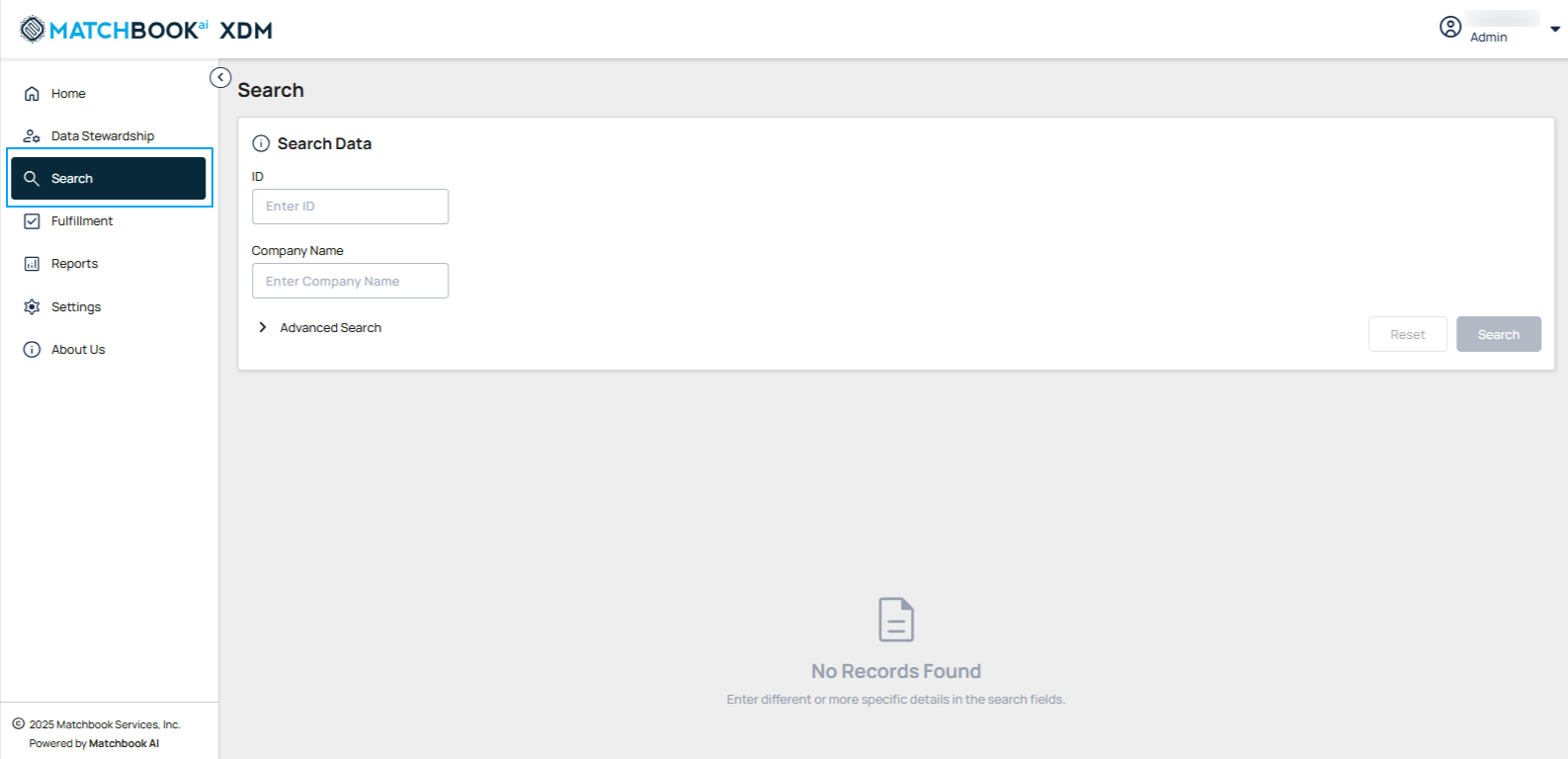
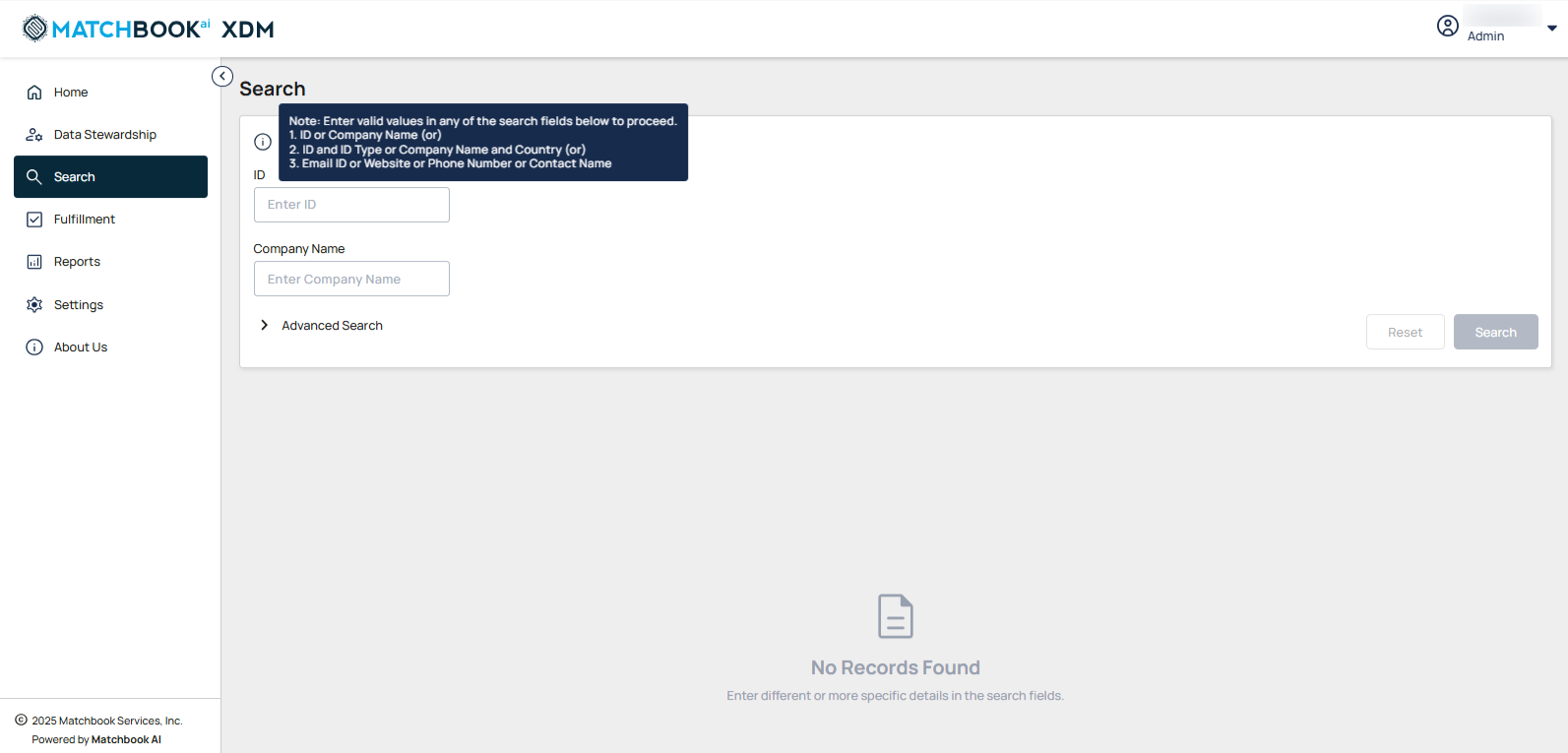
When you hover over the information icon (ⓘ) beside Search Data, it displays the valid values to be entered before proceeding with the search.
Note
Enter valid values in any of the search fields below to proceed.
ID (or)
Company Name
There are two ways to search for data which is mandatory.
By ID
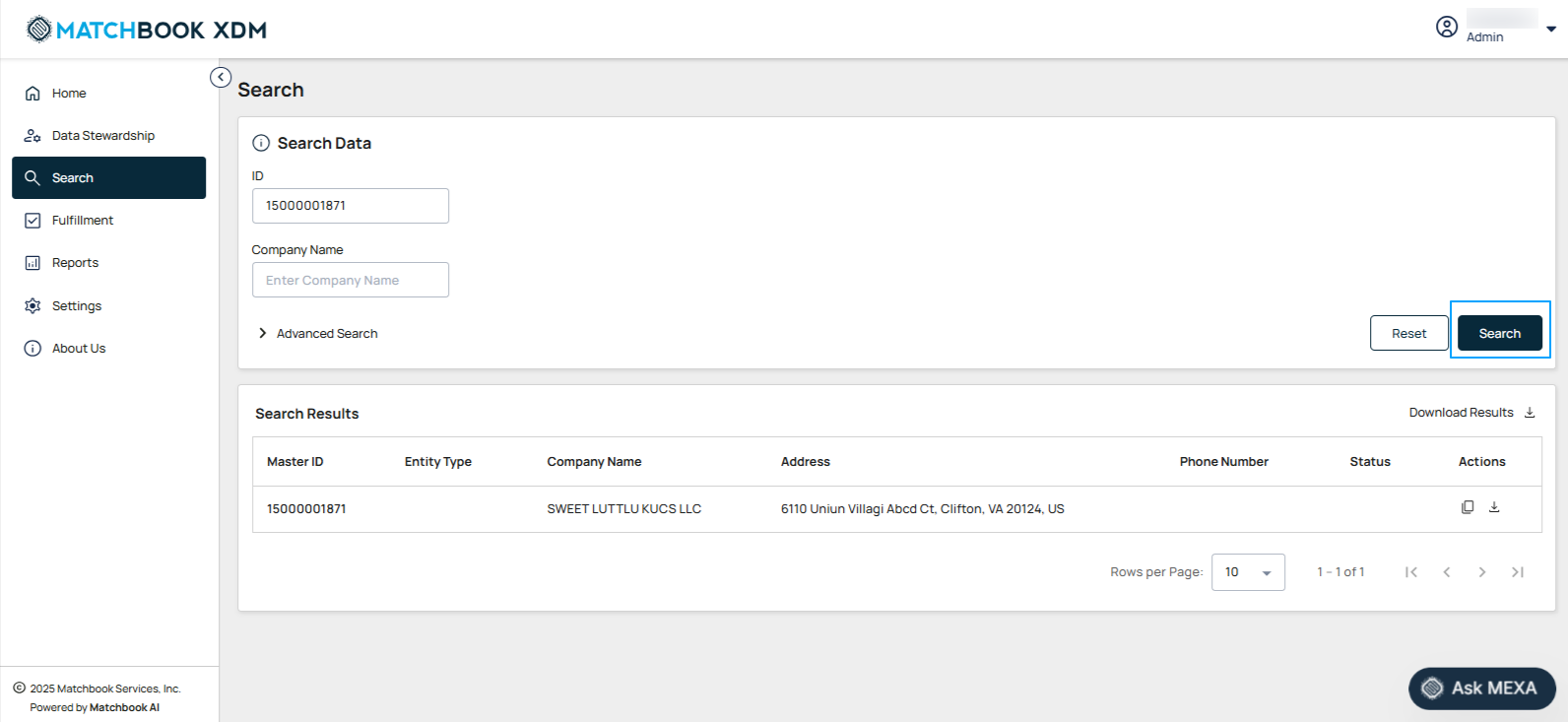
Users can search the data by ID without selecting an Identifier Type, as the system automatically considers all identifier types to simplify the search experience. Enter the ID and click Search. Then, the results will be displayed in a sortable table.
Click Reset to discard the changes; all fields will be cleared.
Note
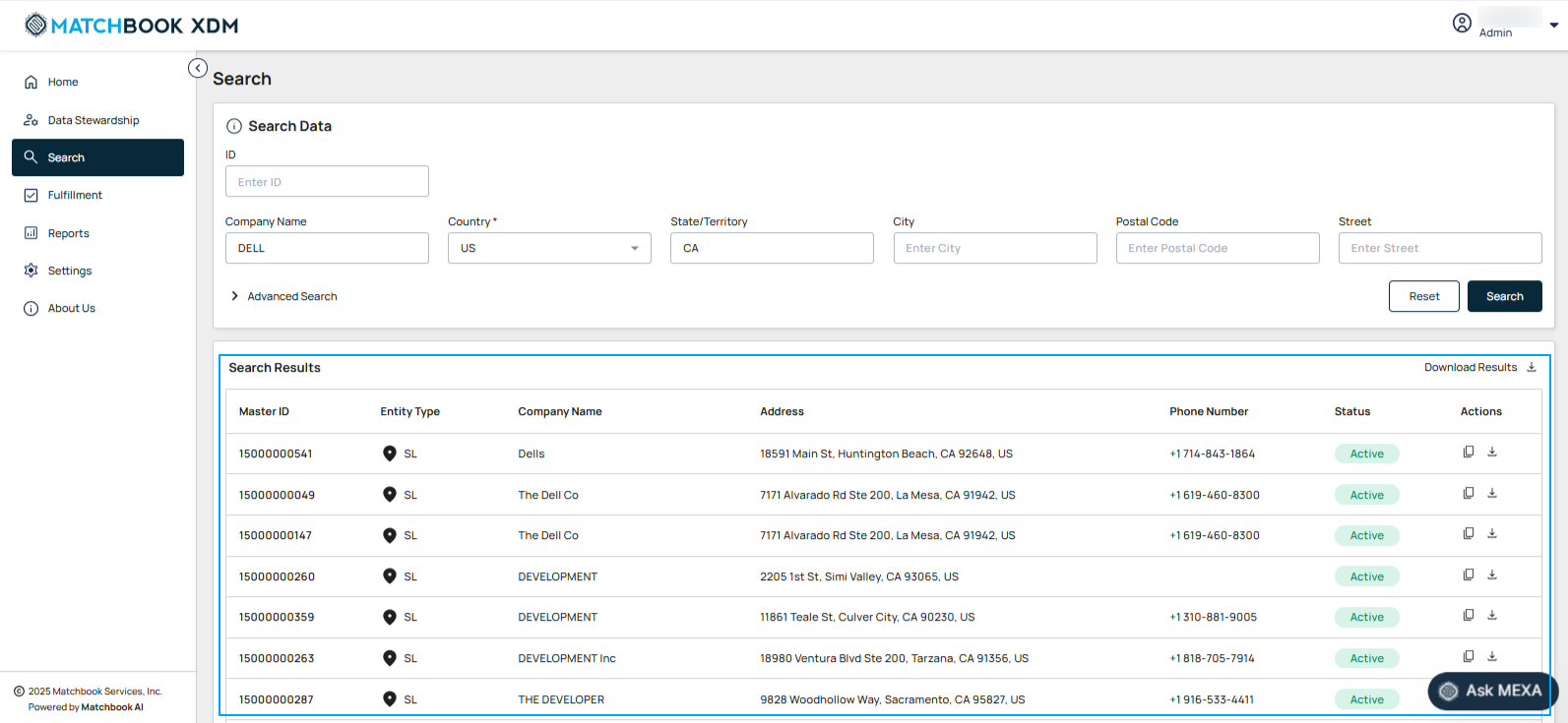
Download Results: By clicking on this button, the result will be downloaded in JSON format.
Under the Actions column, you can export the results in JSON format using the Download button (for a particular record) or use the Copy button to copy the data in JSON format.
By Company Name
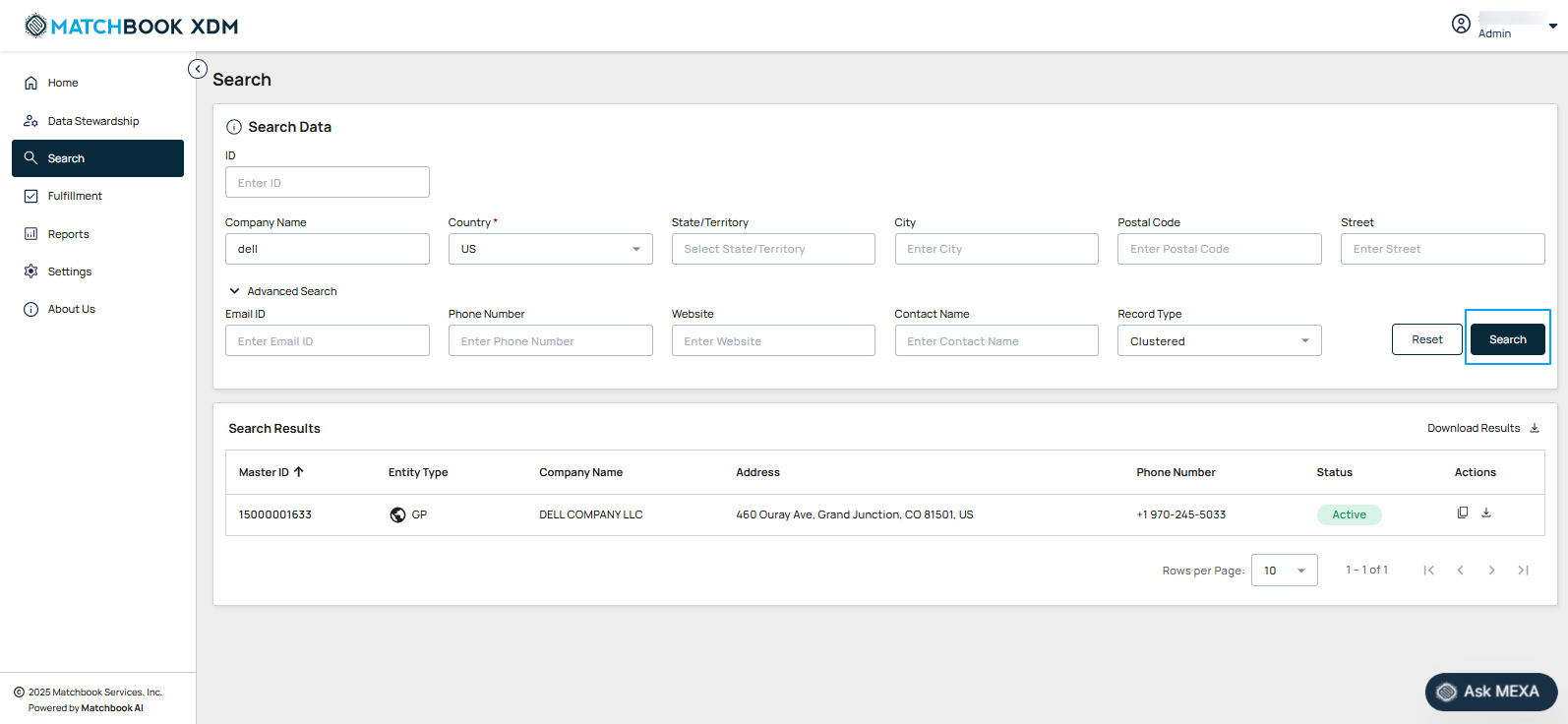
Users can search for data by company name. After entering the Company Name, additional input fields are displayed.
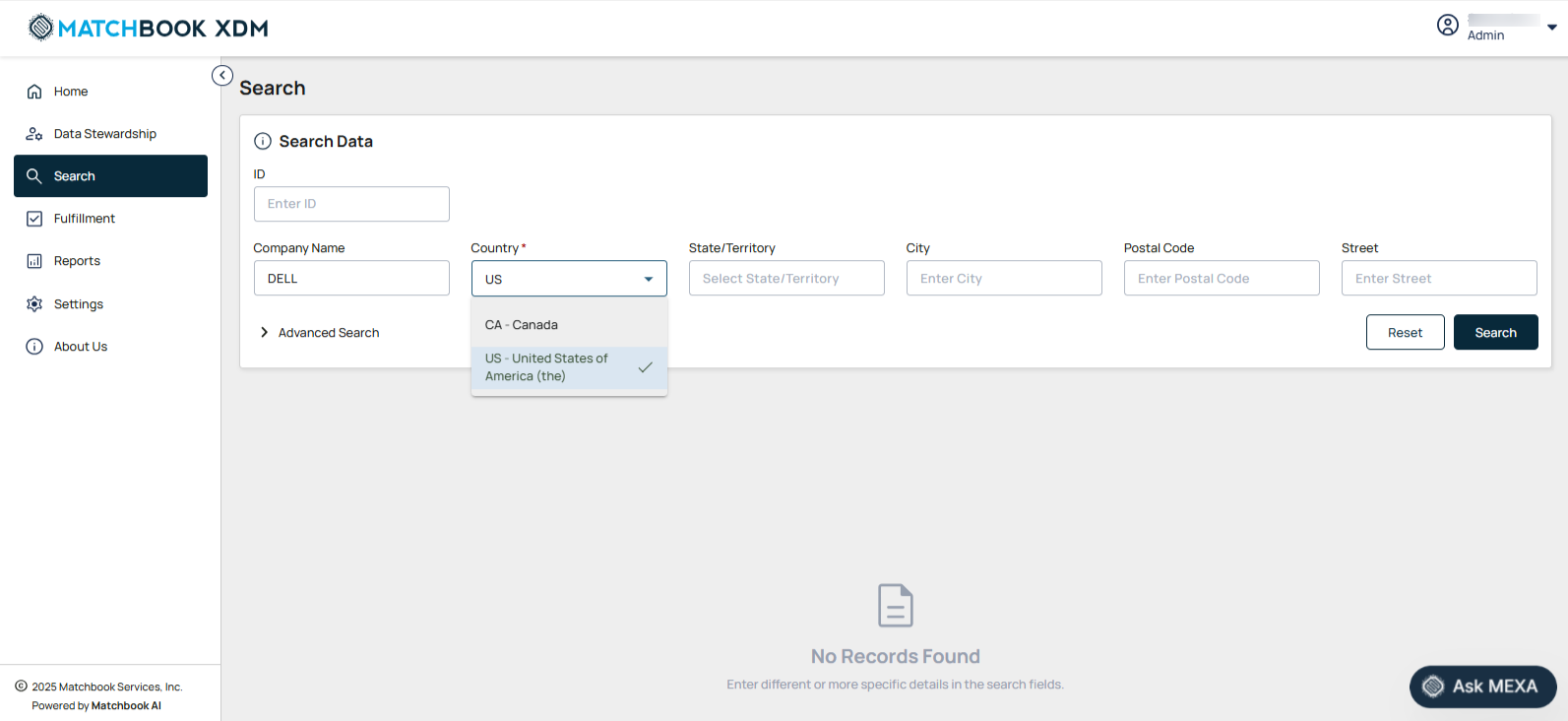
The description of input fields for searching data based on Company Name has been provided in the table below.
Field |
Description |
|---|---|
Company Name |
Input a company name to filter results based on associated records. Note: Once the user enters the company name, other fields are auto-populated. |
Country |
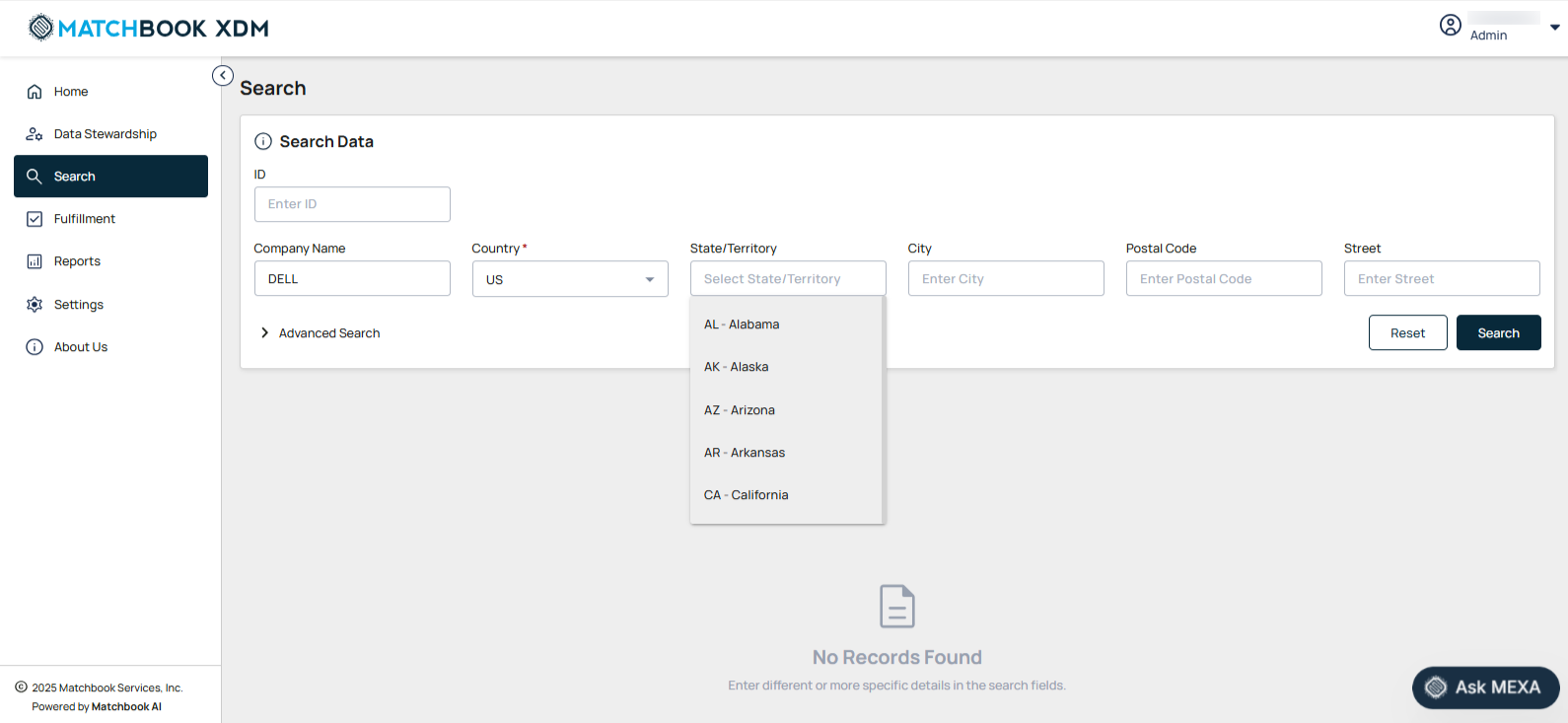
Select the country from the dropdown list. The State field dynamically responds to the selected Country, showing only relevant options from imported data. Note: This is a mandatory input when searching data by Company name. |
State/Territory |
Enter the name of the state or territory. |
City |
Input the city name for precise filtering. |
Postal Code |
Provide the postal code for accurate location identification. |
Street |
Enter the street address for detailed searches. |
Once the Country is selected, the State field dynamically responds to the selected Country as shown in the screen below. After the required fields are entered, click Search.
Note
If you want to discard the changes and clear all fields, click Reset.
The results will be displayed in a sortable table.
By Advanced Search
Users can search for data by using Advanced Search. After clicking on expand icon (˅) beside Advanced Search, additional input fields are displayed. These fields are described below.
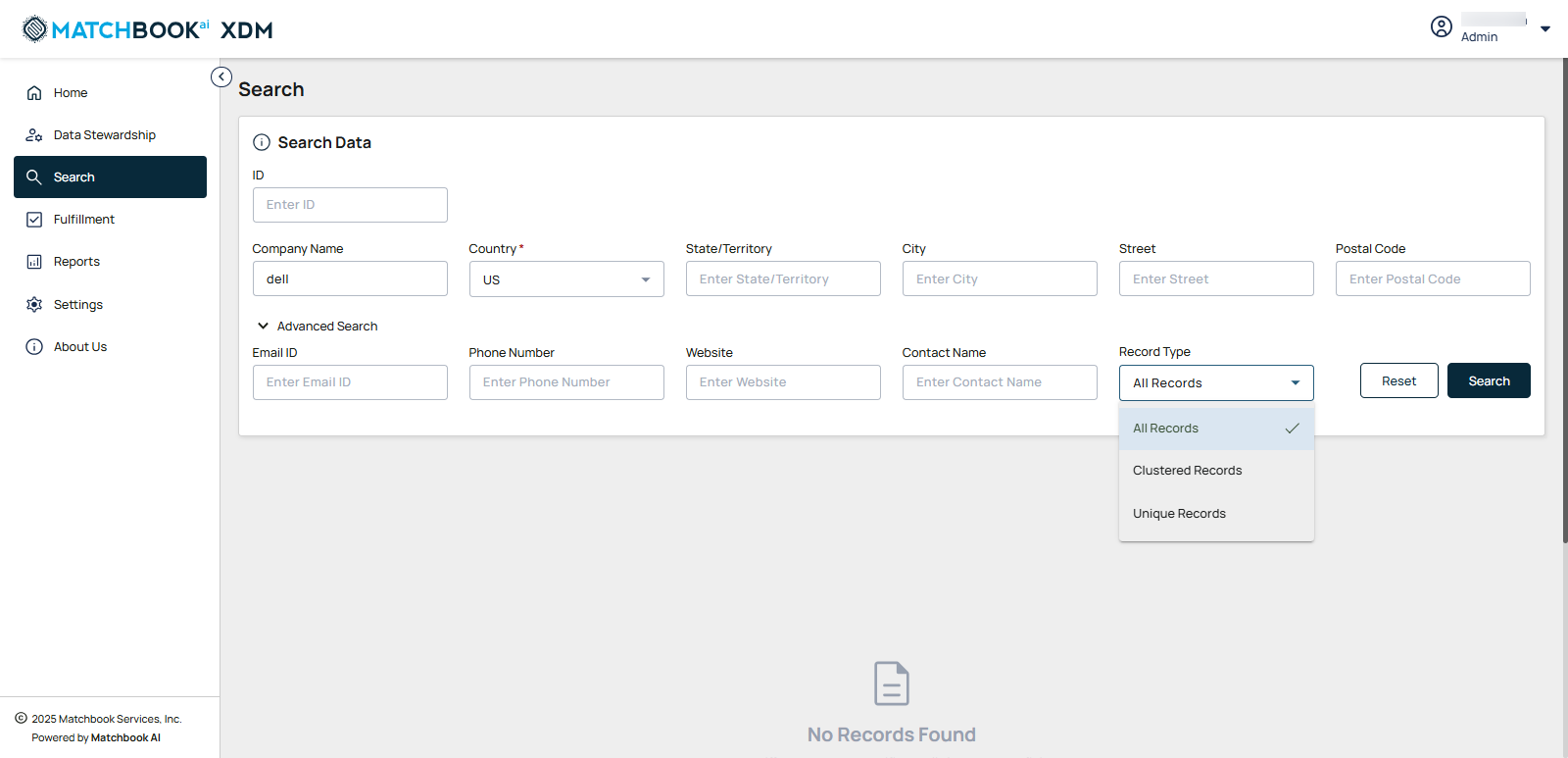
Field |
Description |
|---|---|
Enter the email address for targeted search or filtering. |
|
Phone Number |
Input the phone number for precise contact identification. |
Website |
Provide the website name to narrow down results. |
Contact Name |
Enter the name of the contact person for specific records. |
Record Type |
This field makes it easier to navigate large datasets and isolate records that require specific attention.
|
Click Search. The results will be displayed in a sortable table, allowing easy organization. If you want to discard the changes and clear all fields, click Reset.