4. Fulfilment
The Fulfilment module enables users to upload raw or source data for rapid processing and mastering. It is designed to ingest, standardize, match, deduplicate, and enrich incoming records against the existing master data repository, resulting in clean and unified master records.
This module is ideal for one-off or ad hoc data loads.
Unlike traditional full-scale ETL-based mastering, Fulfilment offers a faster and more targeted approach to master data creation, particularly useful for specific use cases or segmented datasets. It accelerates data readiness and reduces reliance on complex backend data integration processes.
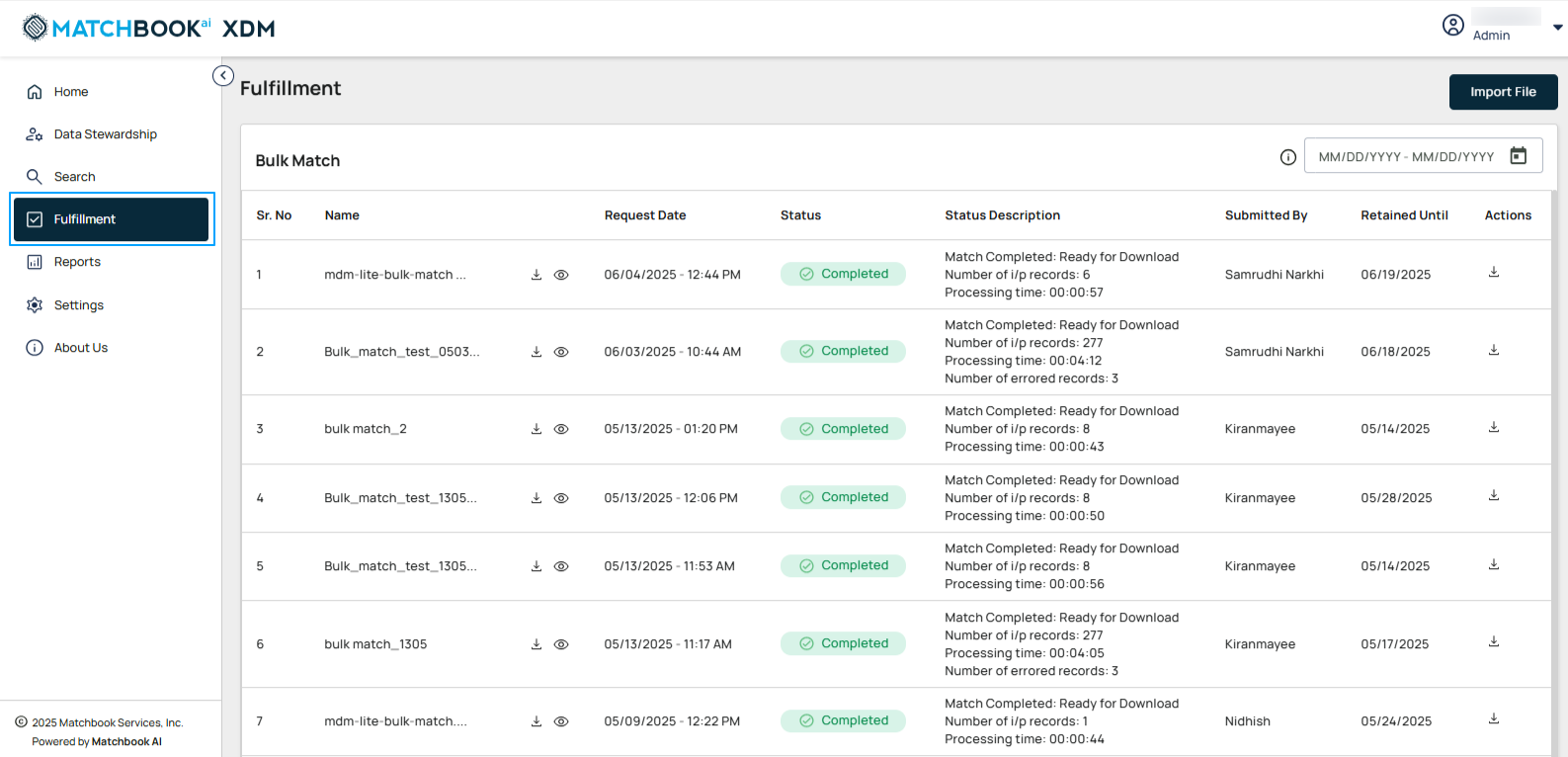
Navigate to Fulfilment from the left-side menu.
4.1 Bulk Match
The Bulk Match capability within the Fulfilment module allows users to perform data mastering by uploading raw data files and processing them through a guided matching and standardization workflow.
With Bulk Match, users can:
Upload source files (e.g., customer lists, vendor data)
Configure match settings, including thresholds, rules, and key identifiers
Map file columns to standard master data attributes
Execute the mastering process, matching against existing master records, deduplication, and enrichment
The goal of Bulk Match is to rapidly and accurately integrate large volumes of external or operational data into the master data repository without relying on full-scale ETL processes enabling quick and efficient mastering of raw data.
The Bulk Match feature enables users to submit company data by uploading files and automatically match it against the master database. It returns validated, enriched results by identifying exact and closely related matches, helping teams verify data, remove potential duplicates, and standardize records at scale.
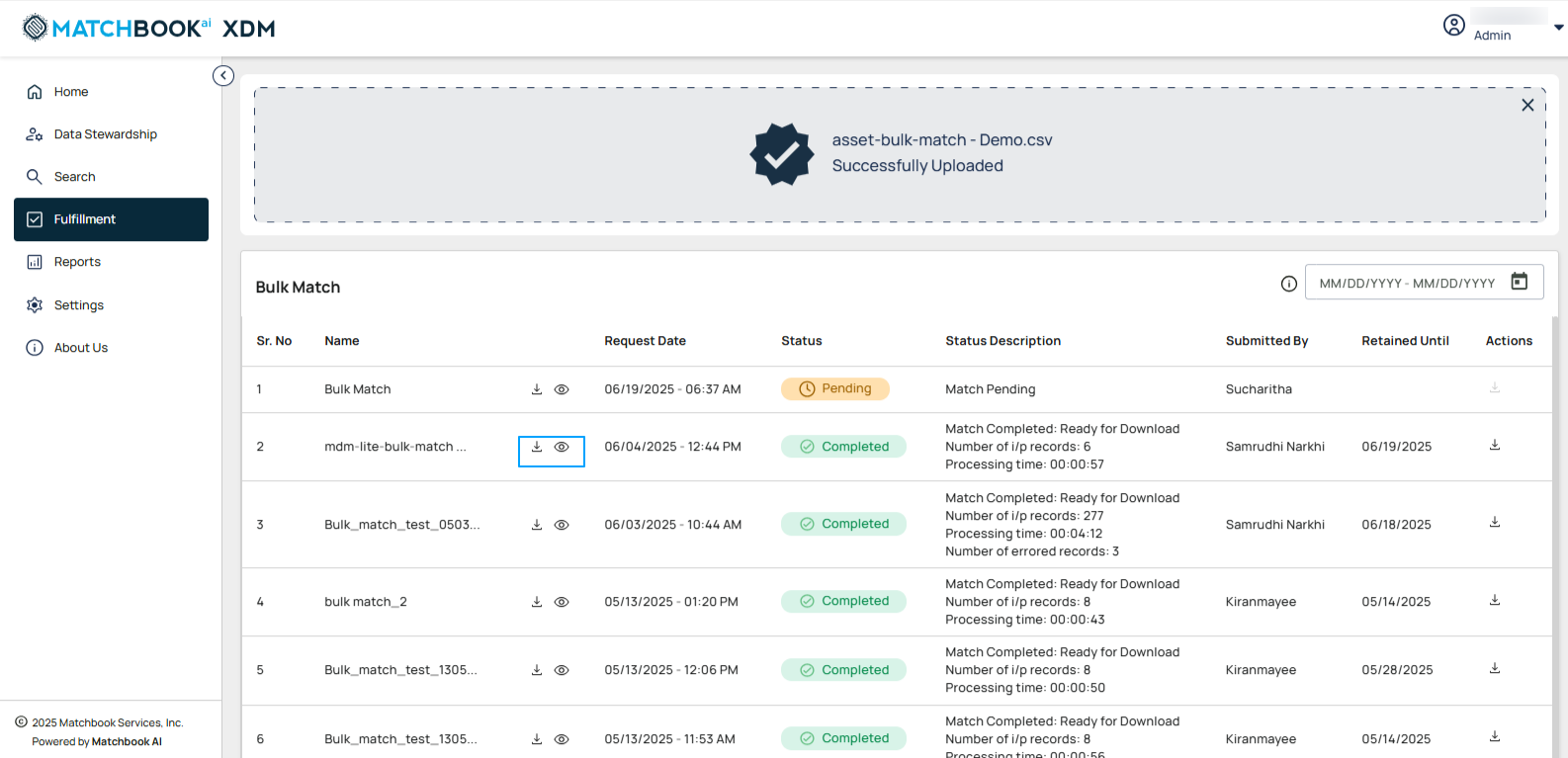
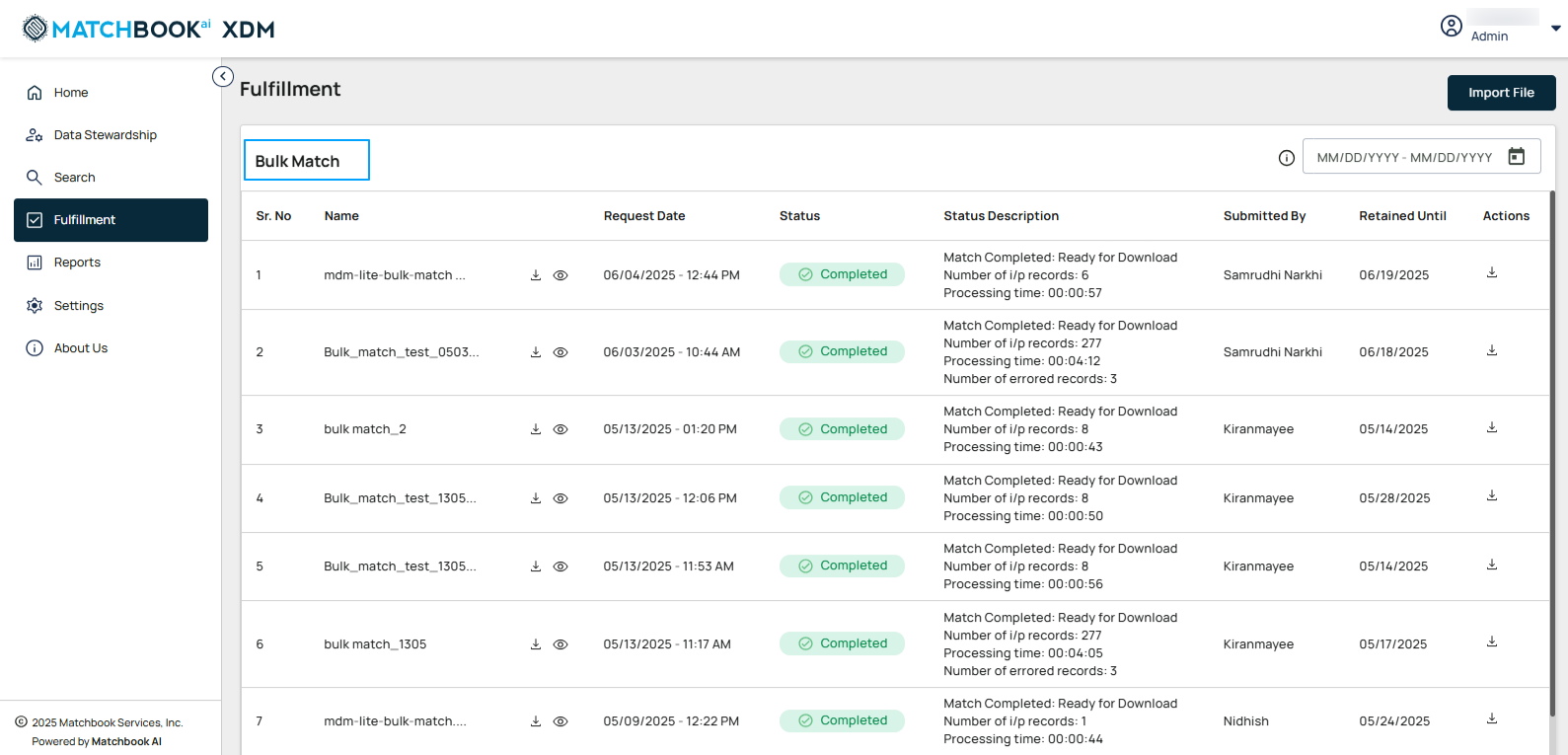
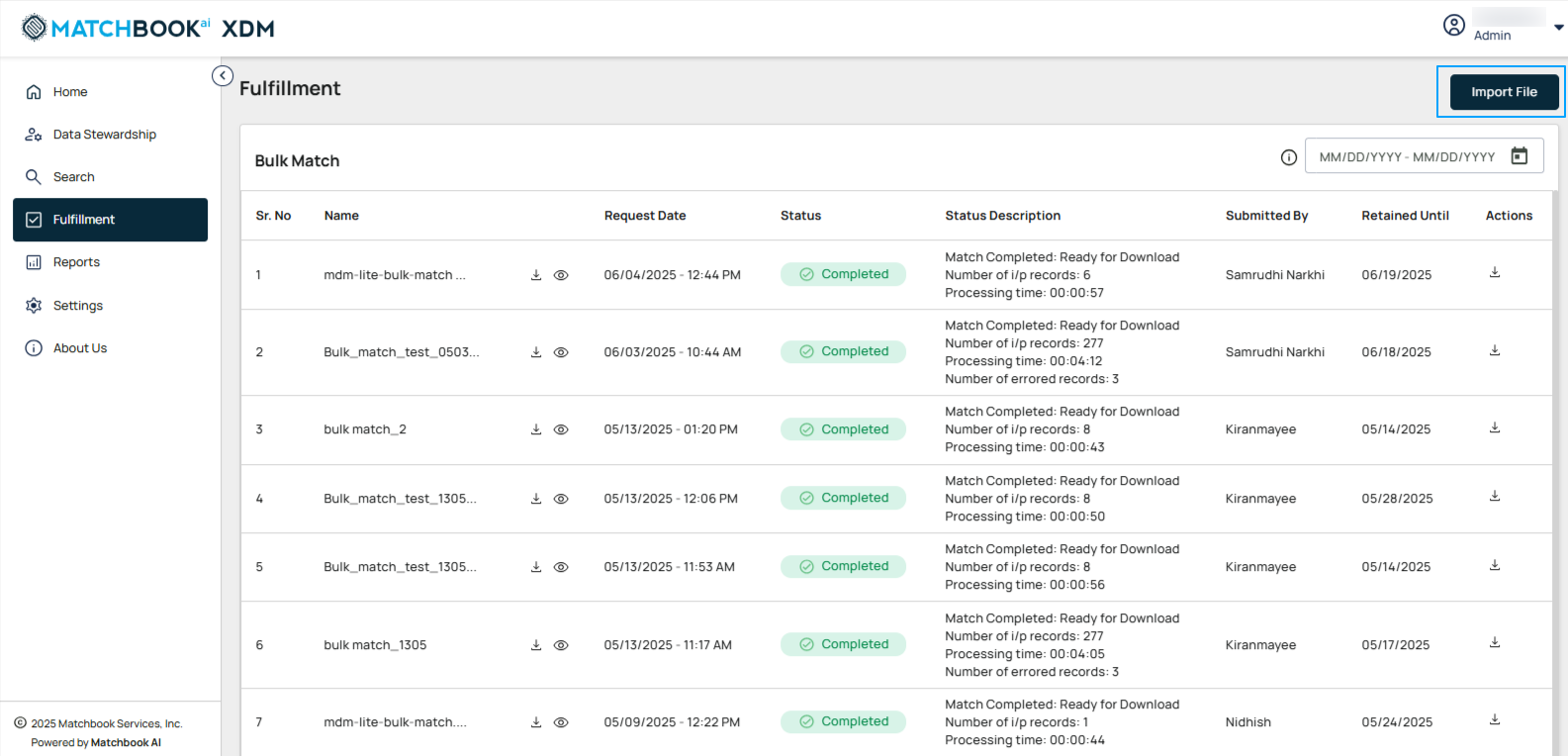
The Bulk Match page will display a table showing the uploaded files along with their current statuses, providing a clear overview of the matching process and progress for each file.
Field |
Description |
|---|---|
Name |
The unique identifier or title of the dataset being processed. |
Request Date |
The date when the request for processing was initiated or submitted. |
Status |
The current processing status of the operation (e.g., Pending, In Progress, Completed). |
Status Description |
A brief explanation or additional details about the status of the operation. |
Submitted By |
The user or system that submitted the request for processing. |
Retained Until |
The date until which the data or results are kept or accessible in the system. |
Actions |
The available operation that can be performed under Actions column is Download. |
4.1.1 Filter a date Range
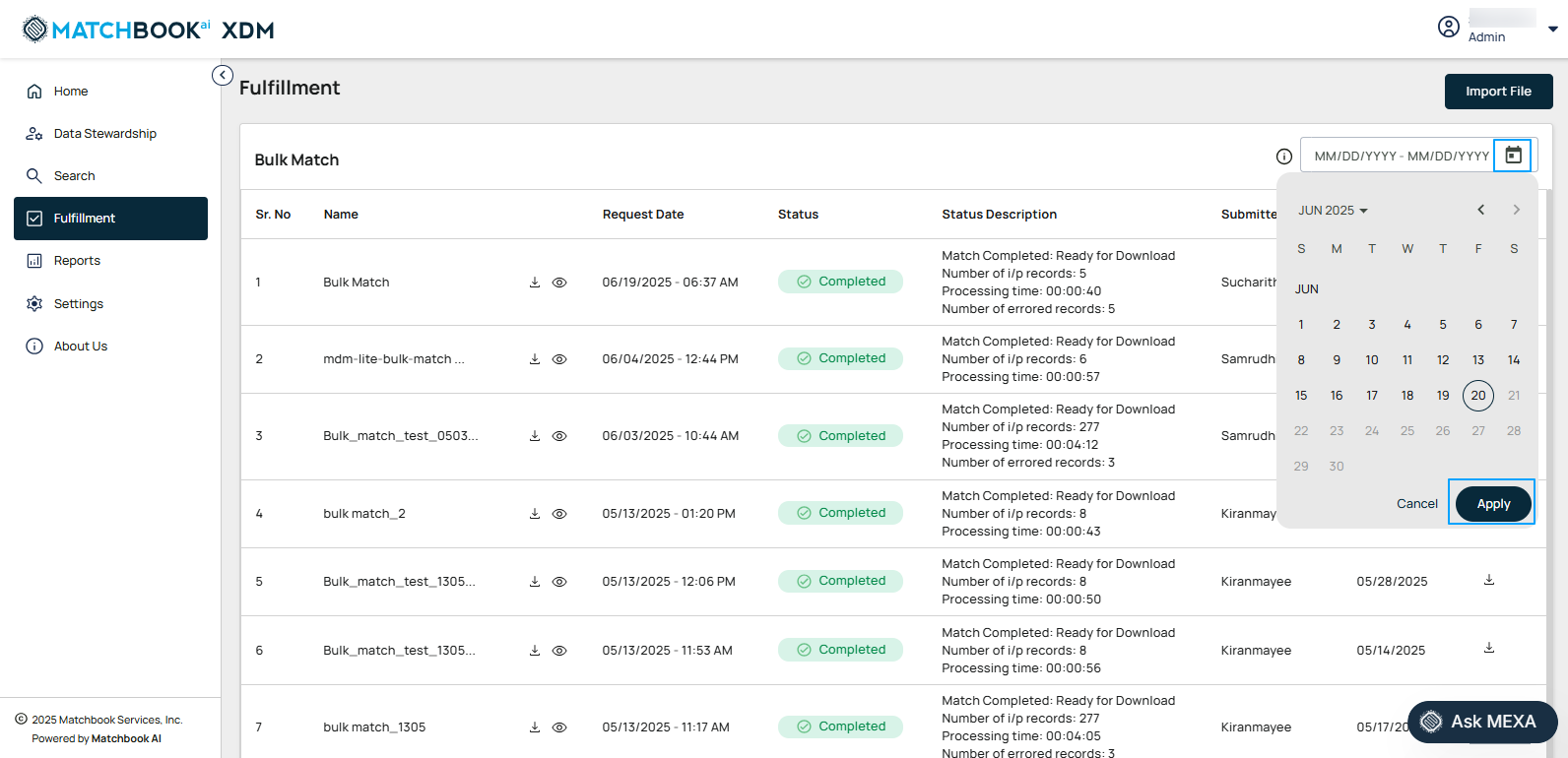
Select a date range to view the processed files within a specific period. Select the calendar button on the right and enter a date range in the field provided.
Click Apply.
4.1.2 Import File
To upload files, click the Import File button.
A new pop-up window opens, select the .csv file which is a raw file and upload it by clicking on Browse button.
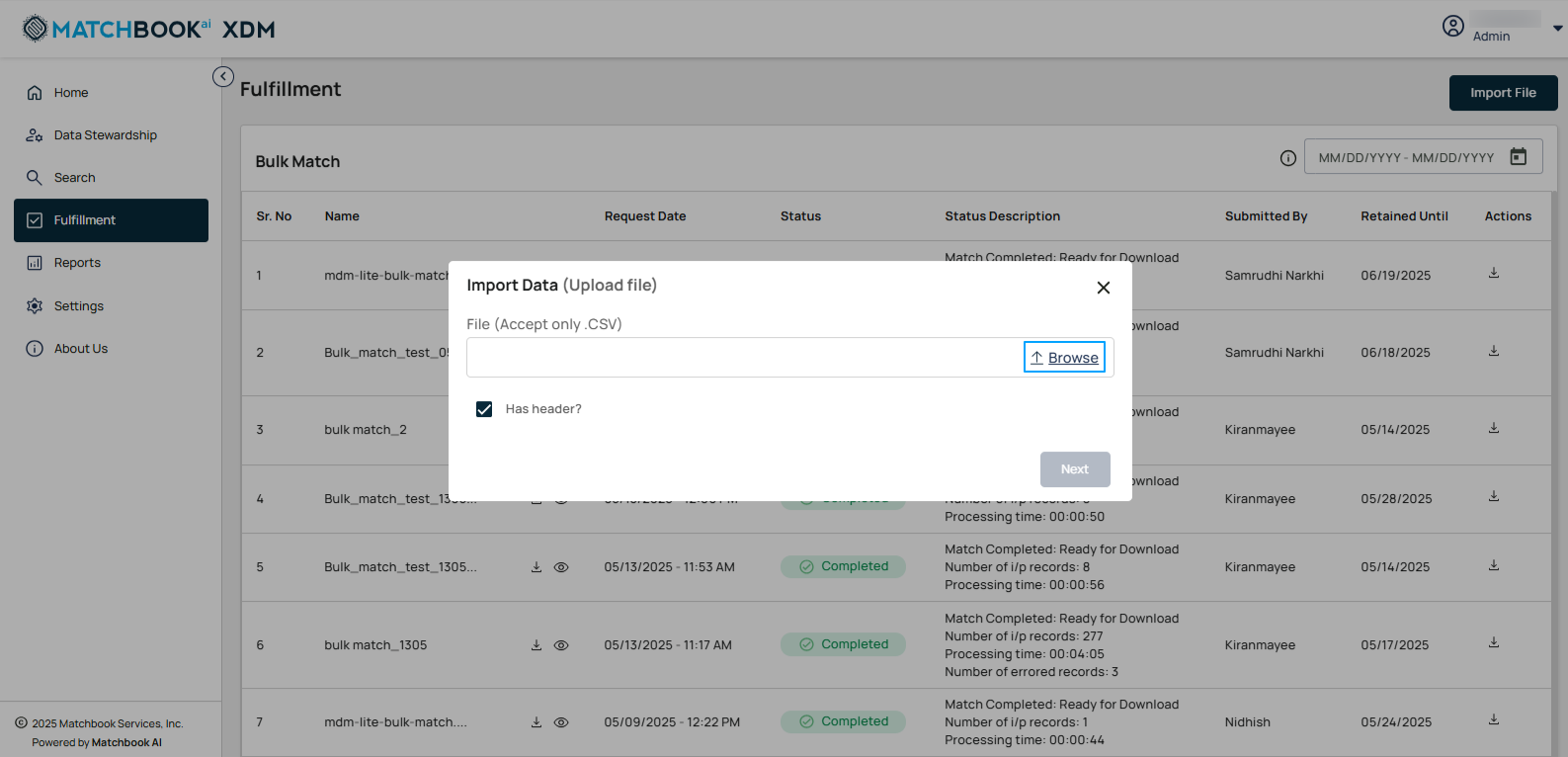
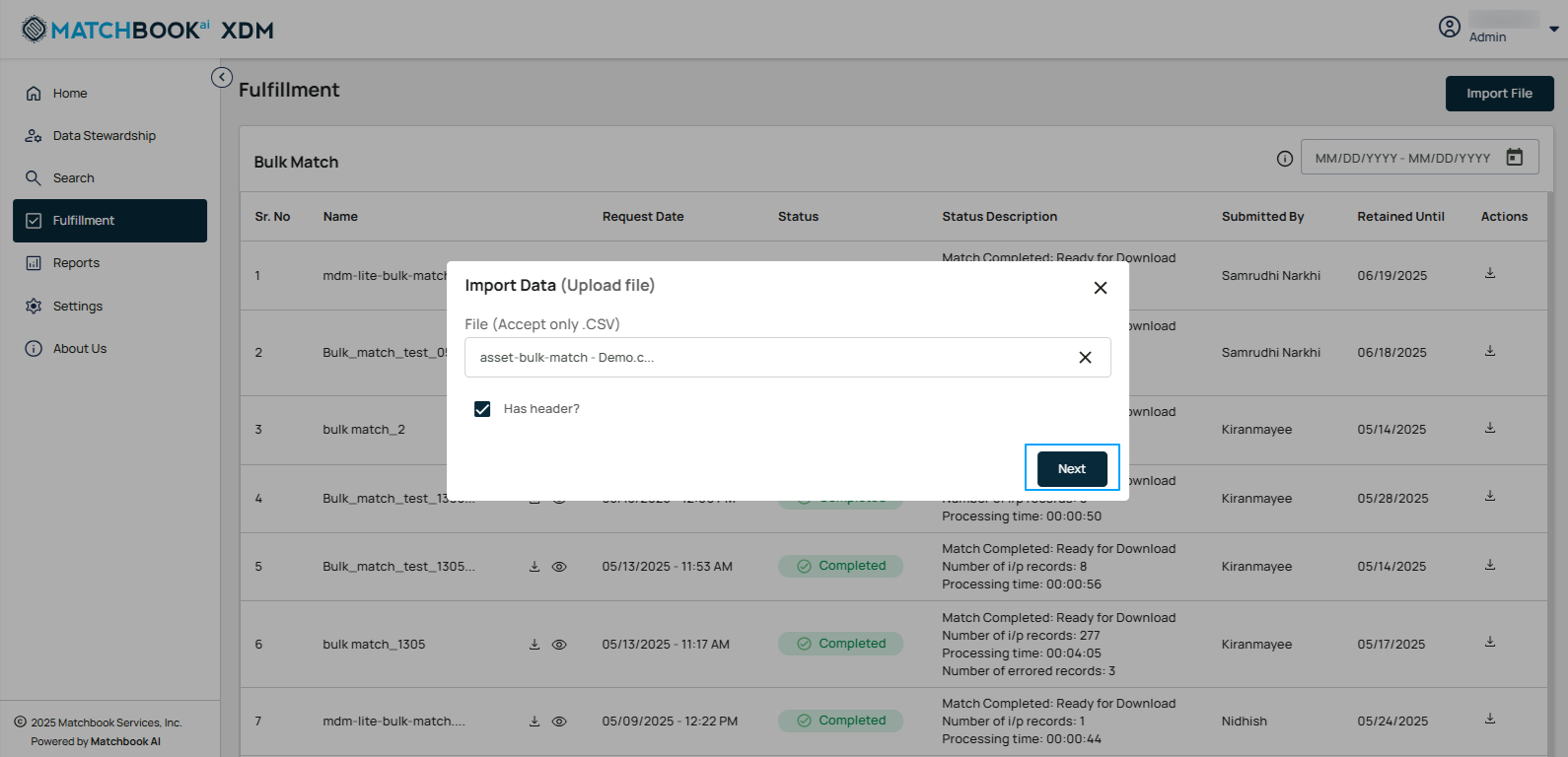
Specify whether the source file contains headers by checking the Has Header checkbox. This lets the system know that the data mapping is to be performed from the 2nd row. By default, Has Header check box is checked.
Note
If Has Header checkbox is not selected then the data mapping is to be performed from the 1st row.
Once the file is uploaded, click on Next. This process allows you to easily import data into the system for further processing.
4.1.3 Match Settings
This allows users to define and customize thresholds, limits, and data retention rules to optimize matching processes and prioritize tasks efficiently.
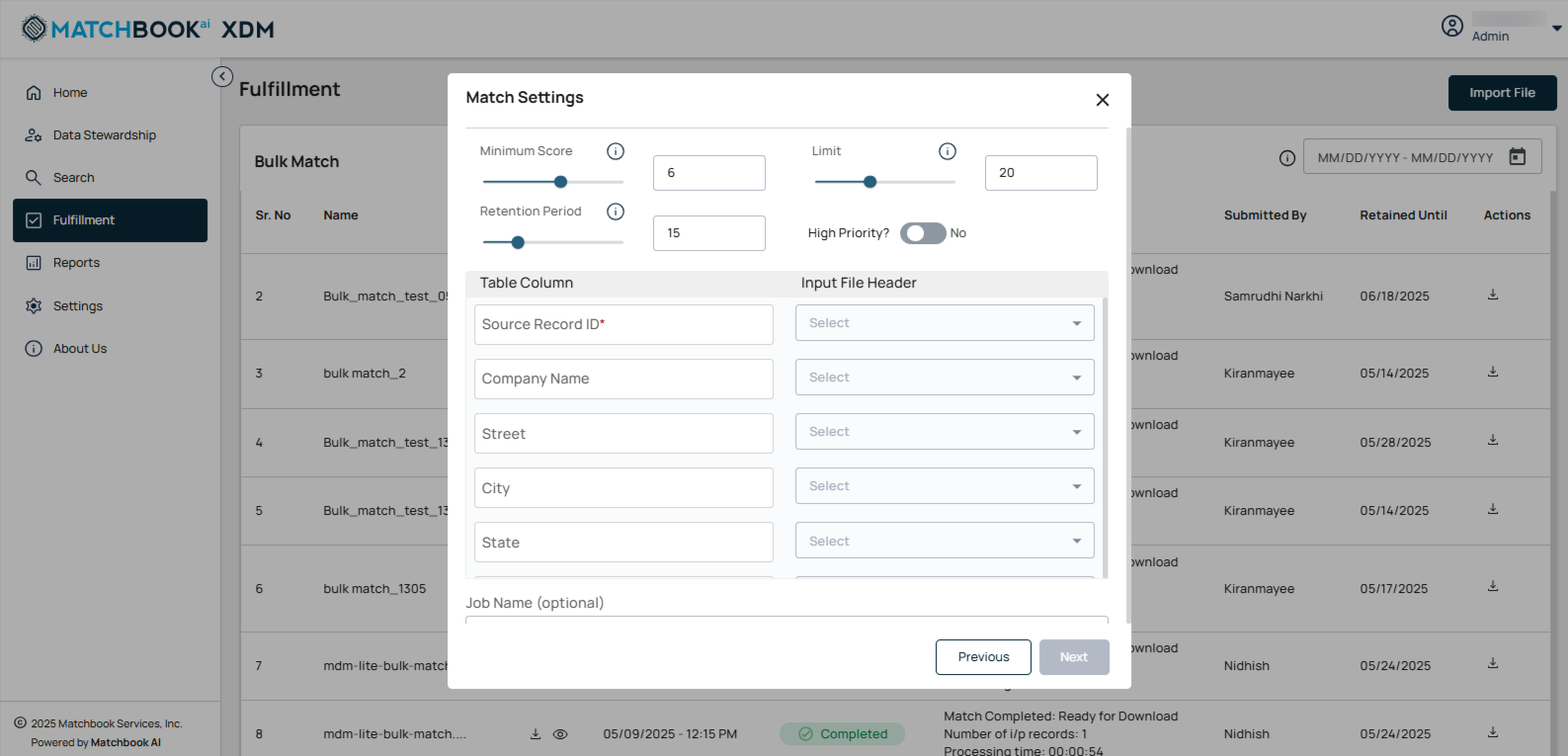
The table below provides descriptions of the match settings options listed above:
Field |
Description |
|---|---|
Minimum Score |
The lowest matching confidence score required to consider a record as a match. |
Retention Period |
The duration for which the matched data will be stored in the system. |
Limit |
The maximum number of records allowed per bulk match request. |
High Priority |
An option to prioritize the processing of the bulk match job. |
Under Column Mapping, there are two columns: Table Column and Input File Header.
Column Mapping: Column mapping ensures the accurate alignment of data fields between an input file and the database table, facilitating reliable data transfer and processing. Each column in the table corresponds to a header in the input file. The uploaded file for matching follows specific parameters, and the system automatically generates all records that match those criteria.
Note
For perfect match, Source Record ID and at least 1 more parameter under the column mapping is mandatory (For this use case, Source Record ID and Company Name are selected).
All the fields under the Input File Header column has a drop-down menu with various options (for example, SrcRecordID, Manufacturer, and Model), selecting one will automatically update for data mapping.
Field |
Description |
|---|---|
Source Record ID |
A unique identifier for the original record submitted for matching. From the drop-down menu, select as per your requirements. |
Company Name |
The official registered name of the company or entity. |
Street |
The street address of the company as submitted in the input. |
City |
The city that is associated with the company’s address. |
State |
The state or region specified in the company’s address. |
Scroll down to view additional match settings options.
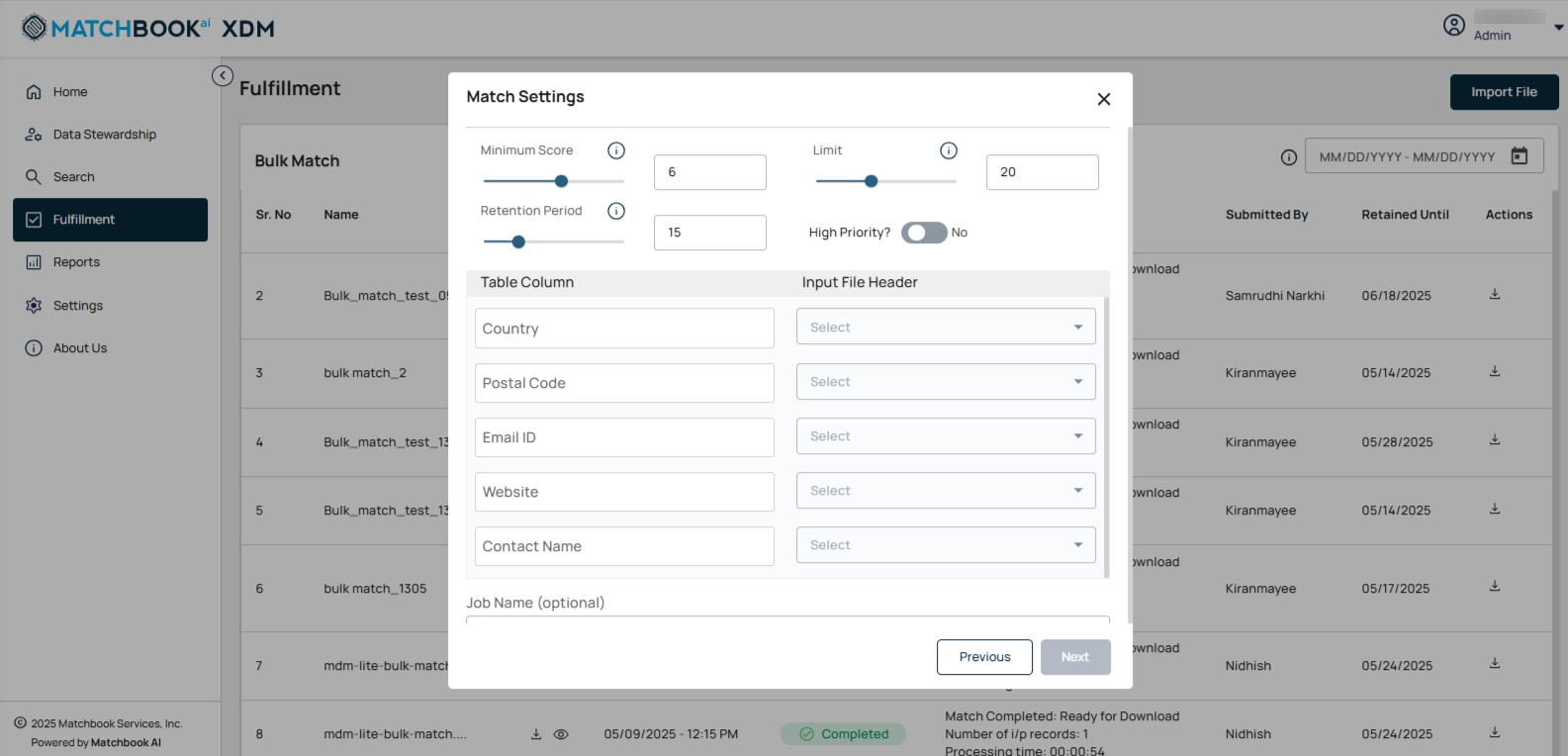
The table below provides descriptions of the match settings options:
Field |
Description |
|---|---|
Country |
The country associated with the company’s address. |
Postal Code |
The postal or ZIP code provided in the company’s address. |
Email ID |
The email address linked to the company or contact person. |
Website |
The company’s official website URL. |
Contact Name |
The name of the primary contact person associated with the company. |
Scroll down to view the remaining match settings options.
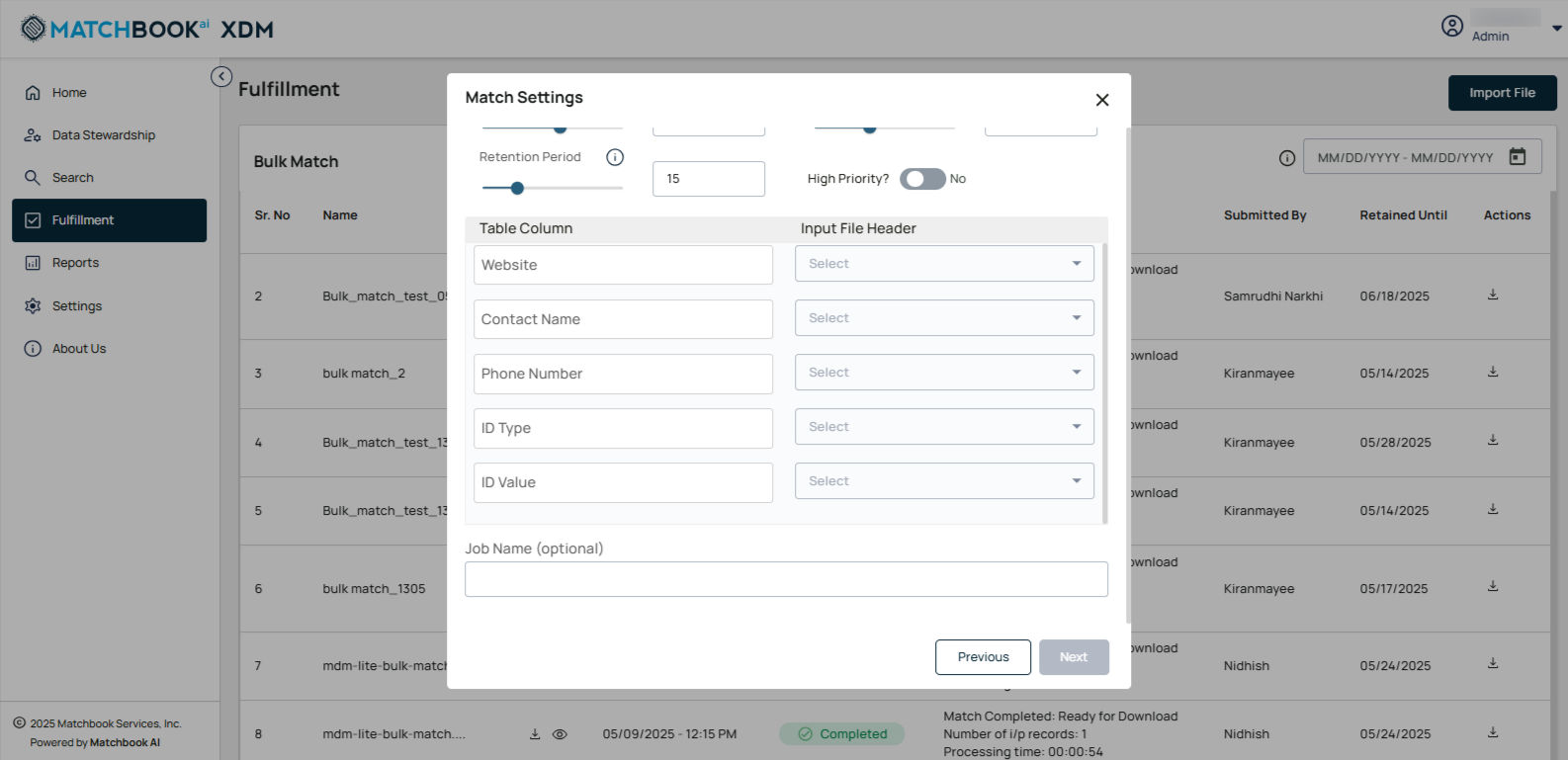
The table below provides descriptions of the match settings options listed above:
Field |
Description |
|---|---|
Website |
The company’s official website URL. |
Contact Name |
The name of the primary contact person associated with the company. |
Phone Number |
The primary contact number for the company. |
ID Type |
One or more unique identifiers associated with the entity. List of Identifiers:
Note: There could be multiple IDs from different sources. |
ID Value |
The actual value of the identification number corresponding to the ID Type. |
Job Name (Optional) |
A user-defined label to identify or describe the matching job (optional field). |
Click Next.
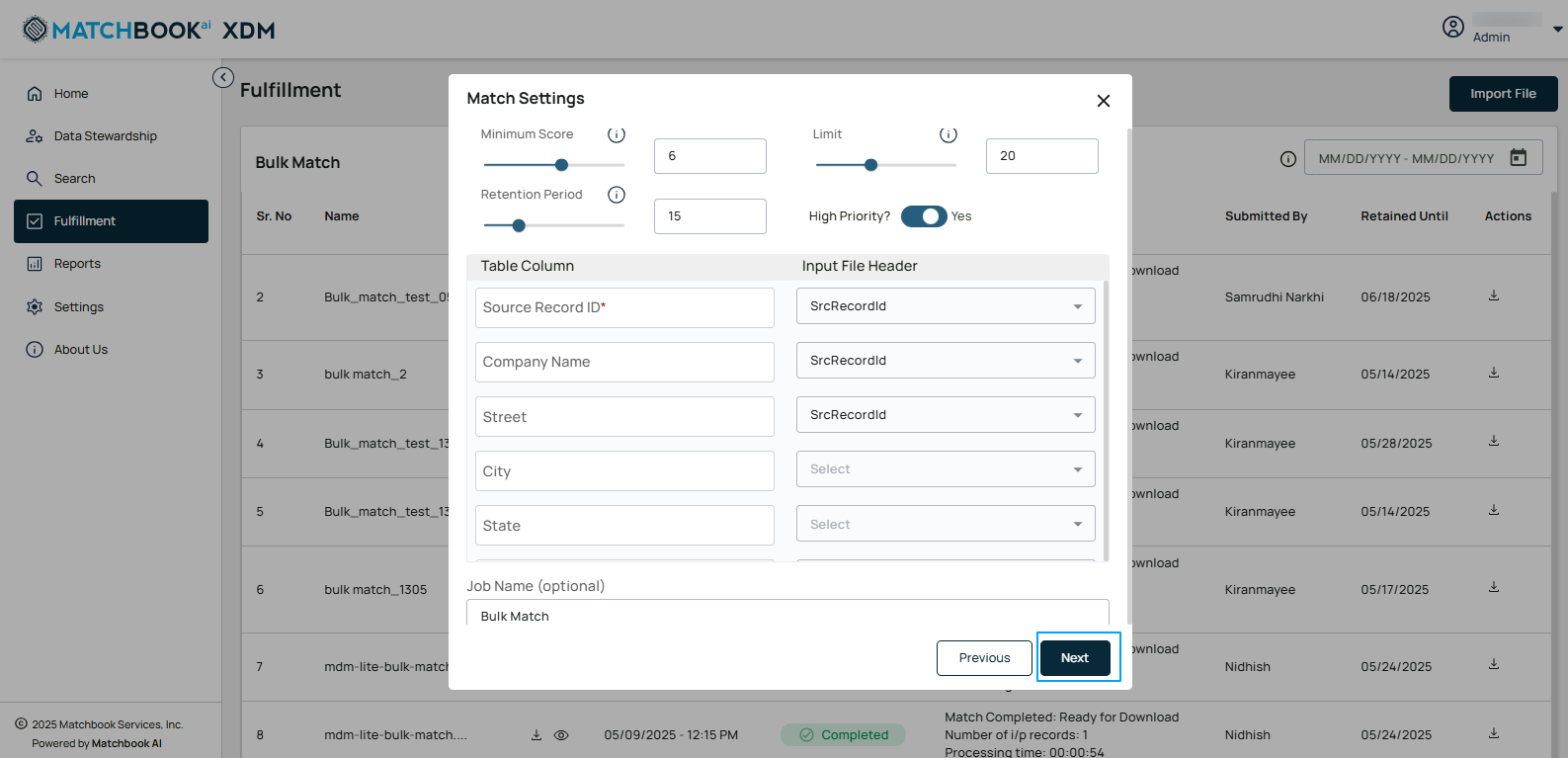
A new window opens with the details you have already entered.
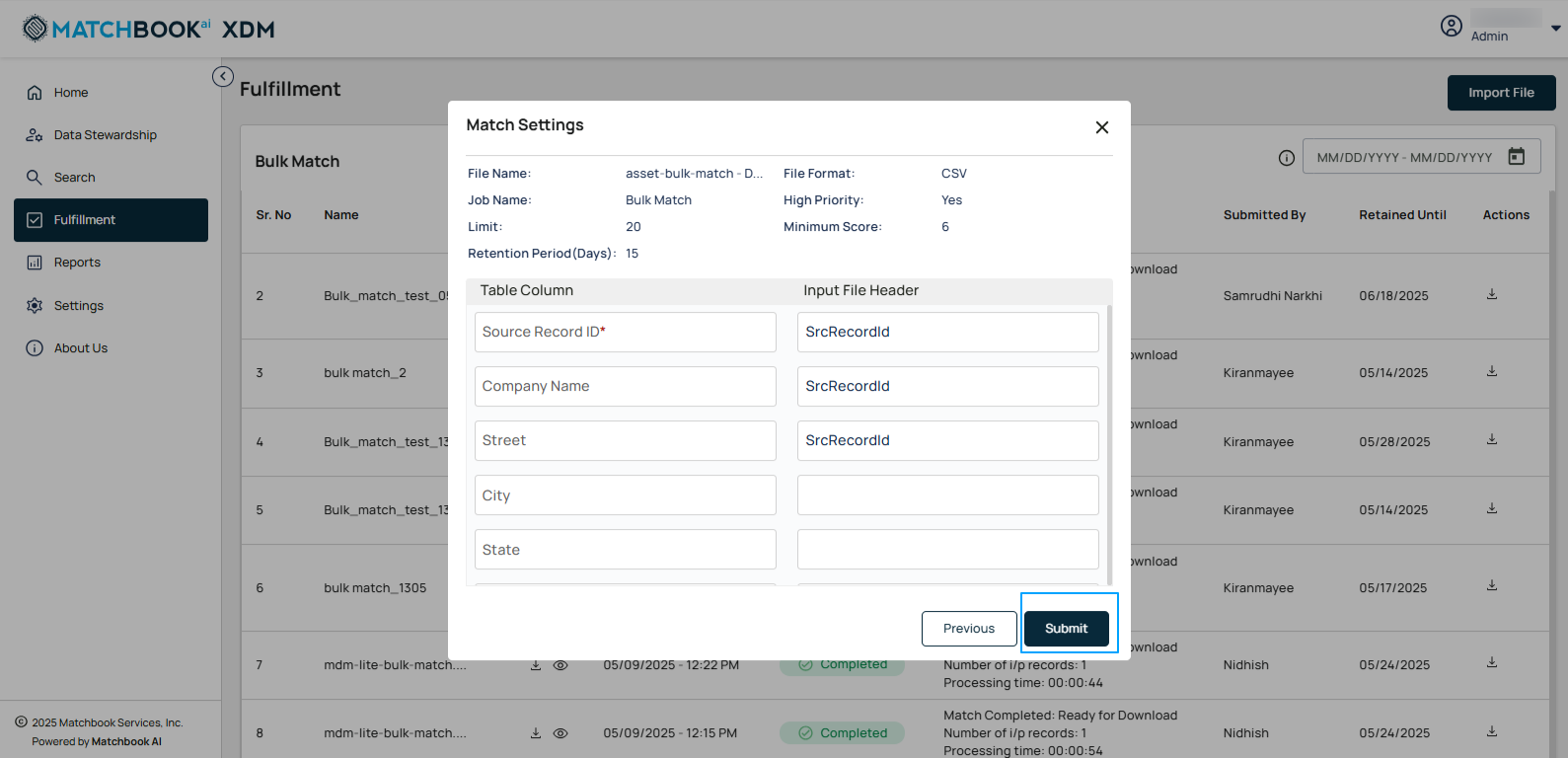
The table below shows the description of the fields:
Field |
Description |
|---|---|
File Name |
The name of the file uploaded for the bulk match process (e.g., Florida_Com.csv). |
Job Name |
A custom label assigned to identify the bulk match job (e.g., Company Details). |
Limit |
Specifies the maximum number of records allowed in the uploaded file (e.g., 5). |
Retention Period (Days) |
Defines how many days the matched data will be retained in the system (e.g., 5). |
File Format |
Indicates the type of file uploaded (e.g., CSV). |
High Priority |
Option to mark the job for faster processing (e.g., Yes/No — such as here: Yes). |
Minimum Score |
The threshold match score required for a record to be considered a valid match (e.g., 6). |
Now, click on the Submit button, a screen appears showing the file upload in progress, and a success message is displayed after the file is successfully imported.
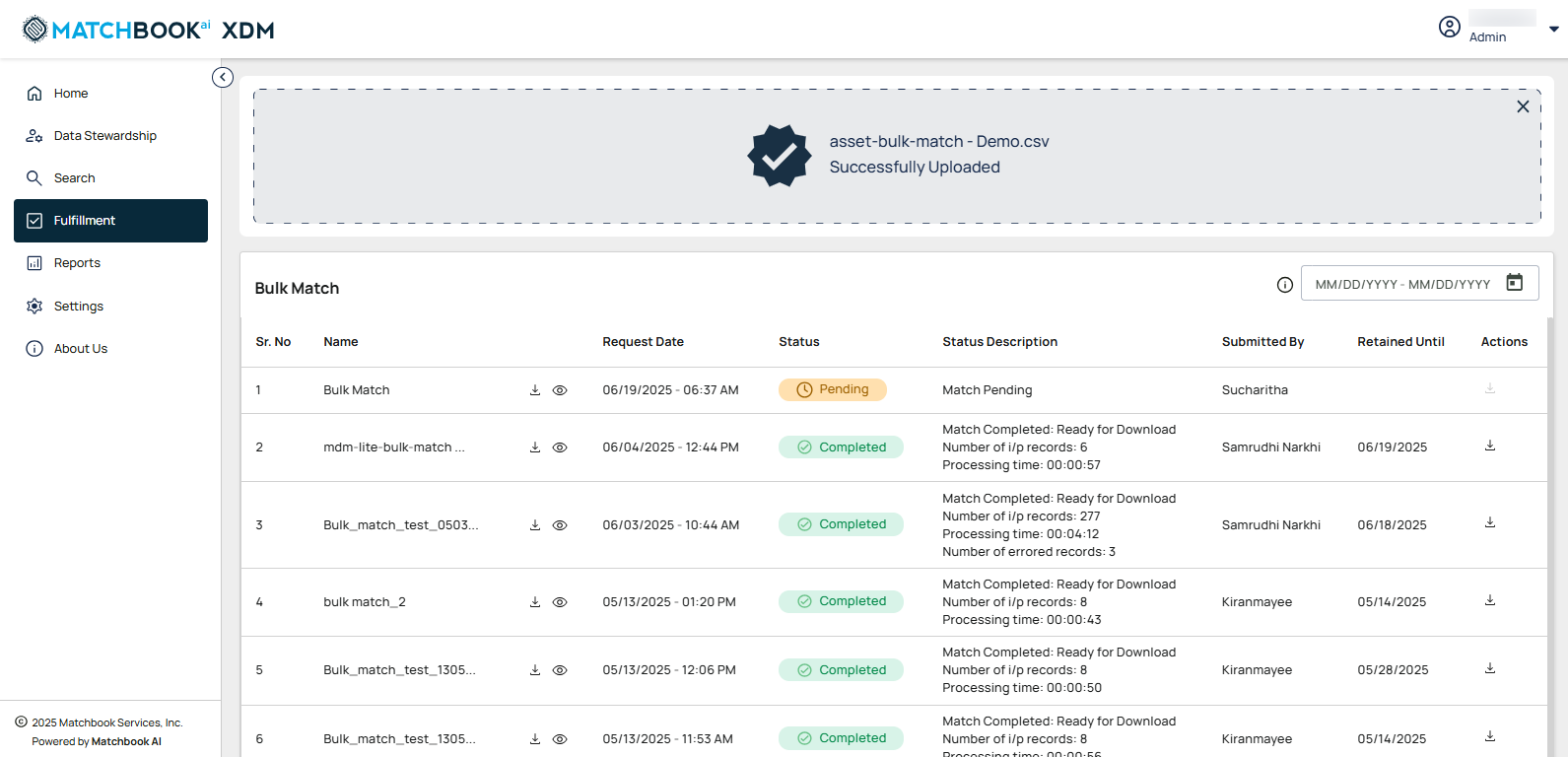
The screen below displays the Download option under the Actions column.
Click the Download button to retrieve the processed .csv files that have been matched based on the specified parameters.