1. Home
The dashboard offers a real-time overview of key metrics to monitor system performance and data quality. Designed with a data-forward approach, it provides instant visibility into your data’s health, performance, and trends. From the left navigation menu, select Home.
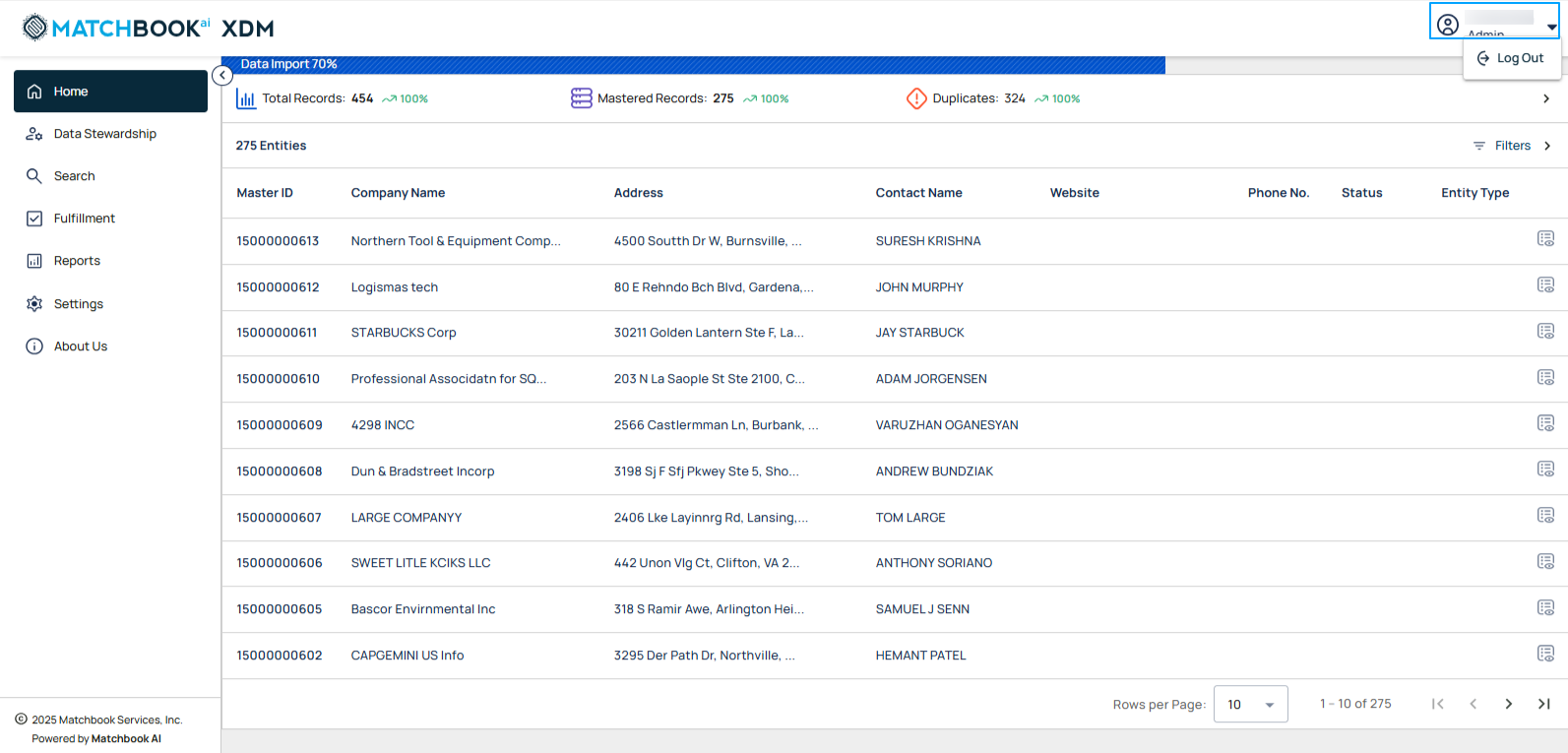
On the top-right corner of the screen, you’ll see the name and role of the logged-in user (in this case, Name of the user and Admin). Clicking on this expand icon will open a dropdown menu with the Log Out option.
1.1 Process Indicator
The Process Indicator provides users with real-time updates on the status of key background operations. It is designed to enhance transparency and user awareness during data-related workflows.
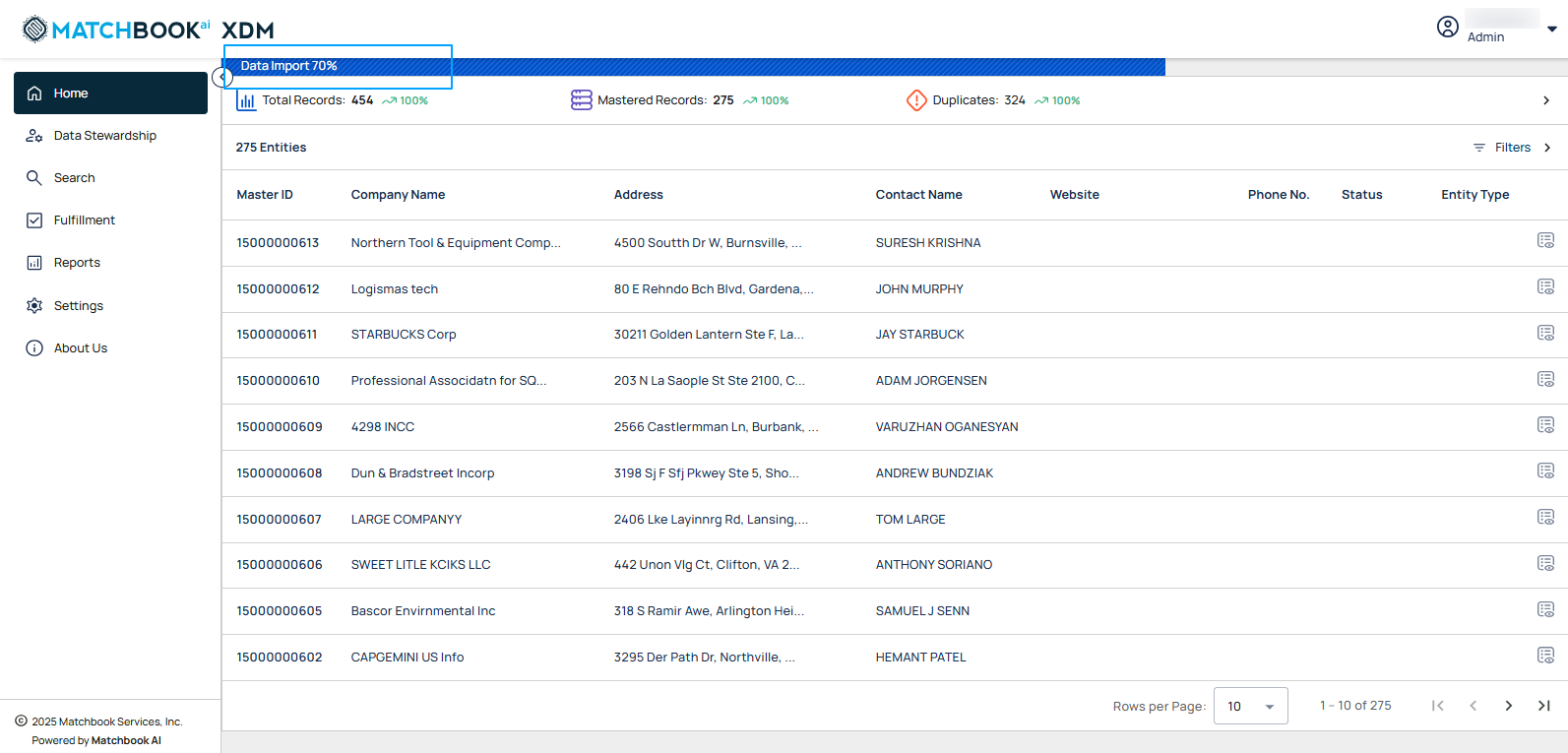
The indicator monitors and displays the progress of the following critical processes:
Import: Displays the status of active data import operations.
Data Mastering: Shows real-time progress for data mastering tasks, including matching, deduplication, and enrichment.
Export: Indicates the status of ongoing data export activities.
Each active process will include:
Process Name: Clearly labeled (e.g., Import, Data Mastering, Export).
Completion Percentage: Displays a numeric value indicating how much of the process has been completed (e.g., 70%).
Progress Bar: A visual representation of completion status that dynamically fills based on progress.
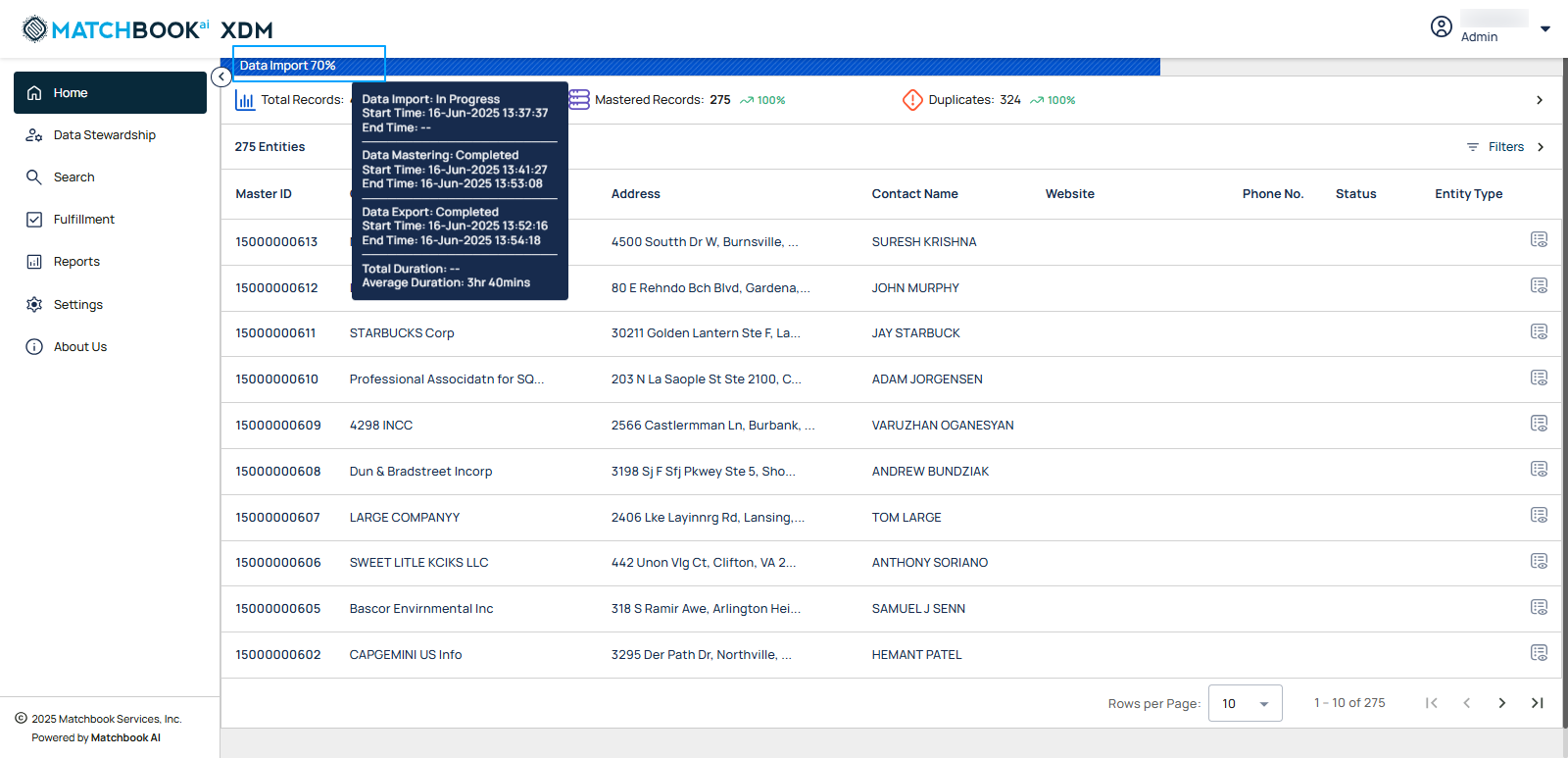
When users hover over the progress bar, a tooltip will appear showing additional context such as current status of the process, start time, and end time. It will also display the total duration and average duration of the process.
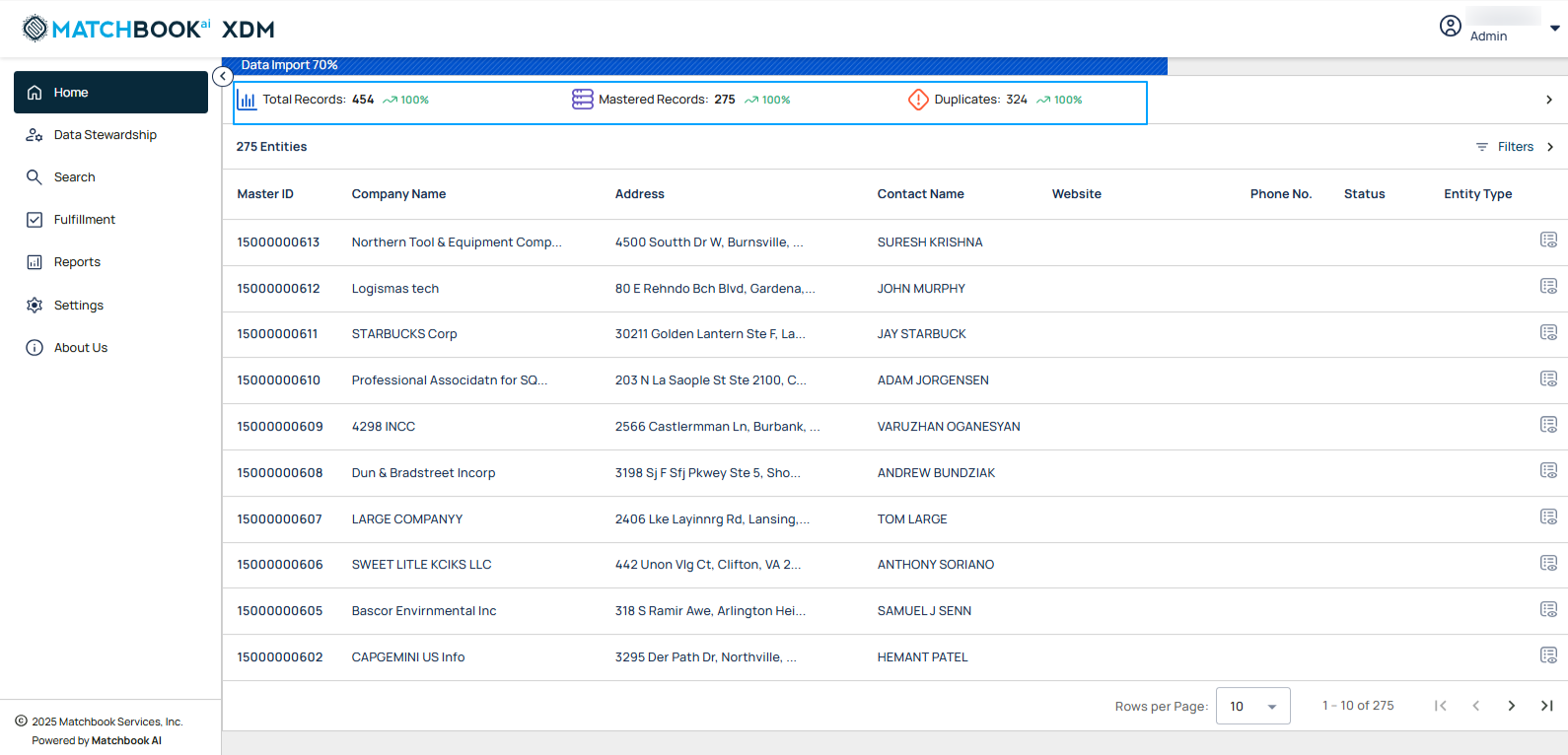
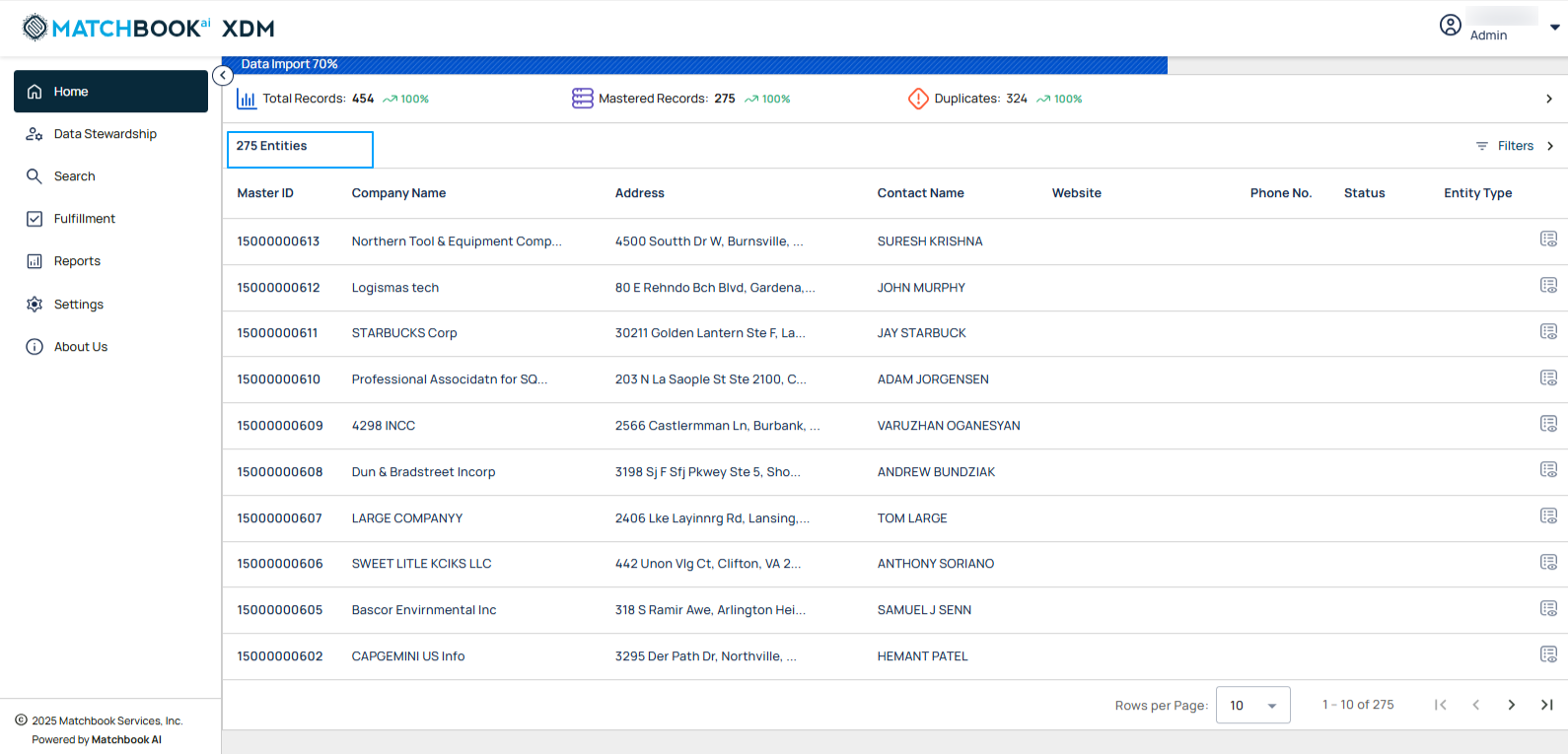
Right from the Home Screen, you get a real-time snapshot of your data ecosystem that displays key performance indicators (KPIs) such as Total Records, Mastered Records, and Duplicates, each showing value trends that highlight increases or decreases over the last 30 days.
Field |
Description |
|---|---|
Total Records Ingested |
Displays the total number of records added to the system. |
Total Mastered Records |
Displays the count of records that have been consolidated and finalized as master entities through the mastering process. |
Duplicates |
Indicates the number of records identified as potential duplicates during the data mastering process. |
1.2 Expanded View for Detailed Insights
Click the expand icon as shown in the screen below to unlock additional insights. Expanding the ticker bar reveals a detailed dashboard with visual reports that provide key data insights.
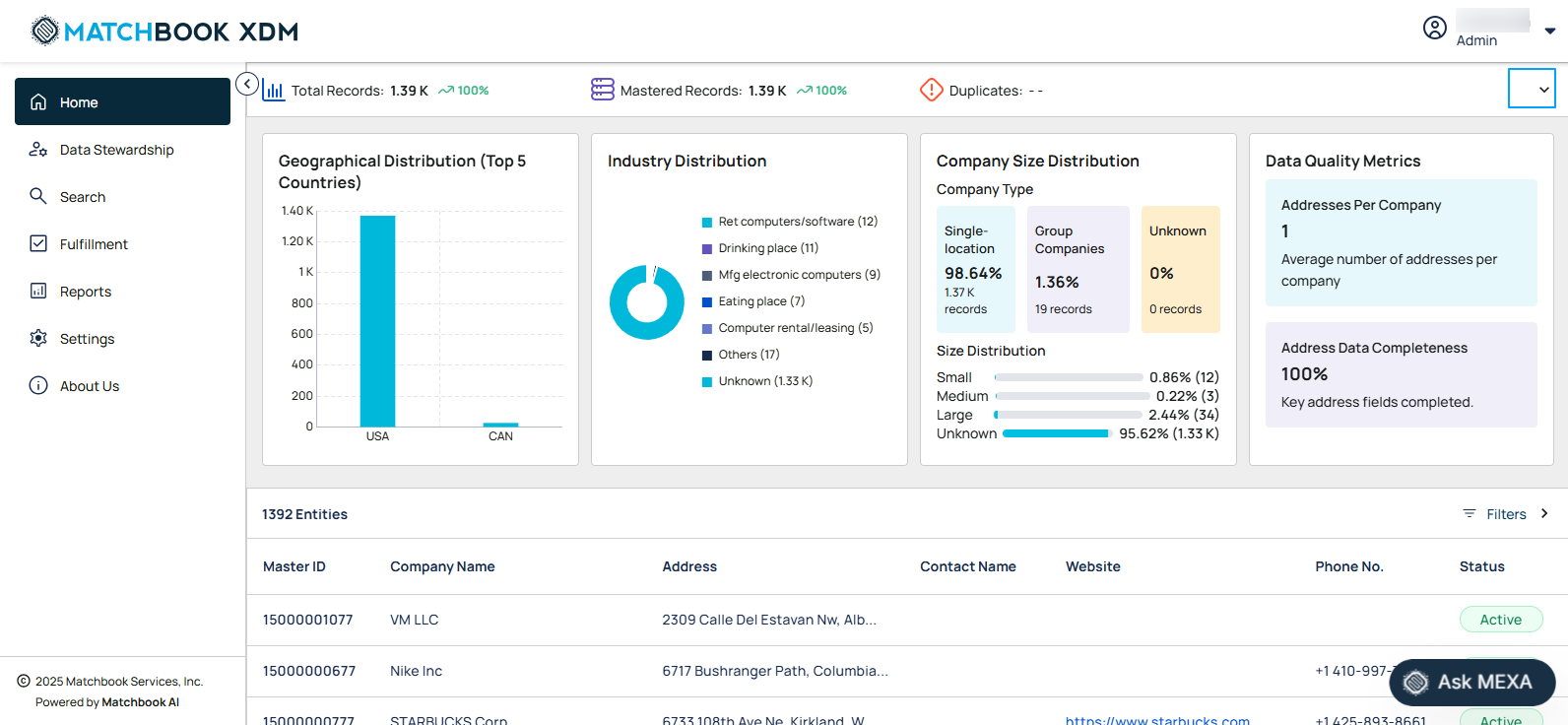
The table below gives the description of each insight:
Insight Area |
Description |
Details Displayed |
|---|---|---|
Geographical Distribution |
Visualizes how records are distributed across different countries. The top 5 countries are shown individually, while the rest are grouped under ‘Others’ for clarity. |
When you hover over each country you will see:
|
Industry Distribution |
Highlights the composition of records based on their industry classification to help identify dominant sectors. |
|
Company Size Distribution |
Breaks down entities by their size and structural type to help understand customer or data composition. |
|
Data Quality Metrics |
Offers insights into the overall quality and completeness of the dataset. |
|
Note
If no data is available, then a message appears: ‘No records available to display’.
If there is Incomplete data, then it displays ‘–’ for missing data.
The number of entities (ex: 275 entities) is displayed at the top, with their corresponding details presented in a structured tabular format for easy review and analysis. Each record includes fields such as Master ID, Company Name, Address, Contact Name, Website, Phone Number, Status, and Entity Type. A single, unified filter is available to help users quickly narrow down results based on ID and company details.
Field |
Description |
|---|---|
Master ID |
Unique system-generated ID assigned to the master record for tracking and integration purposes. |
Company Name |
The official registered name of the company or entity. |
Address |
Physical location(s) associated with the company. Note: A company can have multiple addresses. |
Contact Name |
The name of the primary contact person associated with the company. |
Website |
The company’s official website URL. |
Phone no. |
The primary contact number for the company. |
Status |
Indicates the current state of the master record (e.g., active or inactive). |
Entity Type |
Displays business classification along with an entity type symbol that is SL- Single Location BR- Branch GP- Global Parent DP- Domestic Parent HQ- Headquarters PA- Parent |
Note
Pagination will initially display the first 10 records. Users can click the ‘>’ button to view the next 10 records or the ‘<’ button to navigate back to the previous 10 records. The system displays pagination controls when the number of results exceeds the visible limit, allowing users to navigate between pages and choose the number of records displayed per page.
If the data fails to load, a message: ‘Failed to load mastered records. Please try again’ is displayed.
The missing column entries will be displayed by a blank space.
If navigation to Company Details fails, an error message: ‘Unable to open company details. Please try again later’ will be shown up.
1.3 Filters
Click on the Filters expand icon to access advanced filtering options. As a Data Steward or Administrator, you can apply filters to the Mastered Records table to quickly find specific records based on key criteria, helping streamline data review and decision-making.
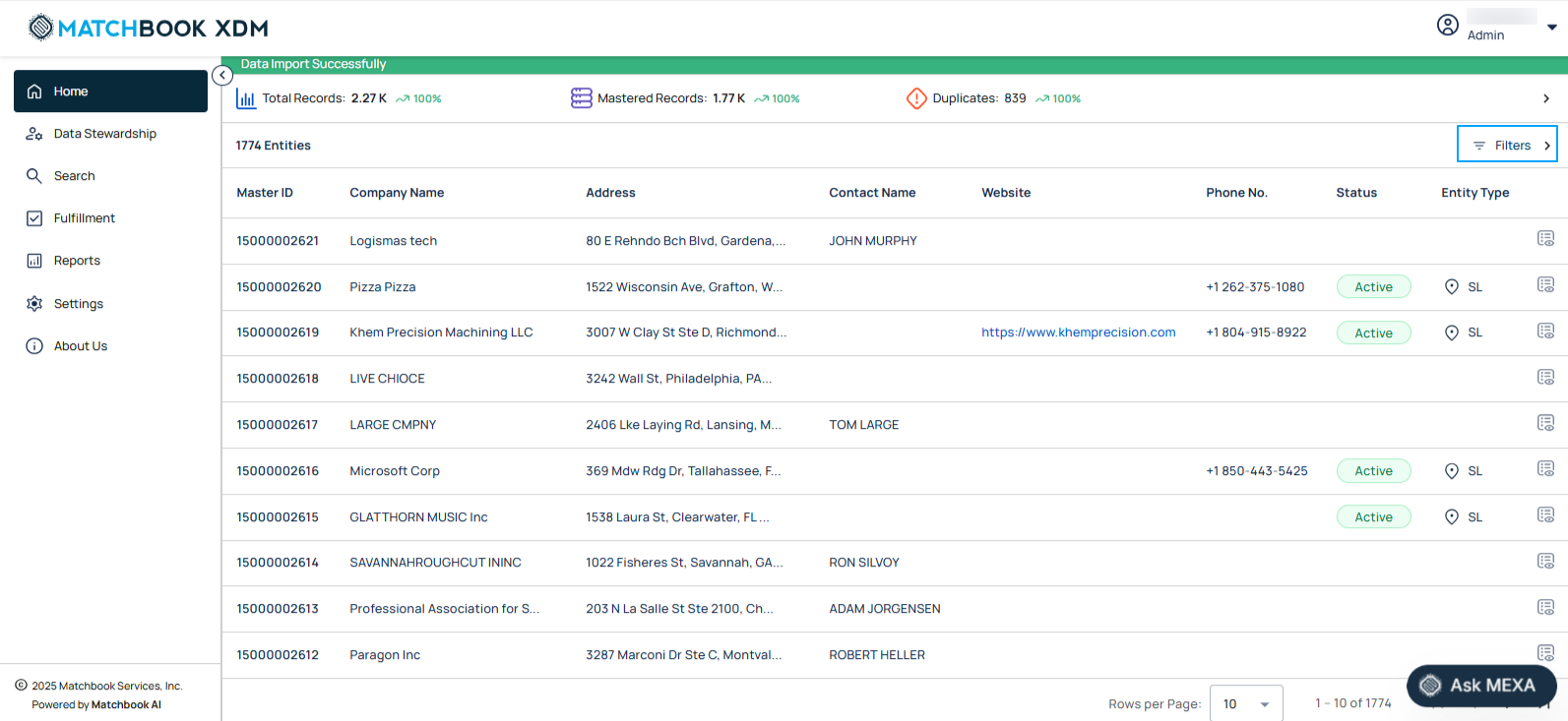
Users should be able to filter by following fields: Master ID, Company Name, Address, City, State/Territory, Country, Postal code, ID, Record Type, Status, Entity Type.
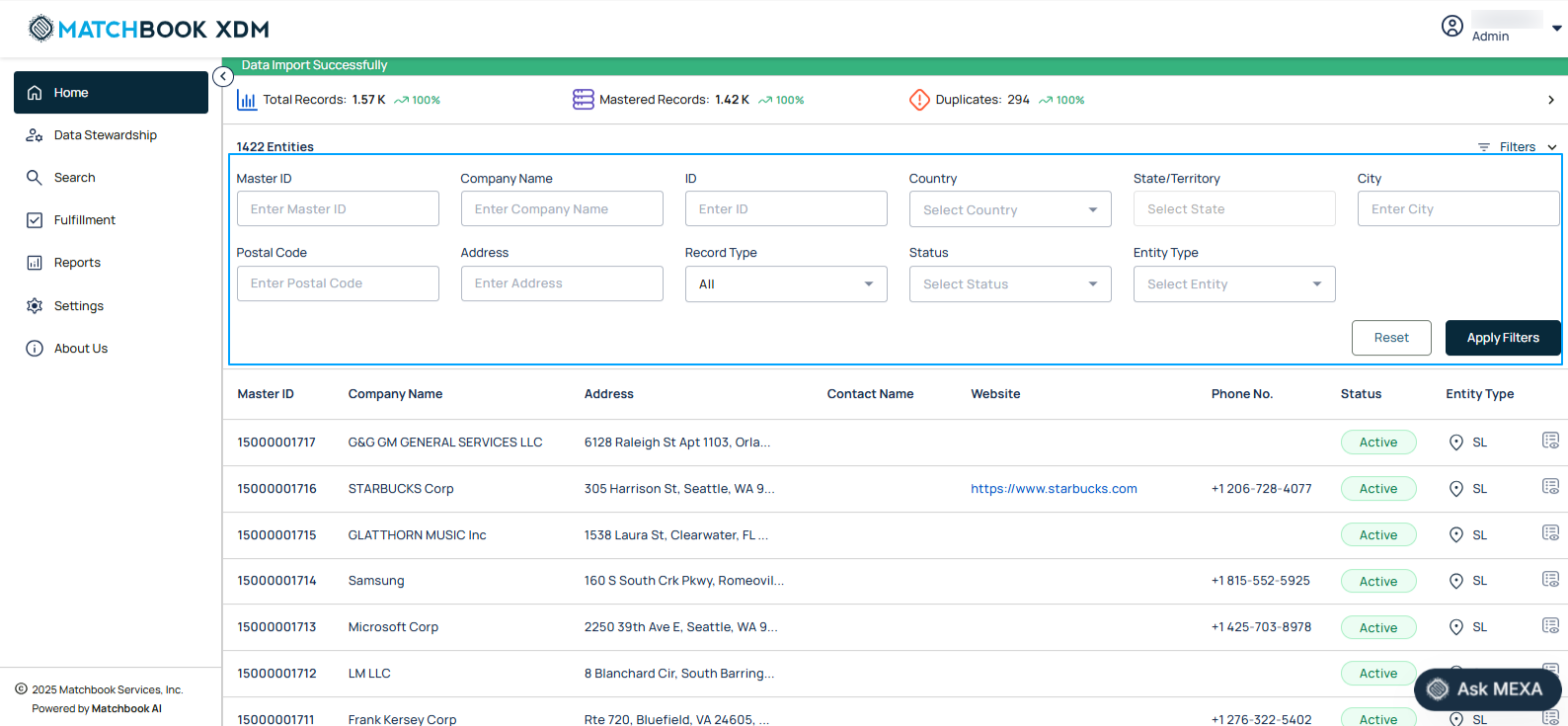
If the user clicks on Country, the State field dynamically updates to display only relevant options from the imported data. This ensures consistent and standardized address entry, improving the quality and reliability of address data across the platform- particularly for Data Stewards and Admins responsible for creating or updating company records.
Country: Dropdown with valid ISO names
State: Enabled after selecting a country; type to search
Only countries and states from imported data are shown
If no states exist for a country, the State field is disabled
As a Data Steward, you can filter the records list by Record Type that is Clustered, Unique, or All to focus on specific categories for faster review and decision-making. This filter defaults to All, displaying the full list without restrictions.
Clustered include those that have other records merged or included under them.
Unique are standalone records that are not merged and do not contain any included companies.
All removes the filter and shows the complete list.
The applied filters will be visible, allowing you to review and verify the filtering criteria used. This helps in refining searches, adjusting if necessary, and ensuring that the displayed data accurately matches the specified conditions. Once all necessary details are entered, click Apply Filter to update the results based on your criteria.
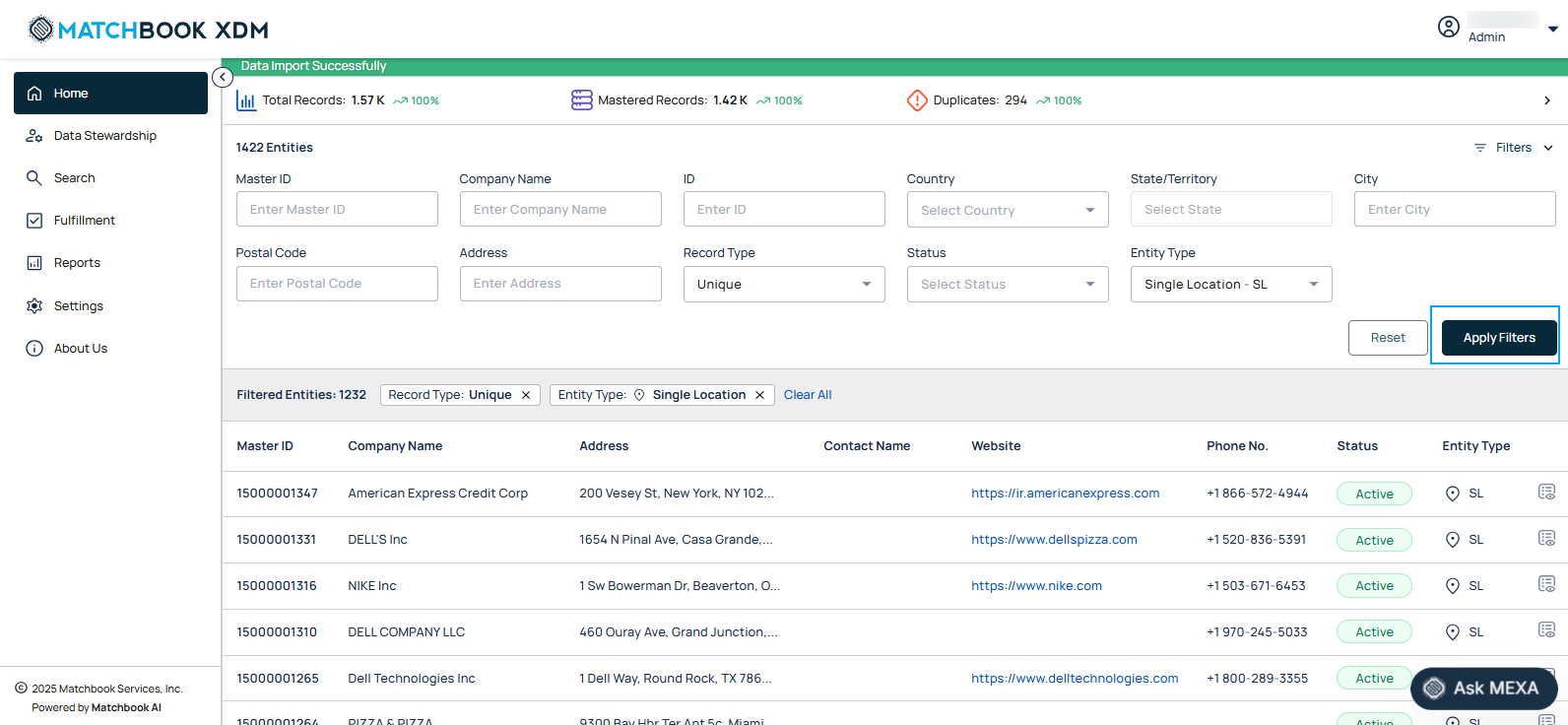
You can now see the results displayed in a tabular format, where each row represents a unique mastered record. The table is structured to provide a clear, organized view of key data attributes such as Master ID, Company Name, Address, Contact Name, Website, Phone No., Status, and Entity Type. This layout ensures easy comparison, efficient scanning, and quick access to essential business information for analysis and decision-making.
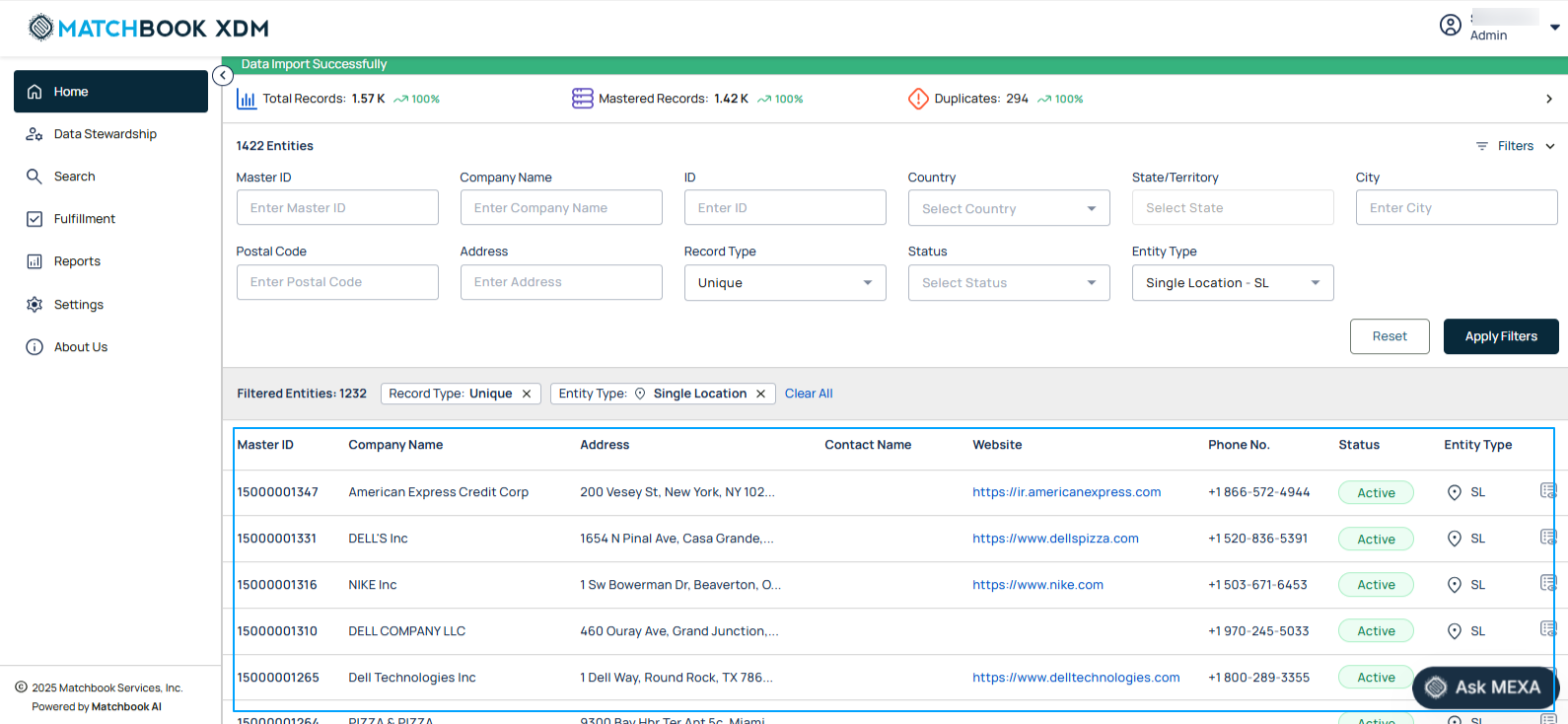
Note
If no records match the applied filters, a message is displayed: ‘No mastered records found for the selected filters’.
1.4 Compact View
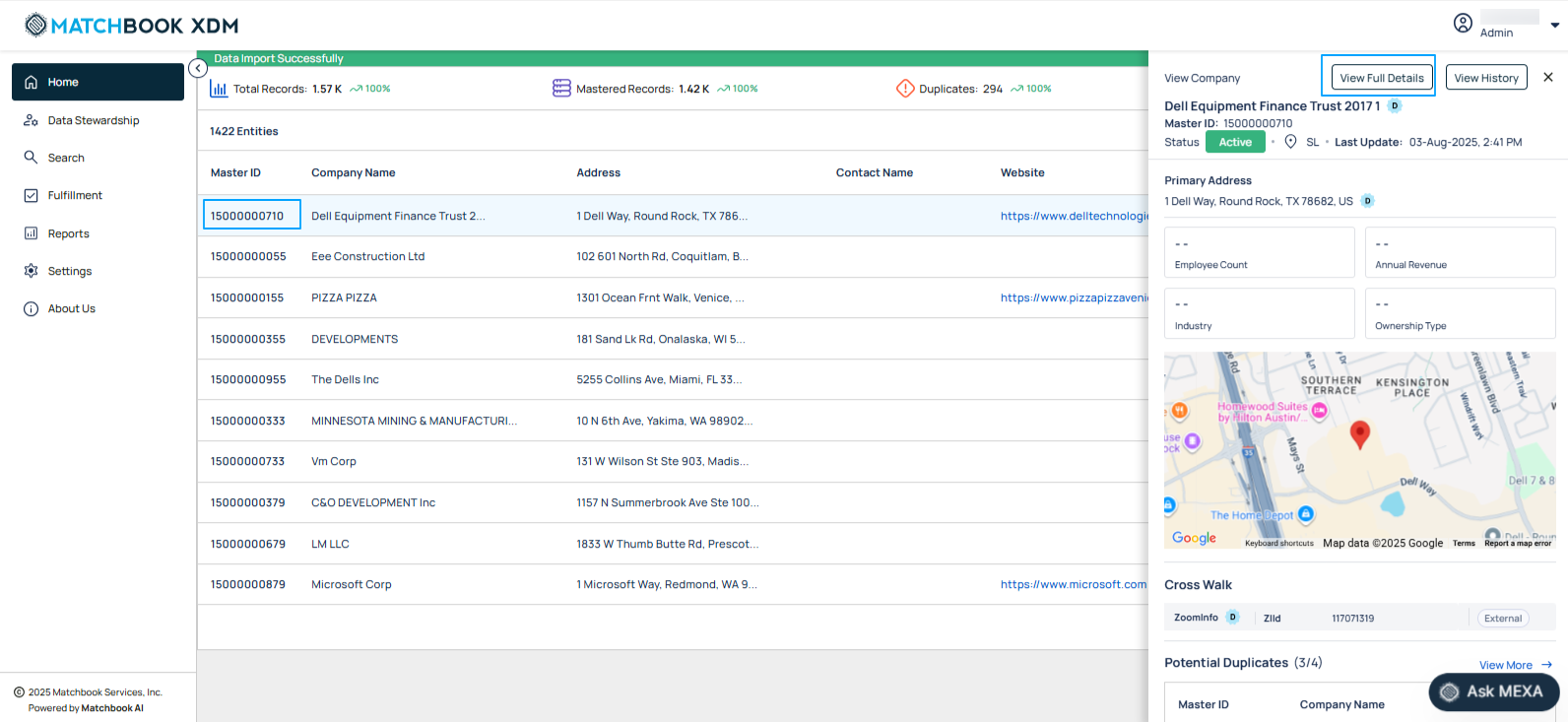
When the user clicks on the Master ID, a compact view shows up presenting detailed information about the selected entity.
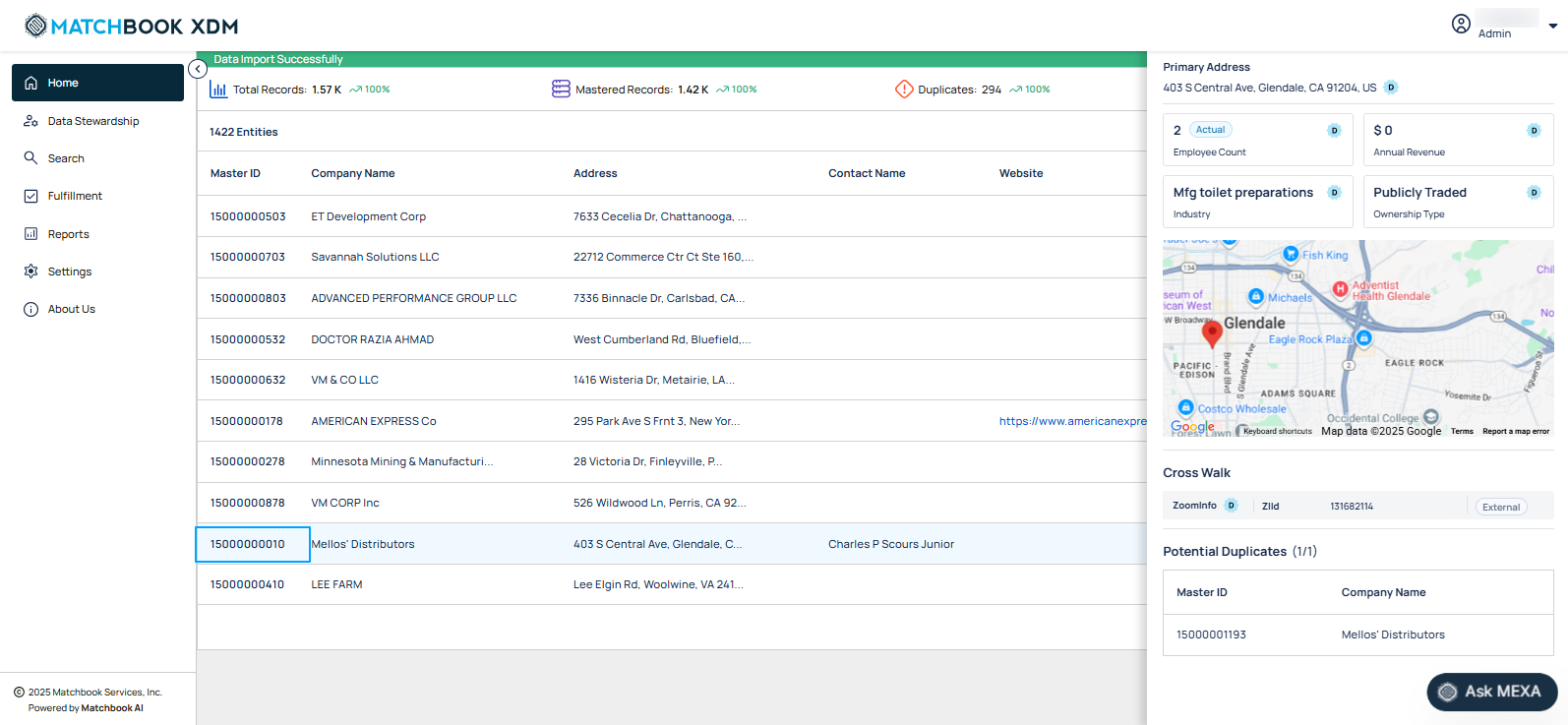
The side panel will include the following sections:
Company Overview: Provides a quick snapshot of the selected company, highlighting essential metadata for identification and record tracking.
Company Name: Official registered name of the entity
- Certification Codes (or Cert Codes): It helps users quickly assess the quality or verification tier of an entity based on trusted data sources. These visual tags indicate how well-verified or enriched a record is, based on source reliability and data contribution.
Certification Code Labels: D- diamond, P- Platinum, G- Gold, S- Silver.
It is displayed beside the company name in the Compact View, and in the Entity Details Page under the Company Profile, Key Executives, and Identifiers sections.
Cert Codes apply only to the following attributes: IDs, Names, Address, Links, Phone, Key Contact.
Certification codes are applicable only to the attributes listed above; if a record does not have a certification code, no visual tag will be displayed.
When you hover over the certification badge, a tooltip shows the full label (e.g., Certification Code: Diamond).
Master ID: Unique internal identifier assigned by Matchbook XDM
Status: Indicates whether the record is Active or Inactive
Entity Type: Classification of the entity (e.g., Global Parent, Branch, HQ)
Last Update: Timestamp showing the most recent update to the record
Primary Address: Displays the official primary address of the company, including Full street address, including city, state, and ZIP/postal code
Key Company attributes: It helps you get a quick and comprehensive snapshot of an entity without needing to navigate elsewhere.
Employee Count (Actual): Number of employees currently at the company.
Annual Revenue (Modelled): Latest standardized revenue figures (e.g., $300 M).
Ownership Type: Type of ownership, such as Private, Public, Subsidiary, or Non-profit.
Industry: Primary industry classification.
Note
If the attributes are not available, then ‘–’ is displayed.
Map Link: Provides a clickable link or embedded map that redirects to Google Maps for location visualization, useful for verifying the address or gaining quick geographical context.
Cross Walk: Displays the source systems from which the company data was aggregated or matched, providing traceability and multi-source reconciliation.
Note
If External IDs are unavailable, then the message ‘No crosswalk data available’ is displayed.
Included Companies/Potential Duplicates: Displays any subsidiaries, branches, or related legal entities included within the selected master record.
Master ID: Unique Matchbook identifier for each included entity
Company Name: Name of the associated company or included company
In the Compact View, users can assess the relationship of a company record with others in the system by reviewing either Included Companies or Potential Duplicates. This view helps Data Stewards identify whether a record is part of a mastered cluster or is a unique entity with similar nearby records that may require attention or stewardship action.
Only one of the two sections, Included Companies or Potential Duplicates is shown at a time, depending on the record type.
Included Companies
The Included Companies section appears only for mastered (clustered) records and lists the company records merged into the master. If no included records exist, the section is hidden. The header reads Included Companies.
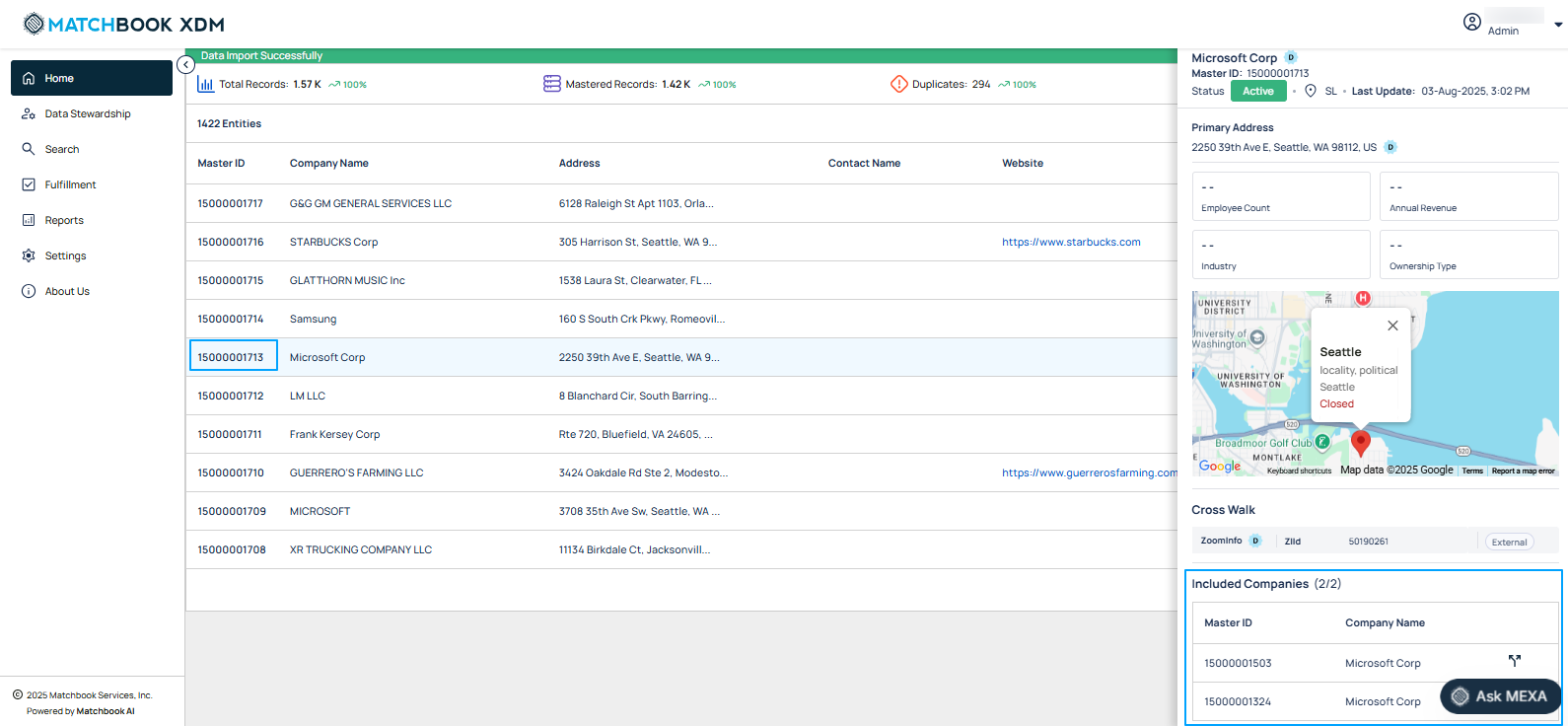
Record Locking in Included Companies
When a user opens the Included Companies section within the View Entity Details page, all records listed under Included Companies are automatically locked to prevent other users from initiating unmerge actions on the same records. This ensures data integrity and prevents conflicts during review. While the records are locked, other users can still view and access the details, but the Unmerge option will be disabled. If another user attempts to perform an unmerge action on a locked record, the system will display the message: ‘This record is temporarily locked because another user is viewing or editing it. Please try again later.’ as shown in the screen below.
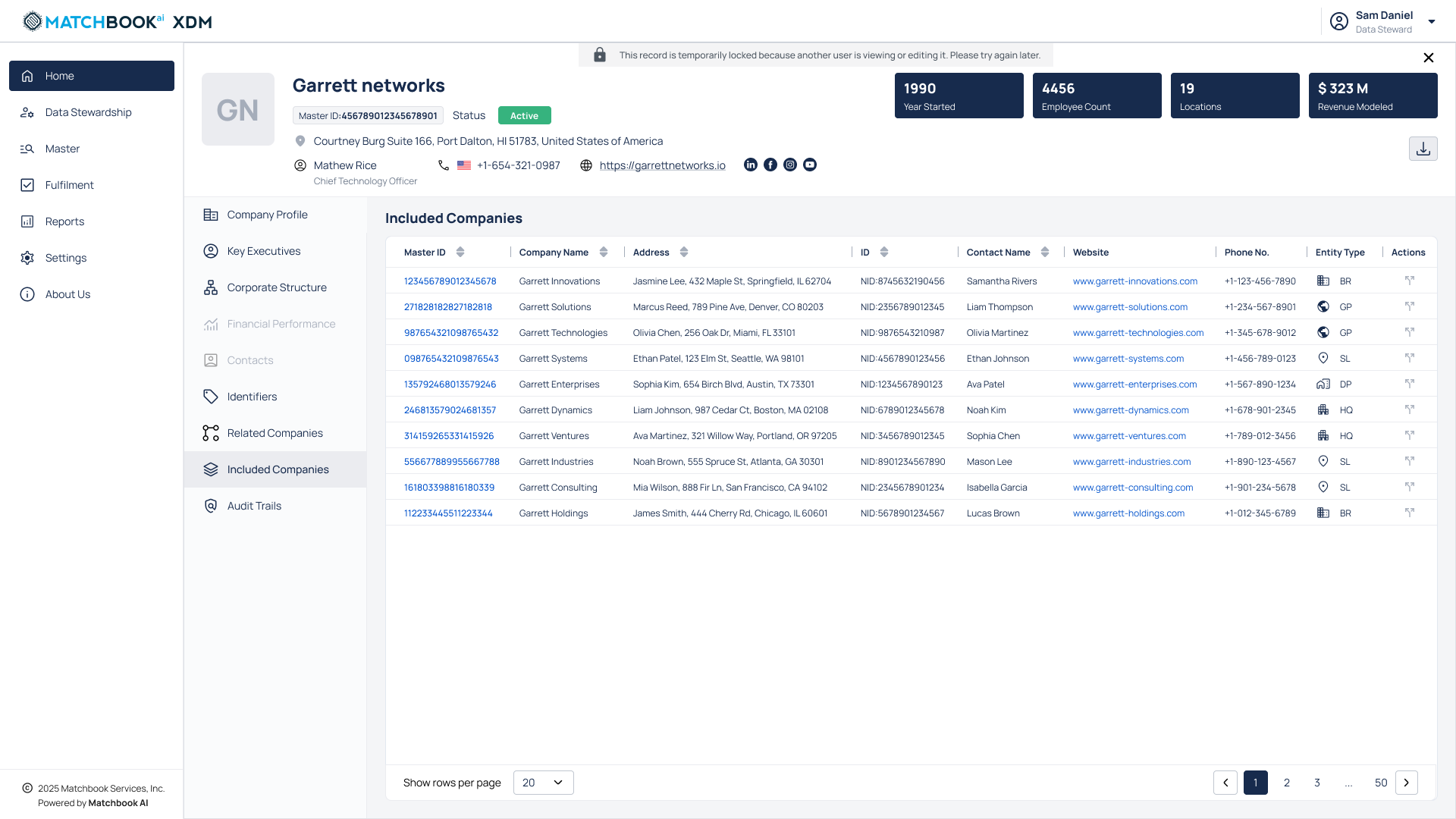
The locking mechanism applies only to the parent or node record being viewed. Child records are not locked. In scenarios where two users try to act on the same child record from different pairs, the platform will process the first request and decline the second. The second user will see the message: ‘Merge/unmerge is already in process for this entity. Please check the Review Queue for more details’.
Locks are released automatically when the user navigates away from the Included Companies tab or closes the Entity Details page. This follows the platform’s standard locking behavior applied across other areas of the application.
Unmerging Included Companies from Compact View
In Compact View, Data Stewards can unmerge individual Included Companies (child records) directly from the table as shown in the screen below, allowing for quick corrections in case of mistaken merges or to separate entities when needed.
Each Included Company is displayed as a separate row in the table, with up to three records shown by default. If more than three records exist, a View More link is provided, which navigates the user to the full Entity Details-> Included Companies section for complete access.
Each row in the table includes an Unmerge button aligned to the right as shown in the screen below.
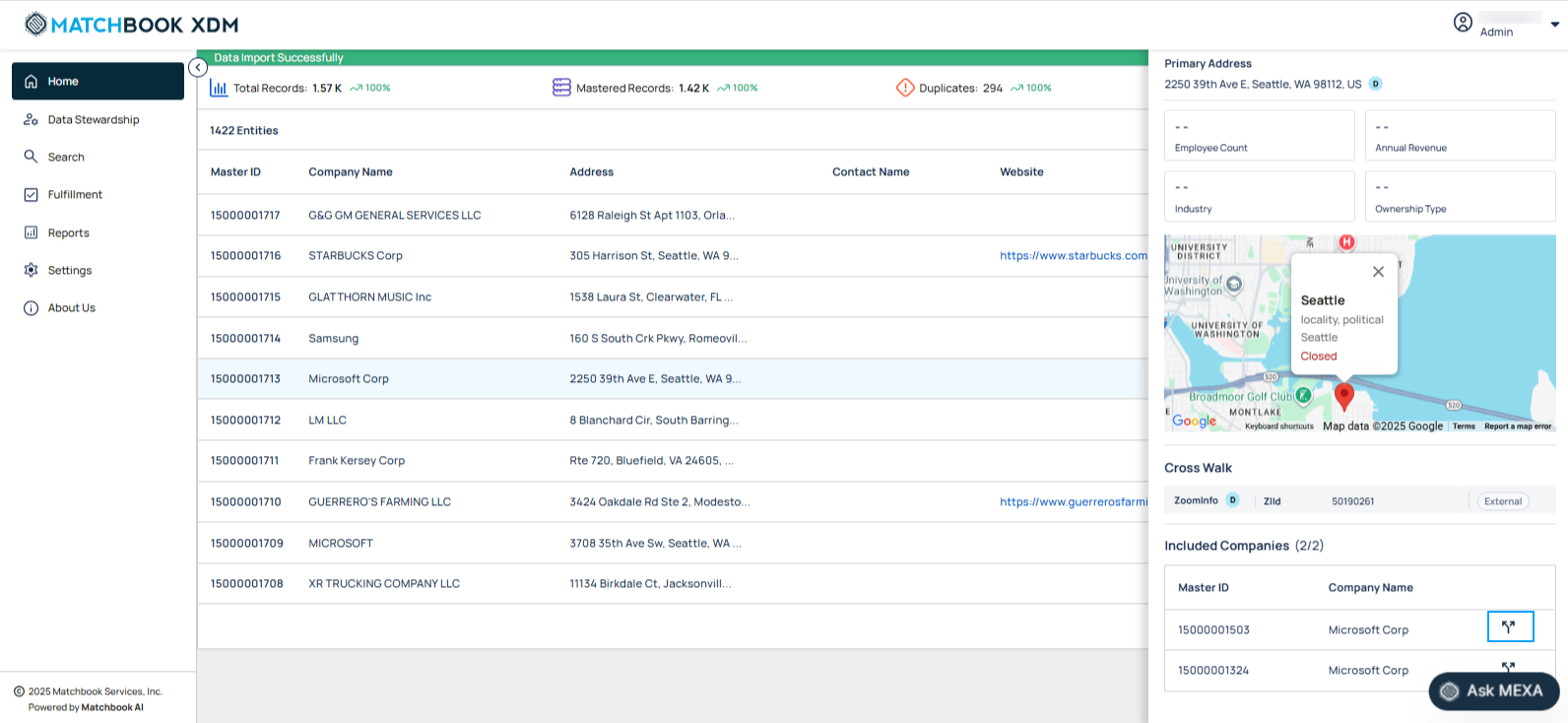
Clicking Unmerge button opens a confirmation prompt:
‘You are about to remove this company from the master record.
Once confirmed, the selected company will be unmerged and sent to the reviewer queue for further validation and processing.’
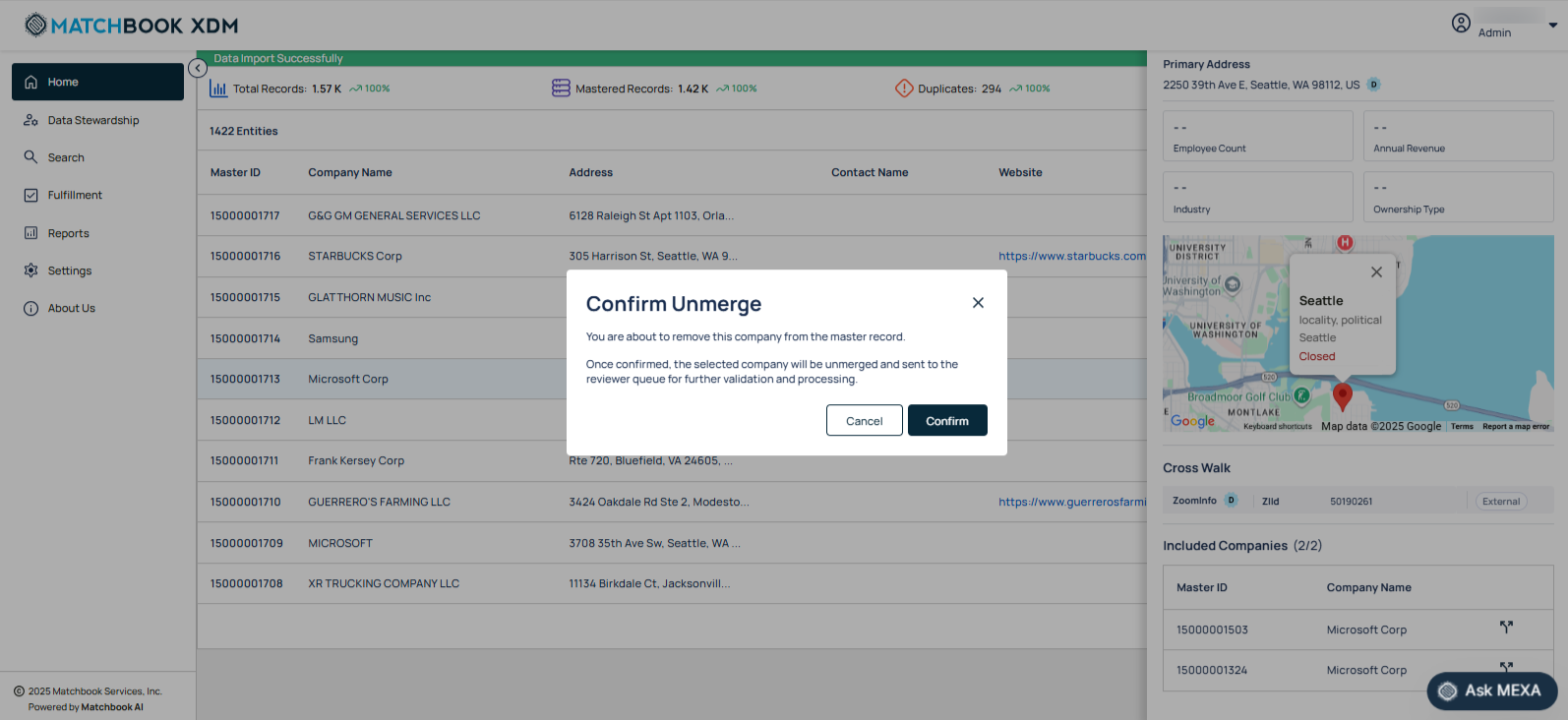
Click Cancel to discard the changes. But once Confirm is selected, the selected record is detached from the master and becomes a standalone record. It is also removed from the Included Companies list. The Master ID link in the unmerged record’s Compact View is removed once the unmerge is complete.
Until the unmerge process is finalized, the record will remain in the list, but the Unmerge button will be disabled to prevent duplicate actions. If the last included company is unmerged, the entire Included Companies section disappears from the Compact View and is replaced by the Potential Duplicates table (if applicable).
The system automatically updates the clustering and mastering metadata, ensuring that the parent (master) record reflects the current state of its associated records.
Potential Duplicates
The Potential Duplicates section appears only for unique (non-mastered) records and displays system-flagged duplicate candidates, each showing the Master ID and Company Name. The header reads “Potential Duplicates”.
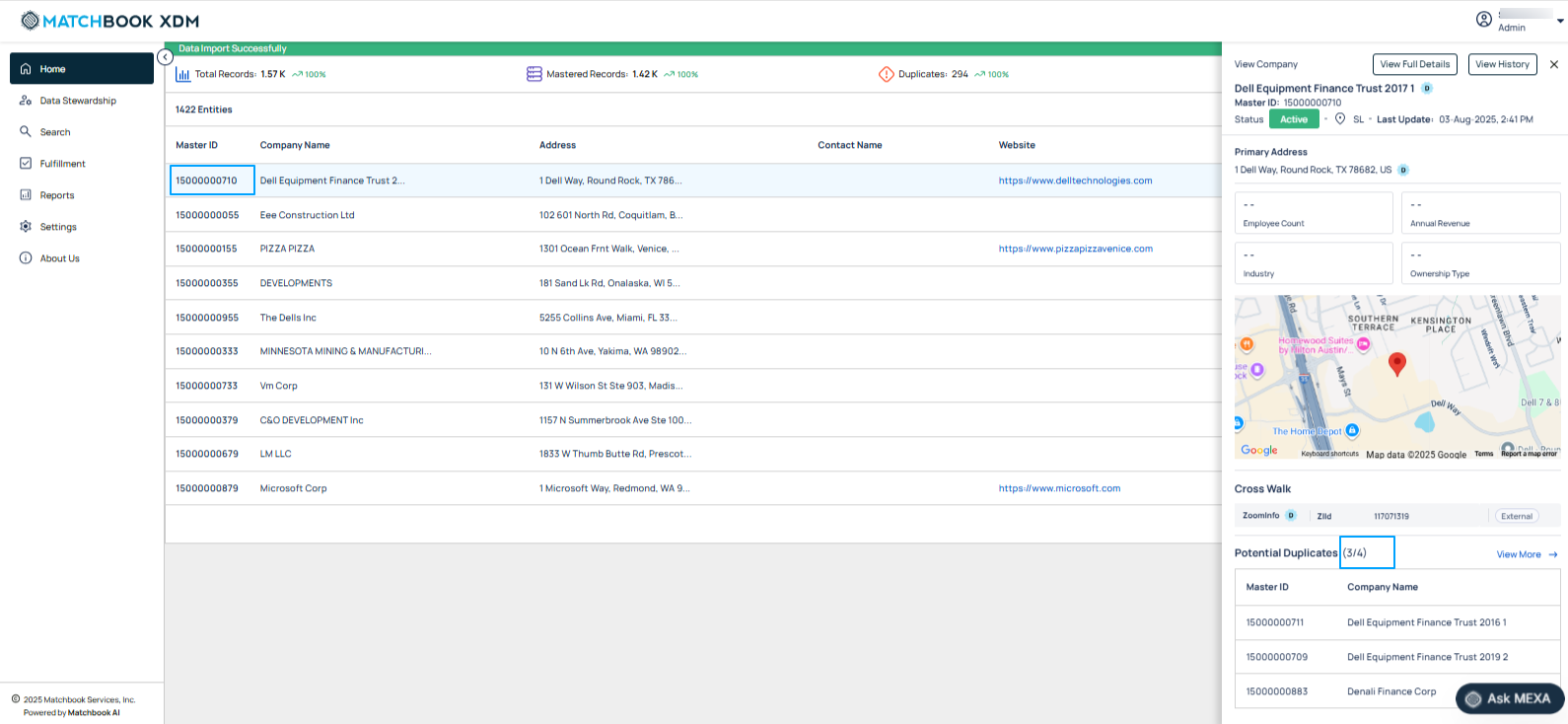
For a mastered record with included companies, only the Included Companies section is displayed.
For a unique record with potential duplicates, only the Potential Duplicates section is displayed.
Top 3 Records Only:
Shows only the top 3 entries for Potential Duplicates and Included Companies.
Potential duplicates are sorted by match rank, making it easier for users to prioritize and review high-quality matches more consistently; Included Companies by latest updates (merge/unmerge).
Count Display: Header shows count as 3/X, where 3 is visible records and X is total available.
View More Link:
Appears only if more than 3 records exist.
Opens the Full Details page and scrolls to the relevant section.
Fewer Than 3 Records:
Displays all available records (e.g., 2/2).
No View More link is shown.
For a mastered record with no included companies and no potential duplicates, the Potential Duplicates section with the message: ‘No records found’ is displayed.
For a child record (merged into a master), neither section is displayed.
If detailed data fails to load, a message is displayed: ‘Failed to load record details. Please try again.’
If history data fails to load, a message is displayed: ‘Failed to load record history. Please refresh the panel.’
If map integration fails, a message is displayed: ‘Map not available’
1.5 View Full Details
By clicking on View Full Details, users can access a comprehensive Company profile and also includes in-depth information such as the Company Profile, Key Executives, Corporate Structure, official Identifiers, a list of Included companies, and a full Audit Trails of actions performed on the entity, providing a complete picture for governance, compliance, and analysis.
Note
If detailed data fails to load, displays a message: ‘Failed to load record details. Please try again.’
When the View Full Details is clicked, the screen below shows up.
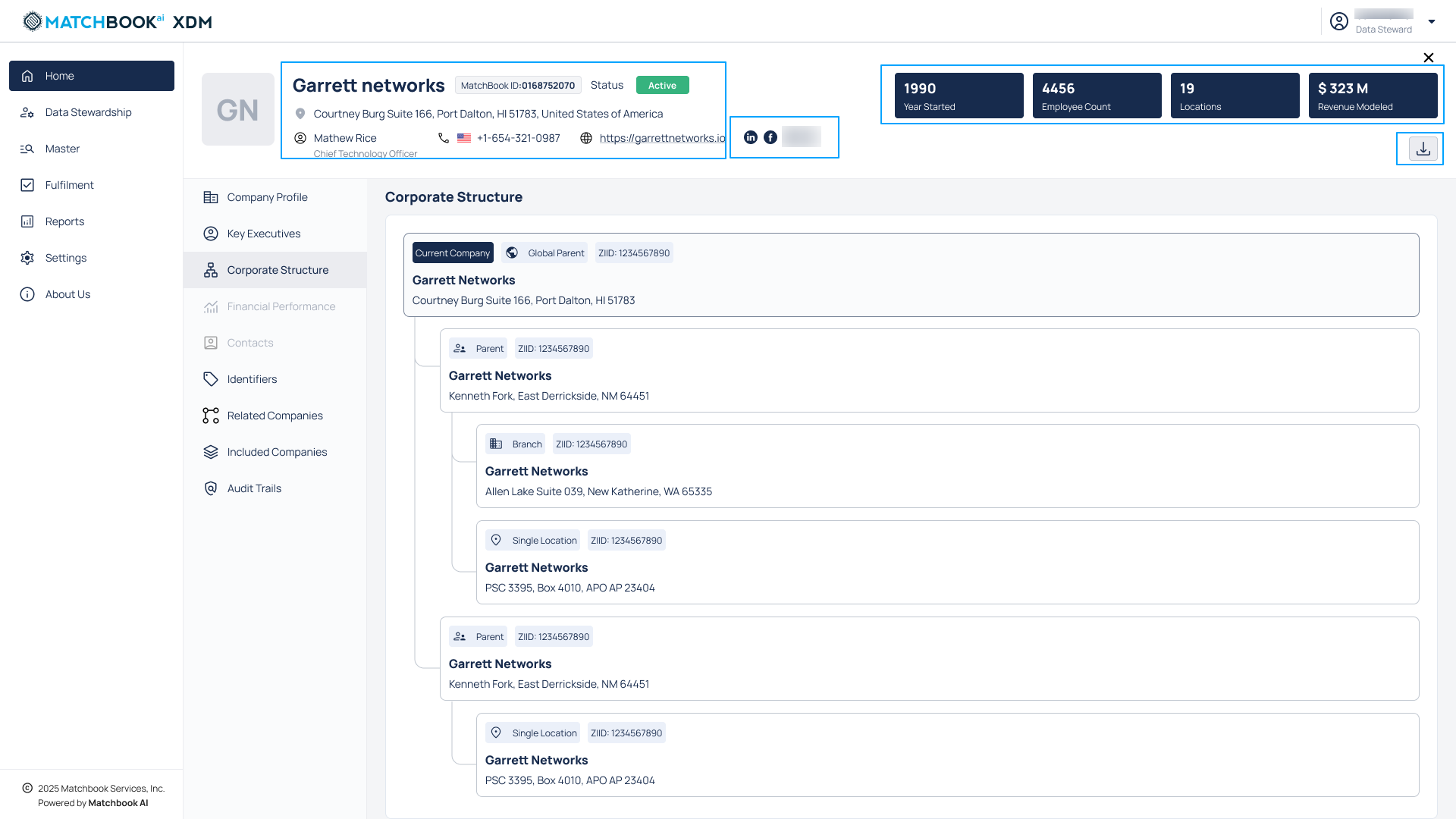
The table below gives the decription of each field:
Field |
Description |
|---|---|
Company Logo |
Shows the visual brand mark of the company, if available. |
Company Name |
Displays the official registered name of the entity. |
Master ID |
Unique identifier assigned to the entity by the Matchbook XDM system. |
Status - Active/Inactive |
Indicates whether the company is currently operational. |
Address |
Shows the company’s primary business address. |
Primary Contact Rank/Postion |
Shows the primary contact and designation or role of the listed primary contact. |
Phone Number |
Lists the main telephone number associated with the company. |
Website |
Displays the official company website URL. |
Social Media Links |
Displays clickable icons for the company’s available social media profiles (LinkedIn, X, Facebook). Each icon opens the respective page in a new browser tab. Tooltips such as ‘Visit LinkedIn’ or ‘Visit Facebook’ are shown on hover. Note:
|
Year Started |
Indicates the year the company was established. |
Employee Count |
Displays the number of employees, either actual or modeled. |
Locations |
Lists the company’s operational or registered office locations. |
Annual Revenue |
Displays estimated annual revenue based on third-party modeling. |
[⬇]Download |
If you want to download the company details and include company records in JSON format from the View Details page, you can do so to analyze or share the data externally in a structured and standardized format. |
Note
When View Full Details button within the Compact View is clicked, the Compact View will close and the Company Details page will open in the same browser tab. After reviewing the details, if the user clicks the X (Close) button on the Company Details page, the system will return the user to their original page and context; for example, Home → Master, Data Stewardship, Reviewer Queue, or Search Results. During this transition, the platform will preserve all filters, pagination settings, and selected records. Upon return, the Compact View will remain closed, maintaining a smooth and consistent navigation experience.
Company Profile
The Company Profile tab is the default landing section. It offers a consolidated overview of the entity’s foundational attributes, demographics, financials, and associated metadata.
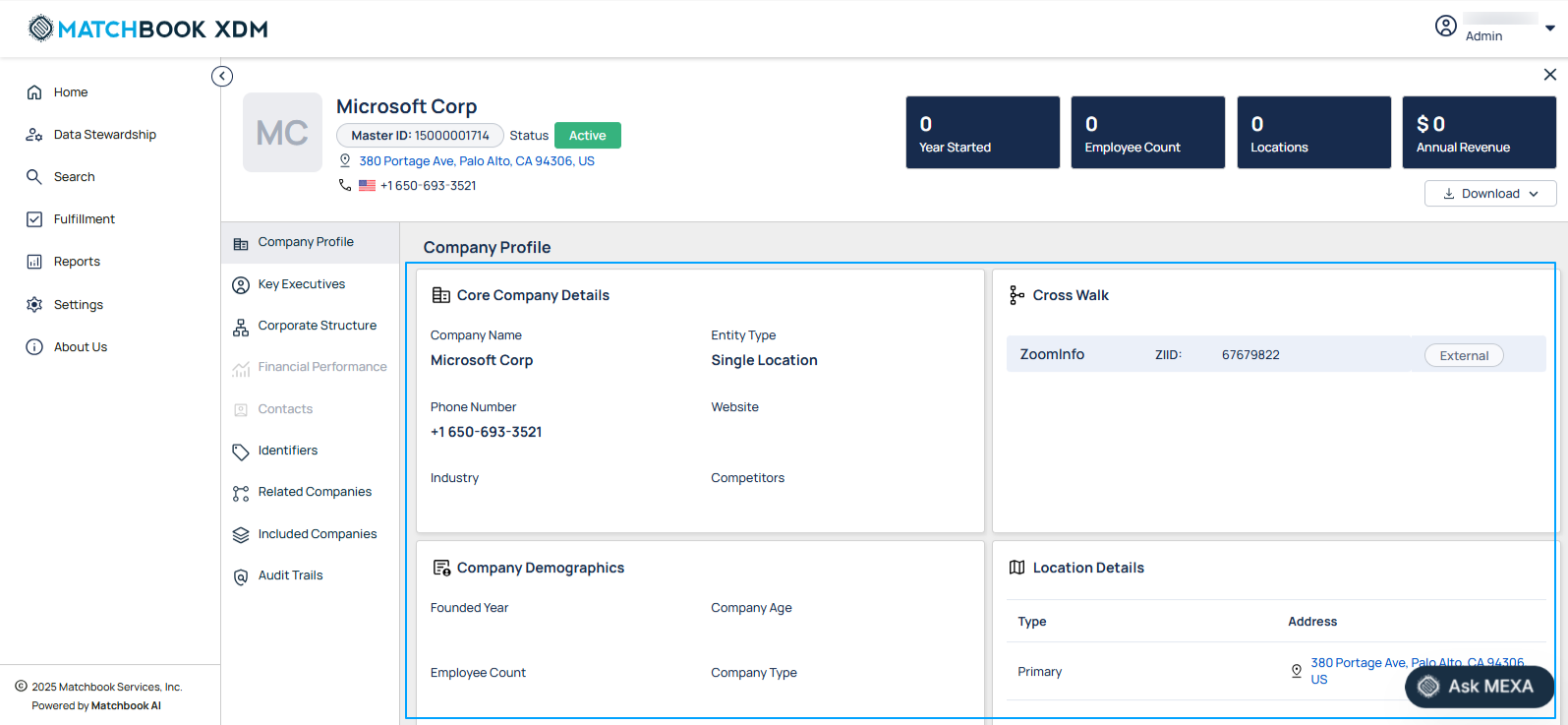
Core Company Details
This section provides fundamental and high-level information about the company. This includes its official identity, contact points, website, and industry sector.
The table below gives the decription of each field:
Field |
Description |
|---|---|
Company Name |
The official, standardized name of the company. |
Entity Type |
The classification of the company within the corporate hierarchy (e.g., Single Location, Branch, Global Parent, Domestic Parent, Headquarters). |
Phone Number |
The primary telephone number associated with the entity. |
Website |
The official website URL for the company. |
Industry |
The primary sector or industry the business operates in, based on standard industry classifications. |
Competitors |
A list of peer or rival companies, useful for benchmarking or market intelligence purposes. |
Cross Walk
Displays the source systems from which the company data was aggregated or matched, providing traceability and multi-source reconciliation.
The table below gives the decription of each field:
Field |
Description |
|---|---|
Cross Walk Name |
The name of the originating system (e.g., Salesforce, D&B, ZoomInfo). |
ID |
The corresponding unique identifier from that source system. |
External |
Users can easily identify external identifiers and crosswalks using the External tag that highlights data from third-party systems. Note: Only identifiers and crosswalks with a defined external source field will display the external source tag. |
Company Demographics
This section offers essential background information about the company’s history, structure, and size.
The table below gives the decription of each field:
Field |
Description |
|---|---|
Founded Year |
The official year or date when the company was established. |
Company Age |
Automatically calculated based on the founding date. |
Employee Count |
The current number of full-time and part-time employees where available. |
Company Type |
Describes the operational nature of the entity (e.g., Private, Public, Non-Profit). |
Ownership Type |
Indicates whether the company is independently owned, a subsidiary, or part of a group. |
Legal Structure |
Defines the company’s legal form (e.g., LLC, C Corporation, etc.). |
Location Details
Displays the company’s physical presence and mailing-related addresses. An interactive map feature may be provided for the primary address.
The table below gives the decription of each field:
Field |
Description |
|---|---|
Primary |
The main business location of the company. Note: A clickable link that opens the Primary Address location in Google Maps. Useful for visual verification and logistics. |
Alternate |
Additional physical or operational location. Note: A clickable link that opens the Alternate Address location in Google Maps. Useful for visual verification and logistics. |
Alternate |
Official address for postal correspondence. Note: A clickable link that opens the Alternate Address location in Google Maps. Useful for visual verification and logistics. |
Financial Performance
Provides insight into the company’s estimated or reported financial data.
The table below gives the decription of each field:
Field |
Description |
|---|---|
Annual Revenue |
An estimated or reported revenue figure, often based on modeling, where direct reporting is unavailable. |
Fiscal Year End |
The closing month of the company’s financial year. |
Last Report Dated |
The most recent date when the financial data was updated or confirmed. |
Key Executives
The Key Executives section highlights major decision-makers and organizational leadership linked to the entity. This helps identify contacts for outreach, verification, or enrichment.
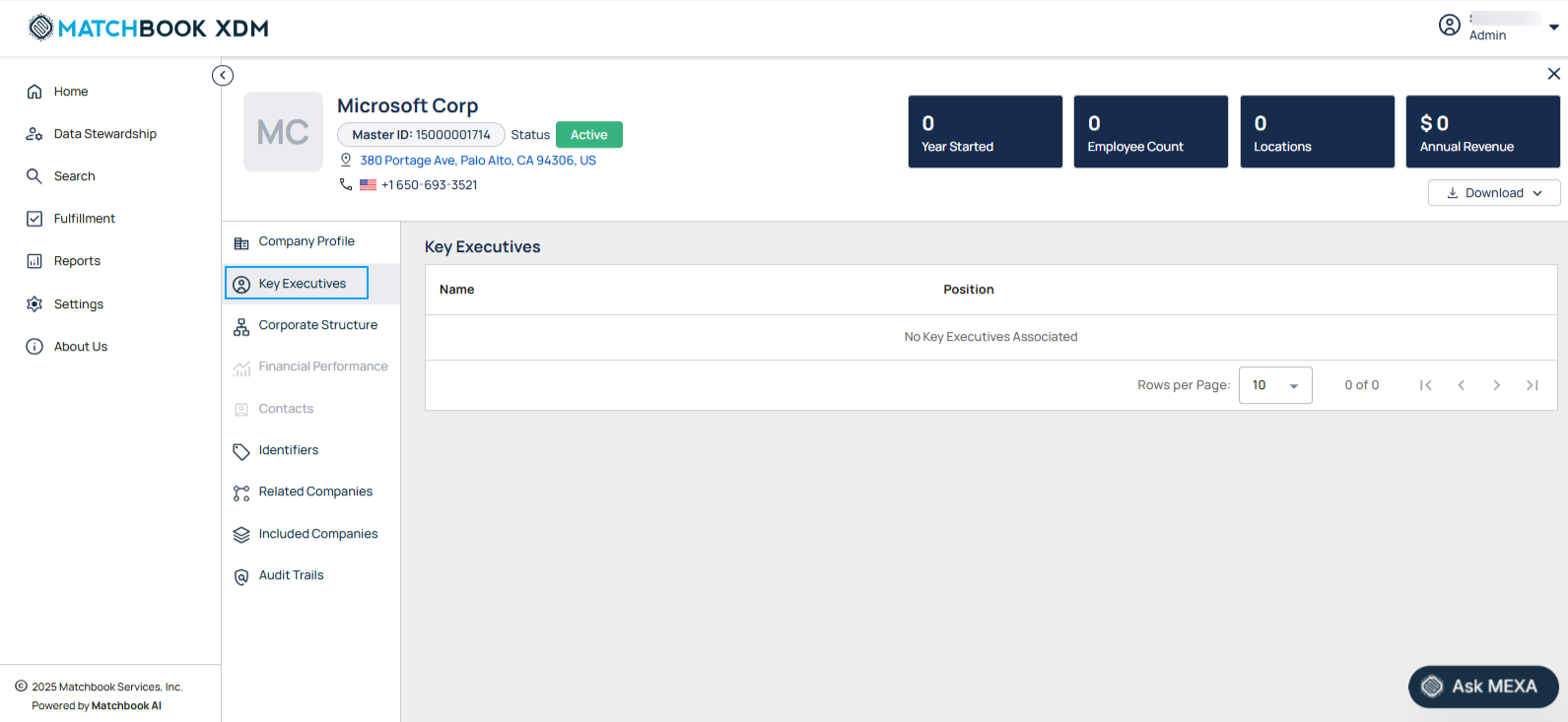
The table below gives the decription of each field:
Field |
Description |
|---|---|
Name |
Full name of the executive. |
Position |
Title/role within the organization. |
Corporate Structure
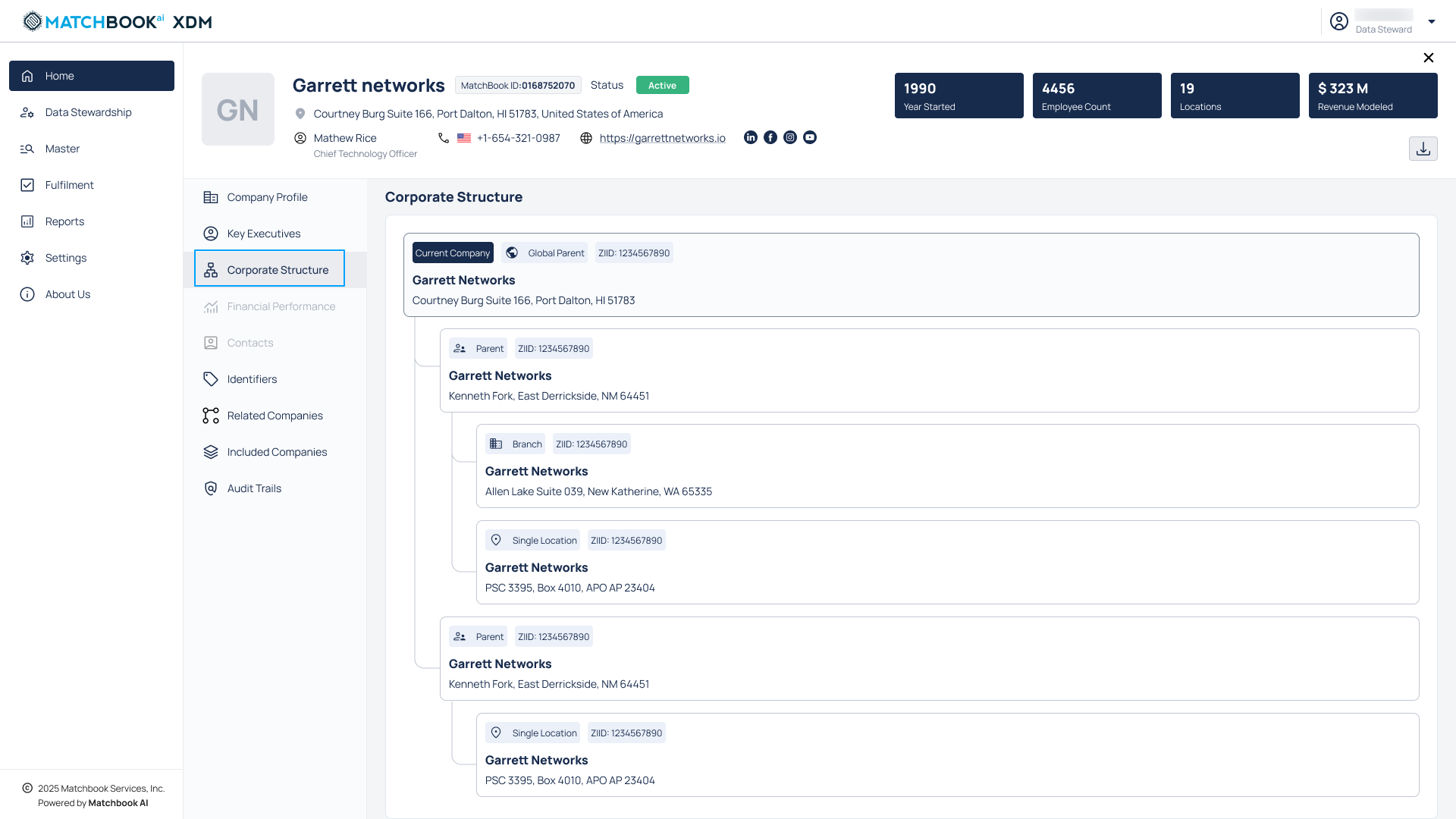
The Corporate Structure tab provides users with a clear and interactive view of a company’s organizational hierarchy. This feature allows Data Stewards and Business Analysts to understand how a global (parent) entity is related to its associated child entities, supporting better decision-making and data management.
It displays a hierarchical chart starting with the global entity at the top. All child entities appear below in a nested format that visually represents their relationships.
Each entity in the chart is shown as a tile or row card, containing key information such as: Company Name, Address, Identifier, Master ID, and Entity Type classification (e.g., Global, Parent, Domestic).
Note
If some information is missing such as an address, the system will show available fields and display ‘–’ for any unavailable data.
In cases where no child entities are associated, the message ‘No corporate structure data available’ will be shown.
If the hierarchy fails to load due to a system issue, users will see the error message: ‘Unable to load corporate structure. Please try again later.’
Identifiers
The Identifiers section contains a catalog of known unique identifiers tied to the entity, providing traceability across systems and third-party providers.
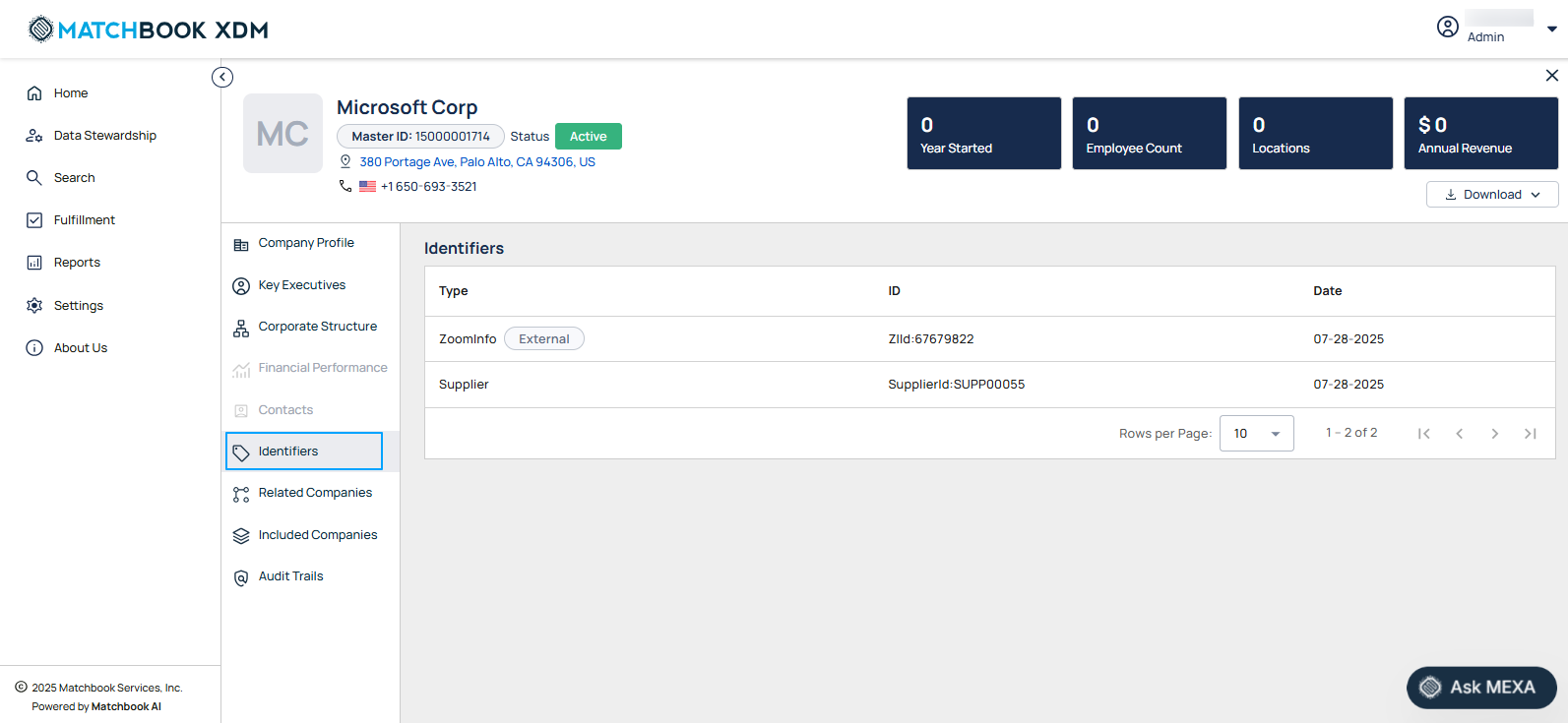
The table below gives the decription of each field:
Field |
Description |
|---|---|
Type |
Indicates the identifier category (e.g., Finance). Note: Only identifiers and crosswalks with a defined external source field will display the External tag. For example, in the screenshot above, you can see ZoomInfo marked with the External tag. |
ID |
The actual identifier value. |
Date |
The timestamp when the identifier was last verified or updated. |
Related Companies
The Related Companies tab allows users to view all companies that are part of the same corporate group or network. This feature helps Data Stewards gain a comprehensive understanding of hierarchical or associative relationships such as shared global parents, subsidiaries, or sibling entities within the master data repository.
It displays a tabular list of all companies related to the selected entity. A company is considered “related” if it shares the same Global Parent as the entity being viewed.
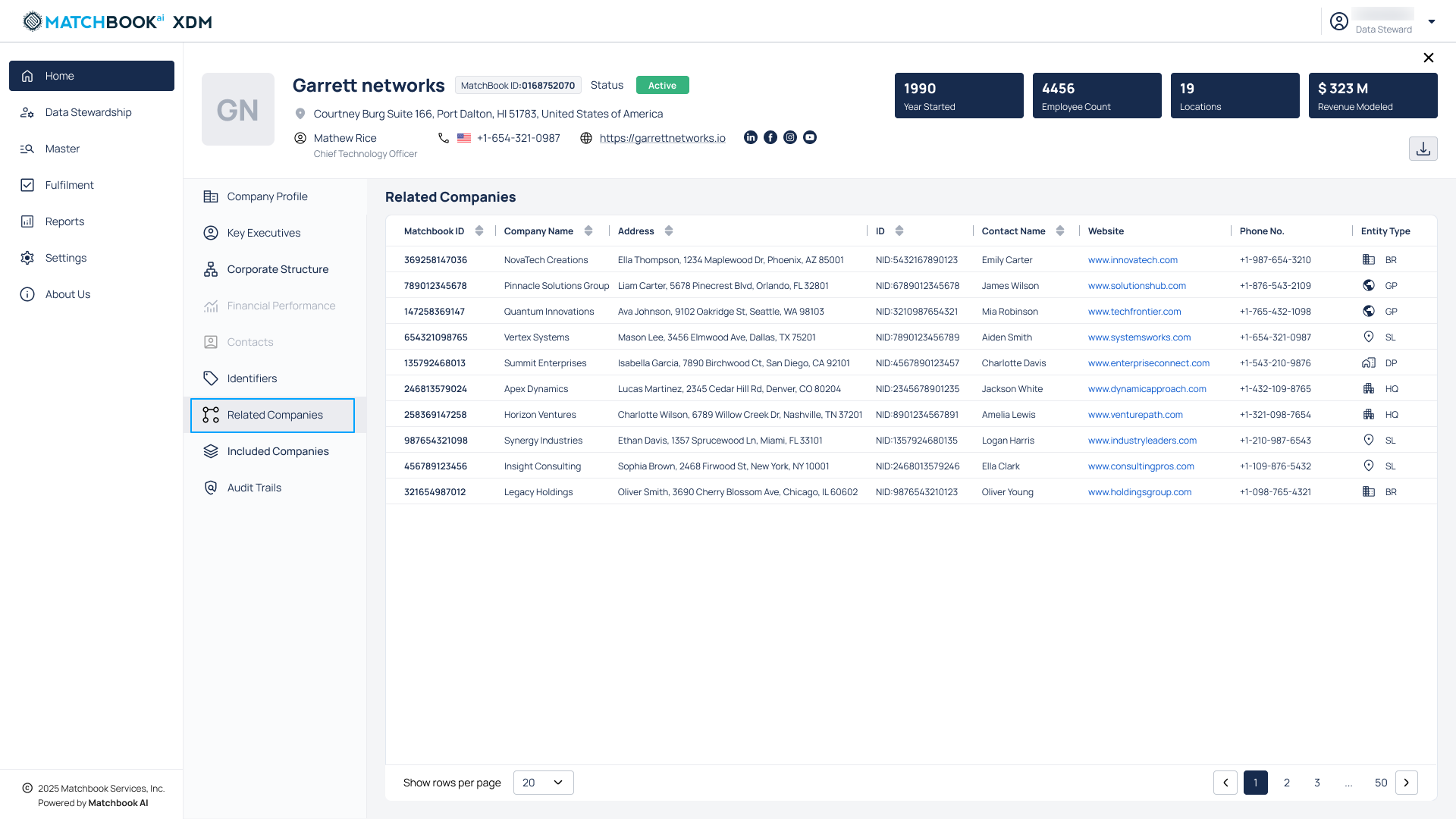
The table includes the following columns, with sorting enabled for Matchbook ID, Company Name, Address, ID, Contact Name. So, Users can sort columns (where applicable), paginate through results, and adjust the number of rows displayed per page.
Note
If any data fields are missing, they will be shown as ‘–‘.
If no related companies exist for the selected entity, a message will appear: ‘No related companies found for this entity’.
In the event of a data retrieval failure or timeout, the system will display: ‘Unable to load related companies. Please try again later’.
Included Companies
This section lists all companies that have been merged into the current master record, usually through deduplication or hierarchy-building processes.
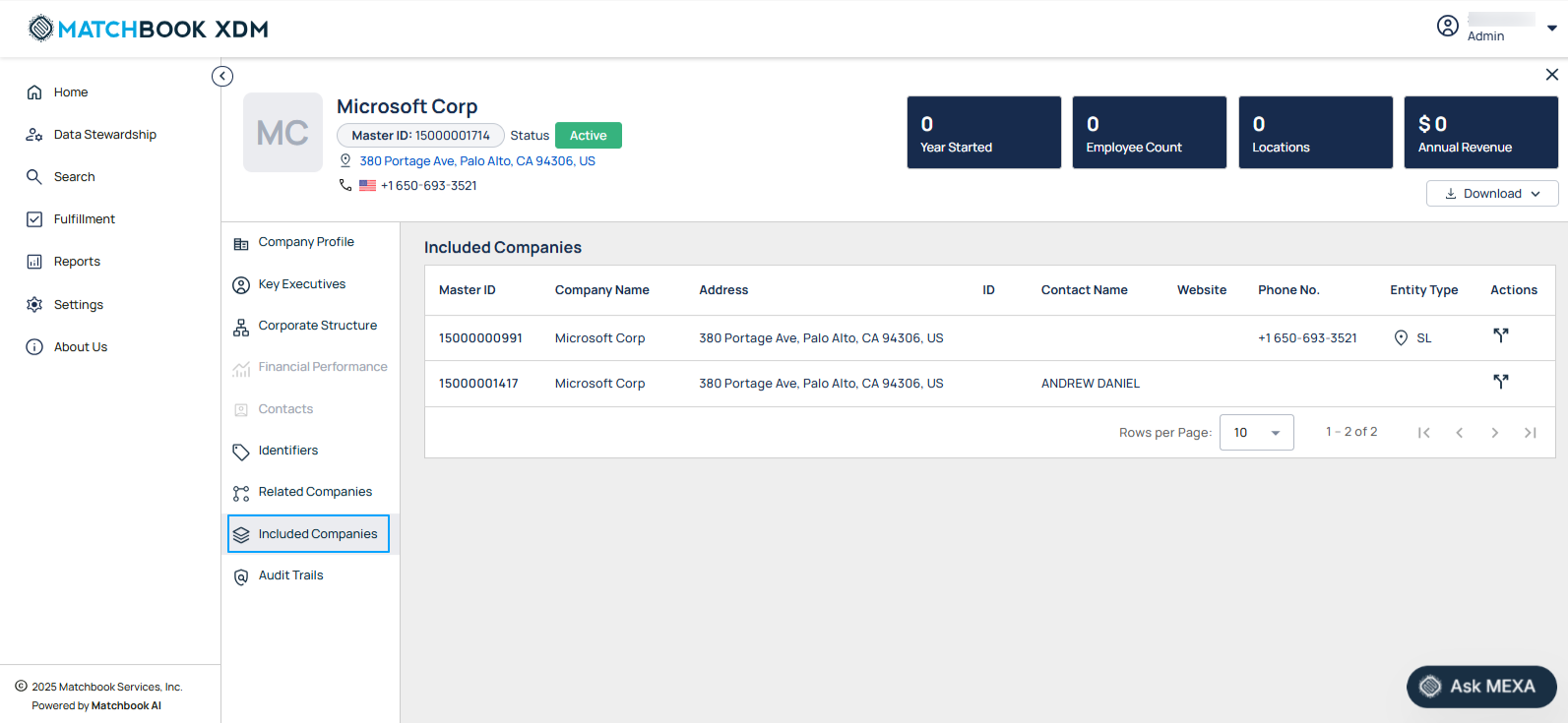
The table below gives the decription of each field:
Field |
Description |
|---|---|
Master ID |
Unique system-generated ID assigned to the master record for tracking and integration purposes. |
Company Name |
The official registered name of the company or entity. |
Address |
Physical location(s) associated with the company. Note: A company can have multiple addresses. |
ID |
One or more unique identifiers associated with the entity. List of Identifiers:
Note: There could be multiple IDs from different sources. |
Contact Name |
The name of the primary contact person associated with the company. |
Website |
The company’s official website URL. |
Phone no. |
The primary contact number for the company. |
Entity Type |
Displays business classification along with an entity type symbol:
|
Actions |
Unmerge Action: Allows the user to initiate an unmerge request. |
Now, click on the record as shown in the screen below to know more details about the record. You can see in the compact view, details about the record and the message ‘Merged into -> Master ID 15000001711’.
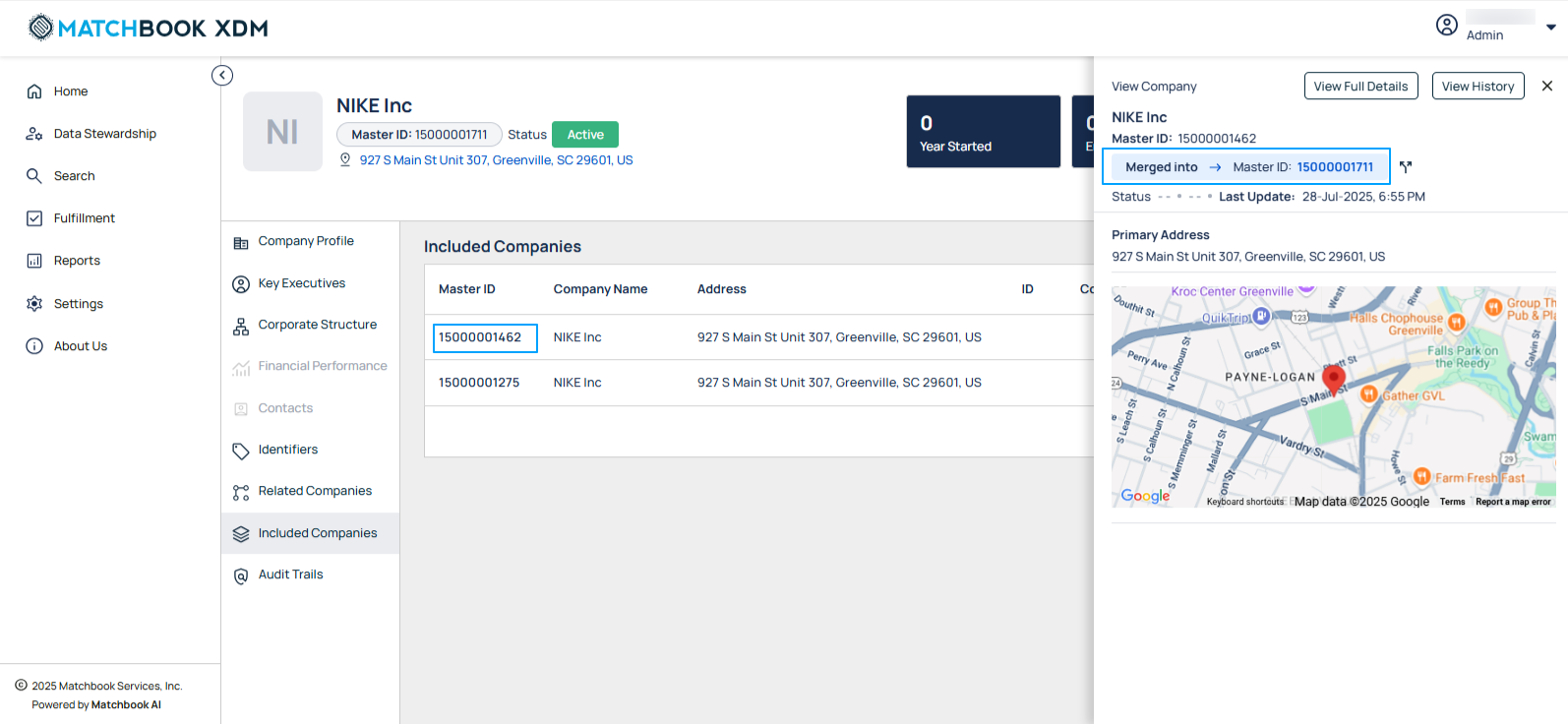
Unmerge
The icon under the Actions column, as shown in the screenshot below, displays ‘Unmerge record’ on hover. From here, you can initiate an unmerge request.
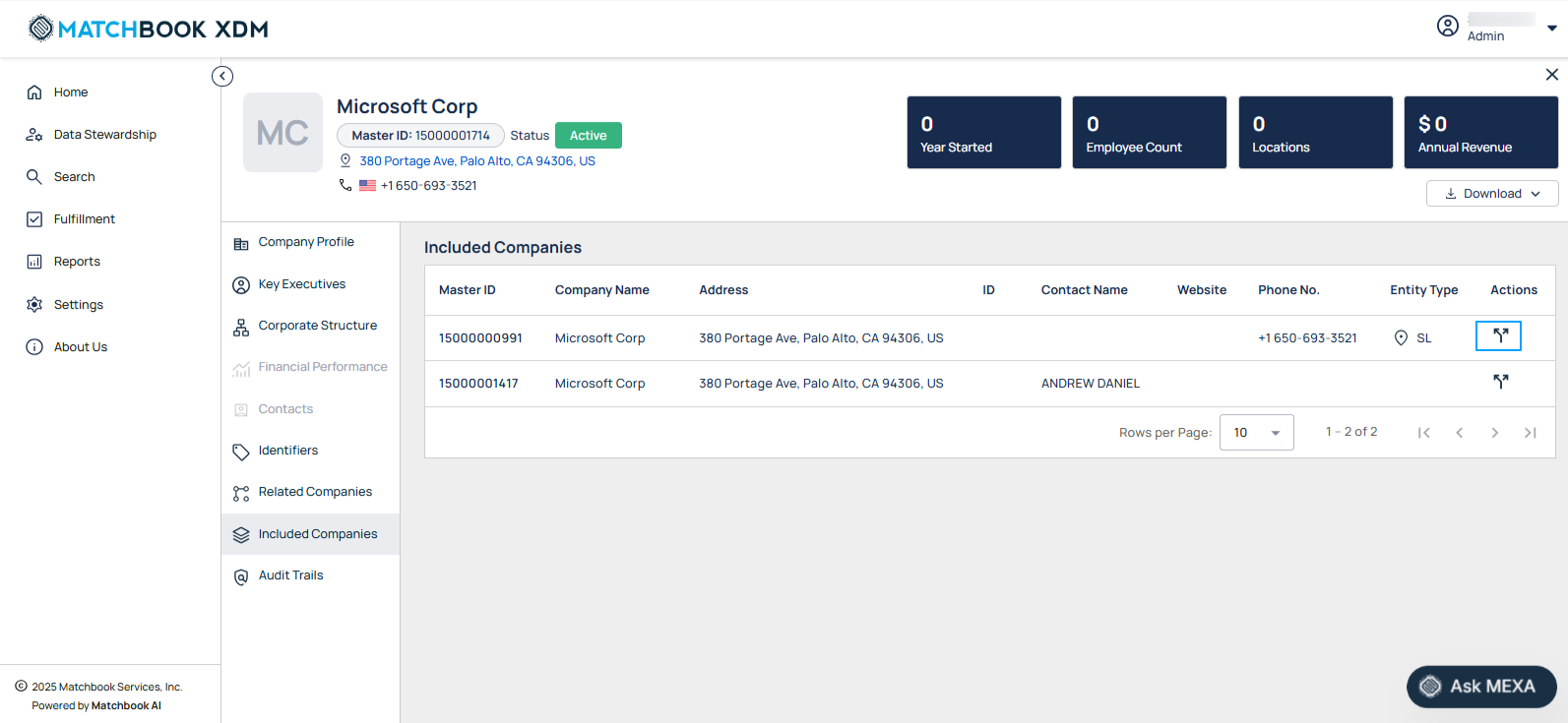
A pop-up window titled ‘Confirm Unmerge’ appears with the message: ‘You are about to unmerge the selected record. Once confirmed, these records will be submitted for unmerge and added to the reviewer queue for processing’.
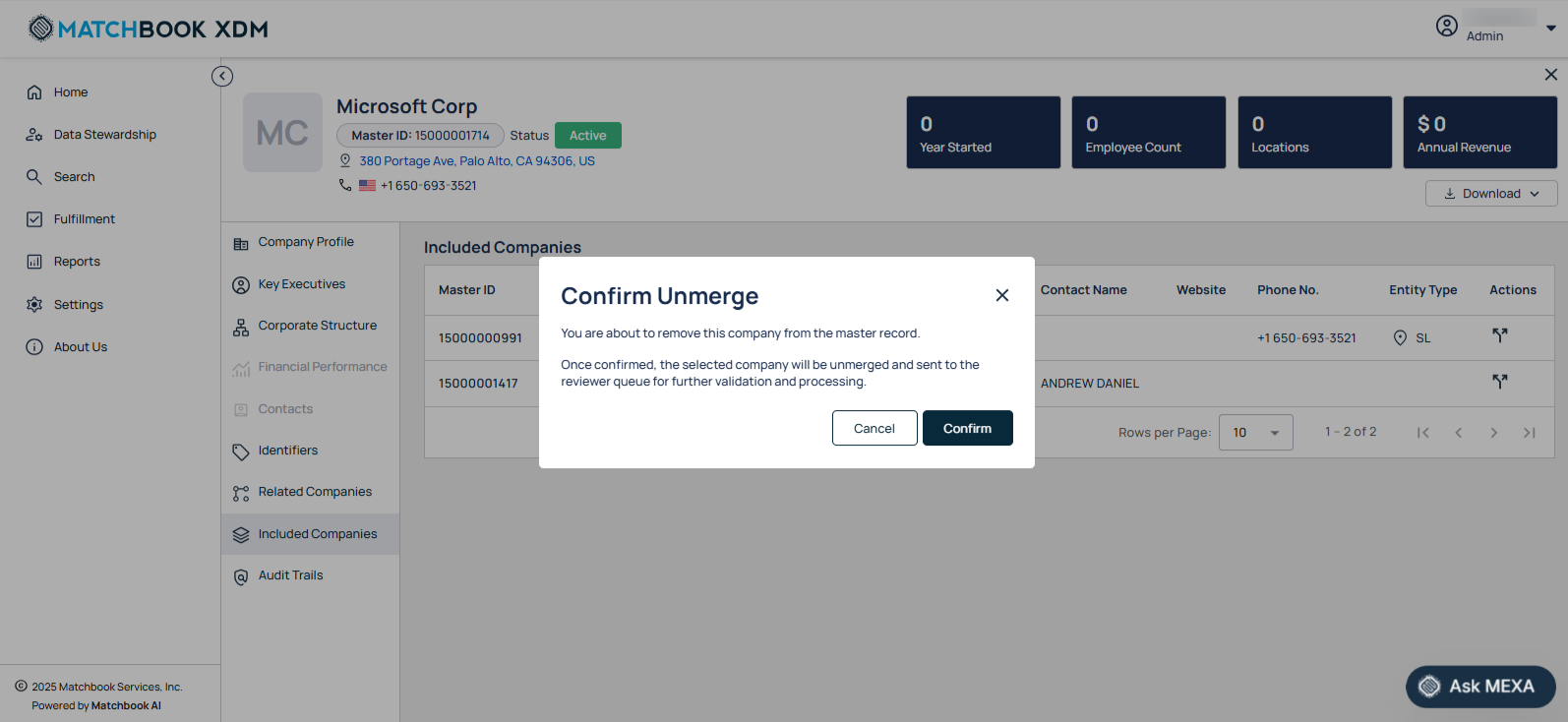
Click the Confirm button to submit the record for the unmerge process or select Cancel to discard the action.
Audit Trials
The Audit Trails section maintains a detailed log of all actions performed on the company record, providing transparency and accountability.
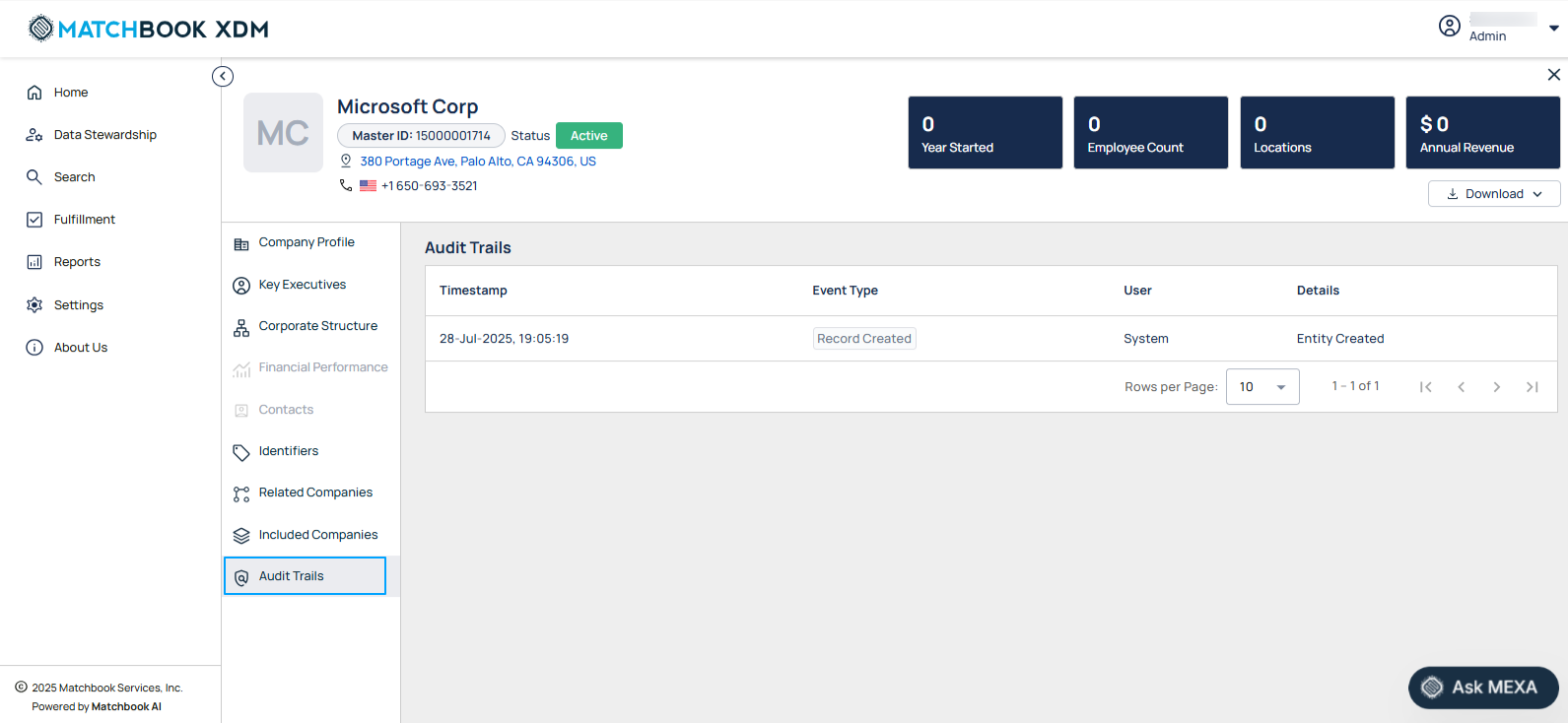
The table below gives the decription of each field:
Field |
Description |
|---|---|
Timestamp |
When the action was performed. |
Event Type |
Nature of the action (e.g., Record Created, Record Merge, Record Un-Merge, Record Merge Failed, Record Un-Merge Failed). |
User |
Username or system agent responsible for the change. |
Details |
Summary of what was modified or executed. |
1.6 View History
Clicking on the View History feature allows users to track and audit the sequence of historical changes performed on a mastered entity record. This enhances transparency and supports data governance by showing how the entity has evolved over time.
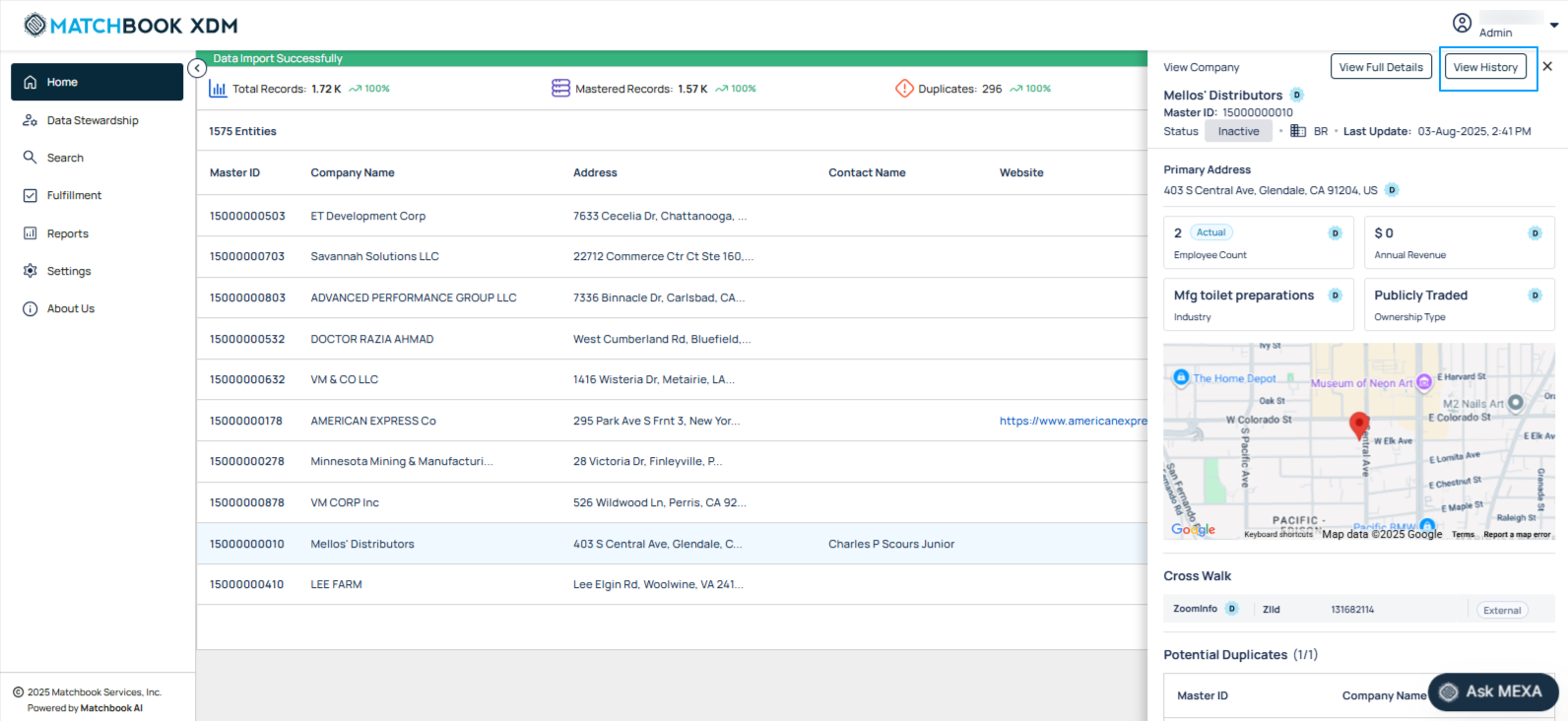
Once opened, the history view displays a chronological list of key actions performed on the entity.
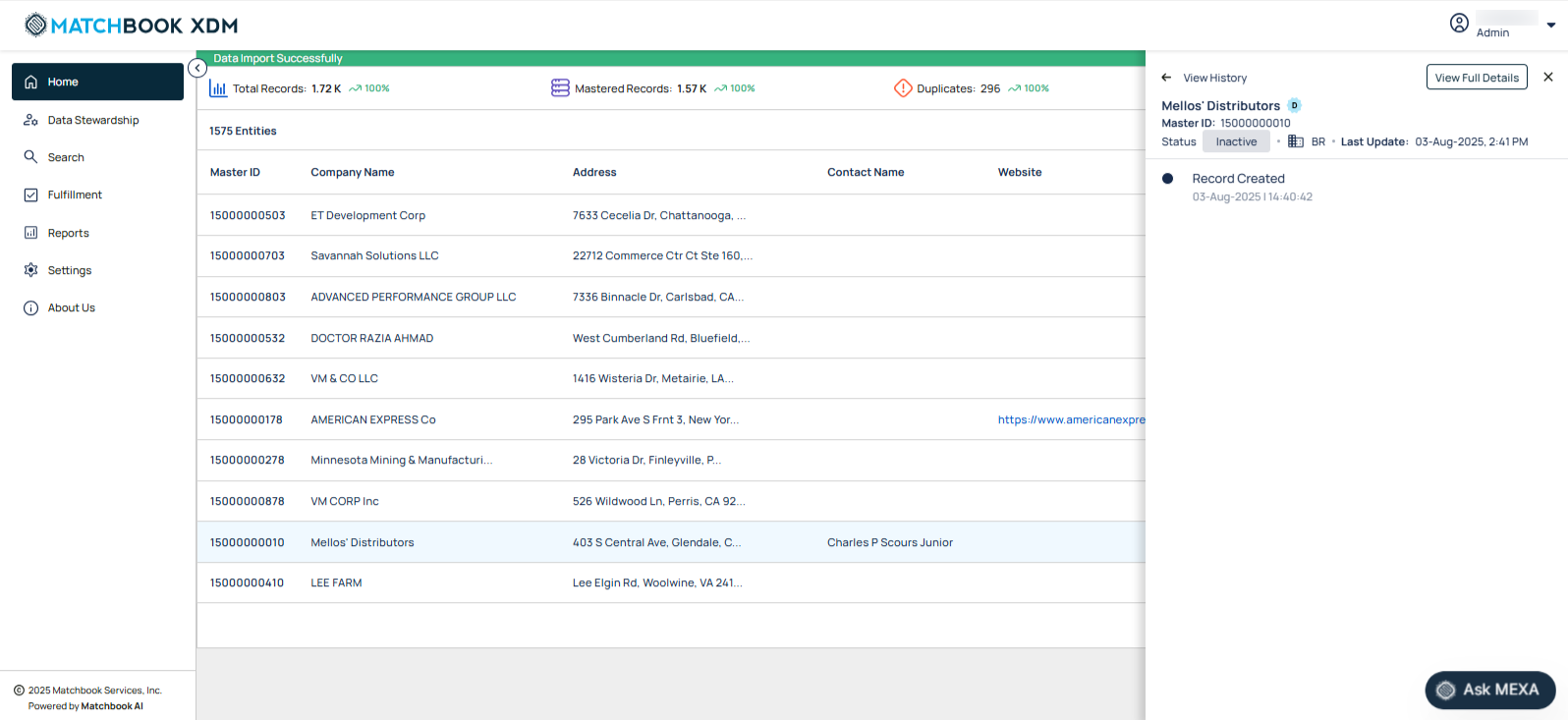
Each entry includes:
Field |
Description |
|---|---|
Action Type |
Indicates the kind of action taken (e.g., Entity Record Created, Profile Merged, Entity Merged, Entity Unmerged). |
Timestamp |
Date and time when the action occurred. |
Company Name |
Shows the name of the entity involved in the action. |
Back button: Located within the View History panel, this returns the user to the main Detailed View of the record.
View Full Details Button: Available within each history entry or at the top of the history panel, this button provides deeper insight into the entity’s full profile and attributes at the time of the historical change.
If history data fails to load, display: ‘Failed to load record history. Please refresh the panel.’