Scout AI
Scout AI is the in-product assistant for Matchbook XDI. Ask it questions about the product and it answers from approved Matchbook documentation, and guides you to the right page. Scout AI is available on every plan, including Freemium, Essential, Professional and Enterprise, and to existing customers without any change to their set-up.
Open Scout AI
From any page, click the Scout AI button.
The Scout AI chat widget opens.
Type a question, or select one of the suggested questions.
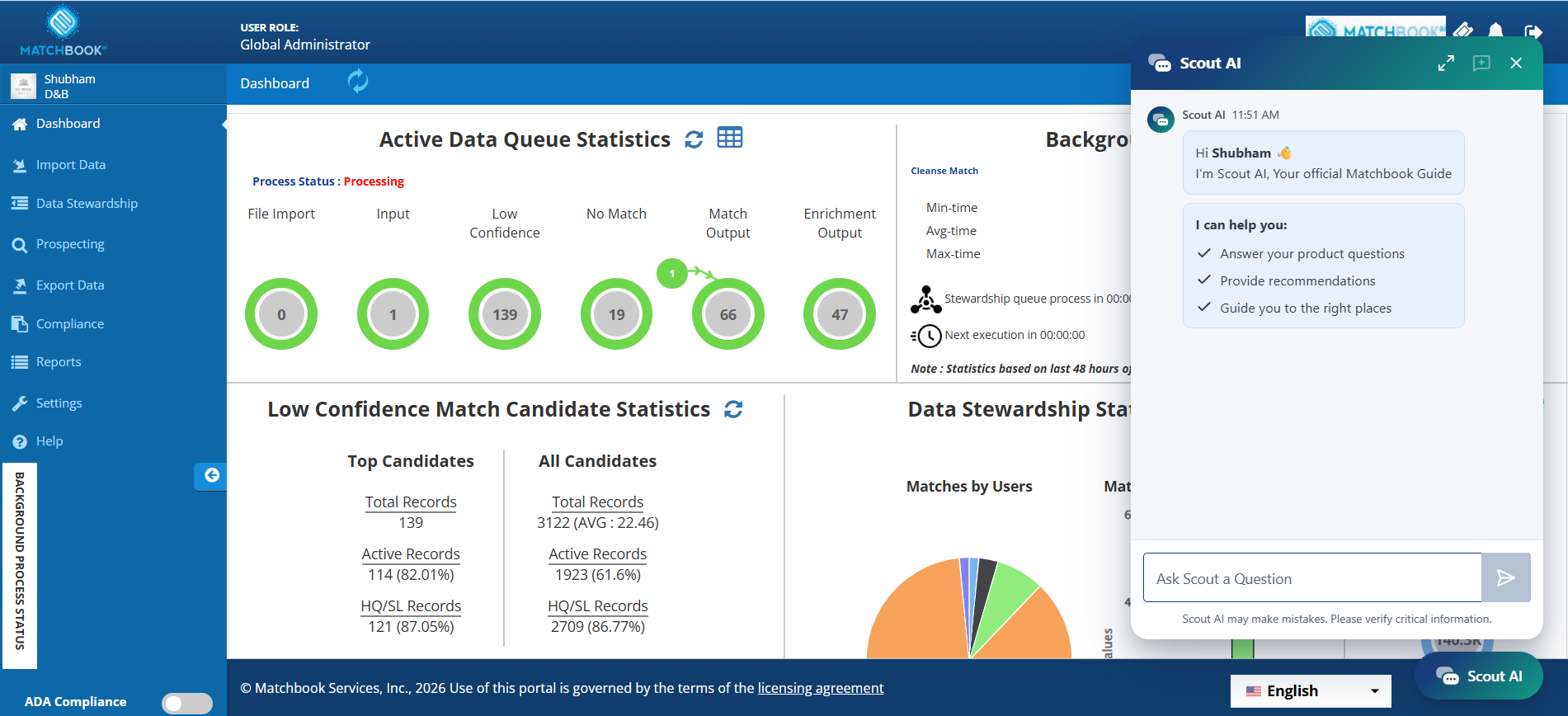
Scout AI chat widget
Note
If the widget cannot be opened, “We couldn’t open Scout AI. Please try again.” is displayed.
First-Time Welcome
The first time you sign in, a Meet Scout popup appears above the Scout AI button: “Your XDI guide. Ask a question whenever you need help.”
Click the popup to open the Scout AI chat with a personalized welcome.
Click Got it to close the popup without opening the chat.
The popup is not shown again once you have opened it or clicked Got it, and is not shown to returning users.
The welcome message in the chat contains:
Section |
Description |
|---|---|
Get Started checklist |
Steps: Check your Dashboard, Import your first file, Review low-confidence matches, Export your data and Add your team. Each shows a short description, its navigation path and an Open link that takes you to the page. Only steps that apply to your plan and role are shown. |
Videos |
Video cards with a thumbnail, title and short description. Click a card to open the video in a separate window. |
Your Plan |
Your plan name and the features included. |
Suggested questions |
Click a question to send it to Scout AI. |
Note
If the first-time check fails, the popup is not shown and the standard Scout AI experience is displayed.
Ask Scout AI a Question
Scout AI answers using the current user guide and other approved Matchbook sources only. It does not use external or unapproved material.
Note
If Scout AI cannot find an answer in its approved sources, it replies “I don’t have enough information to answer that yet.”
Responses Reflect Your Account
Scout AI identifies who you are, your role and your plan before it responds. It does not suggest features or actions that are unavailable to you. For example, if you ask about a feature not available on Freemium, it explains that “This feature isn’t available in the Freemium plan” rather than suggesting a workaround.
Note
If Scout AI cannot verify your account, “We couldn’t verify your account details. Please refresh or log in again.” is displayed.
Video References
When a relevant video exists for your question, a video icon appears in Scout AI’s response. Click it to watch. No icon is shown when there is no relevant video.
Note
If the video cannot be played, “This video is currently unavailable. Please try again later.” is displayed.
Chat History
The chat shows only your current or most recent conversation. Scout AI does not keep a dated list of past conversations for you to browse.
Note
If the conversation cannot be loaded, “We couldn’t load your conversation. Please refresh the page.” is displayed.
Rate a Response
Use the thumbs-up or thumbs-down controls on any Scout AI response to rate it. Your rating is saved against that response.
Note
A thumbs-down alone does not generate a new answer. If a response did not help, rephrase or add detail to your question.
If a rating cannot be saved, “We couldn’t save your feedback. Please try again.” is displayed.