Onboarding
Onboarding is a guided, self-service sign-up that creates your Matchbook AI portal in a few minutes. You provide your business details and Dun & Bradstreet (D&B) credentials, review them, and Matchbook sets up your environment automatically. No manual set-up by Matchbook staff is required.
Overview
Onboarding has five steps, shown in the left panel:
Step |
Name |
What you do |
|---|---|---|
1 |
Account |
Enter and verify your business email address. |
2 |
Profile |
Enter your personal and company details and choose a unique sub-domain for your portal. |
3 |
Connect |
Enter and validate your D&B API credentials. |
4 |
Review |
Check the summary of everything you entered, then submit. |
5 |
Setup |
Watch your portal being created. When it finishes, open your portal. |
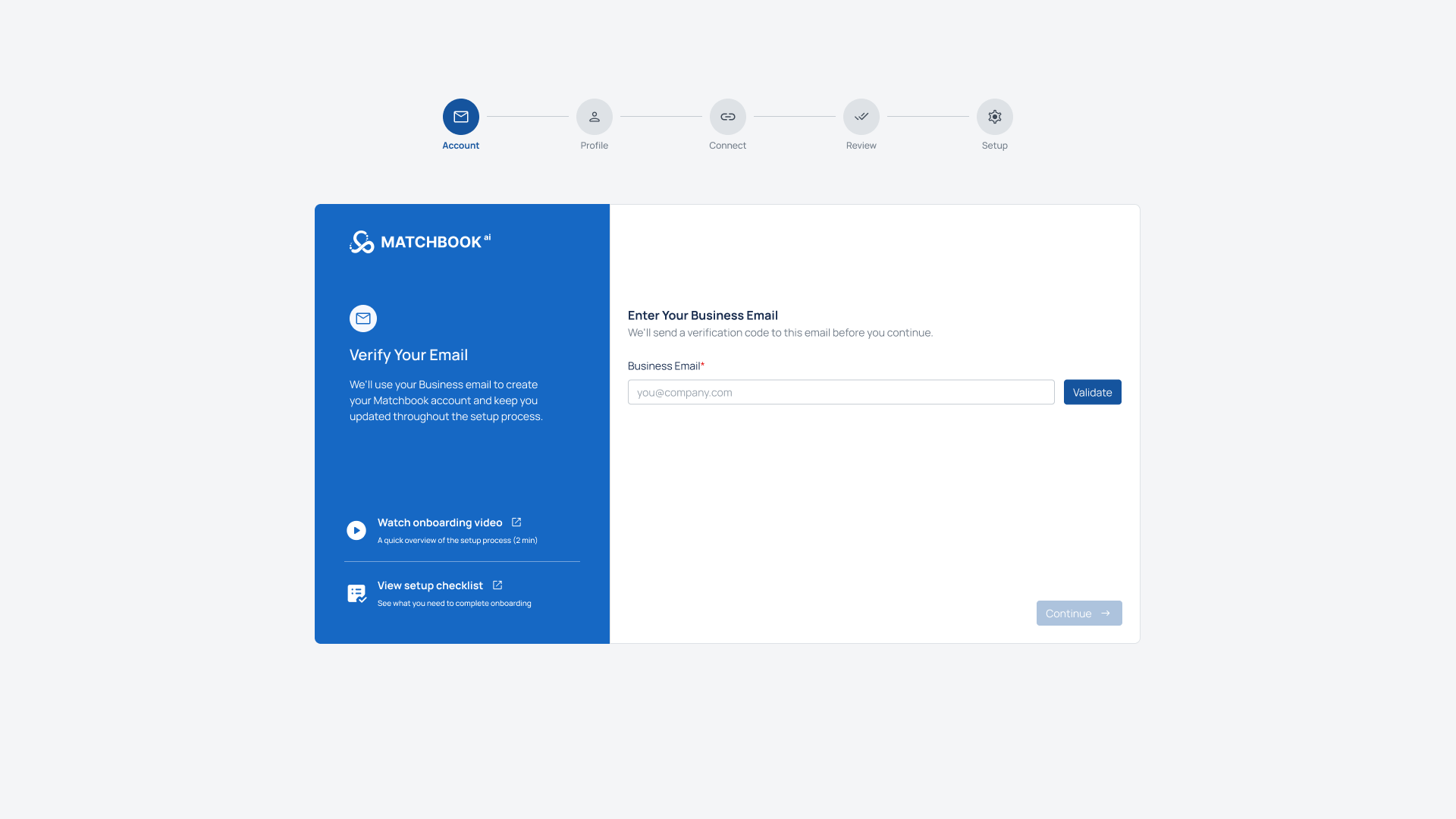
Onboarding-Overview
Before You Begin
Have the following ready:
A business email address. Personal email providers such as Gmail, Yahoo, Hotmail, Outlook, iCloud and AOL are not accepted.
Your first name, last name, phone number, company legal name and company registered address.
Your D&B API Key and API Secret/Password (the API type defaults to DirectPlus).
Optionally, your company’s nine-digit DUNS Number.
The sub-domain name you would like for your portal address.
Note
Each set of D&B credentials can be linked to only one onboarding account. Use your own D&B key.
Watch the Onboarding Video
On the Account step, the left panel includes Watch onboarding video with the text “A quick overview of the setup process (2 min)” and an external-link icon.
Click Watch onboarding video. The video, “Complete Onboarding Process in Matchbook AI Platform” (about 2 minutes 24 seconds), opens in a new browser tab.
Return to the onboarding tab. Your current step and anything you entered are unchanged.
Note
Watching the video is optional. You can click Continue at any time.
If the video is unavailable, YouTube displays its own message in the new tab. The onboarding screen is not affected.
Step 1: Account
Enter and Validate Your Business Email
Enter your business email address in the Email field. The field is required.
Click Validate. Matchbook checks that the address belongs to a business domain and is not a free or personal email provider.
When validation succeeds, Continue is enabled.
Note
Validation runs every time you click Validate. If you edit the email after a successful check, validate it again. Continue stays disabled until a business email passes.
Confirm the Verification Code
After your email is validated, Matchbook sends a code to that address and displays “Verification code sent.”
Enter the code in the Verification Code field.
If you did not receive the code, click Resend. The option is re-enabled after a countdown timer ends.
Click Continue. It is enabled only after the correct code is entered.
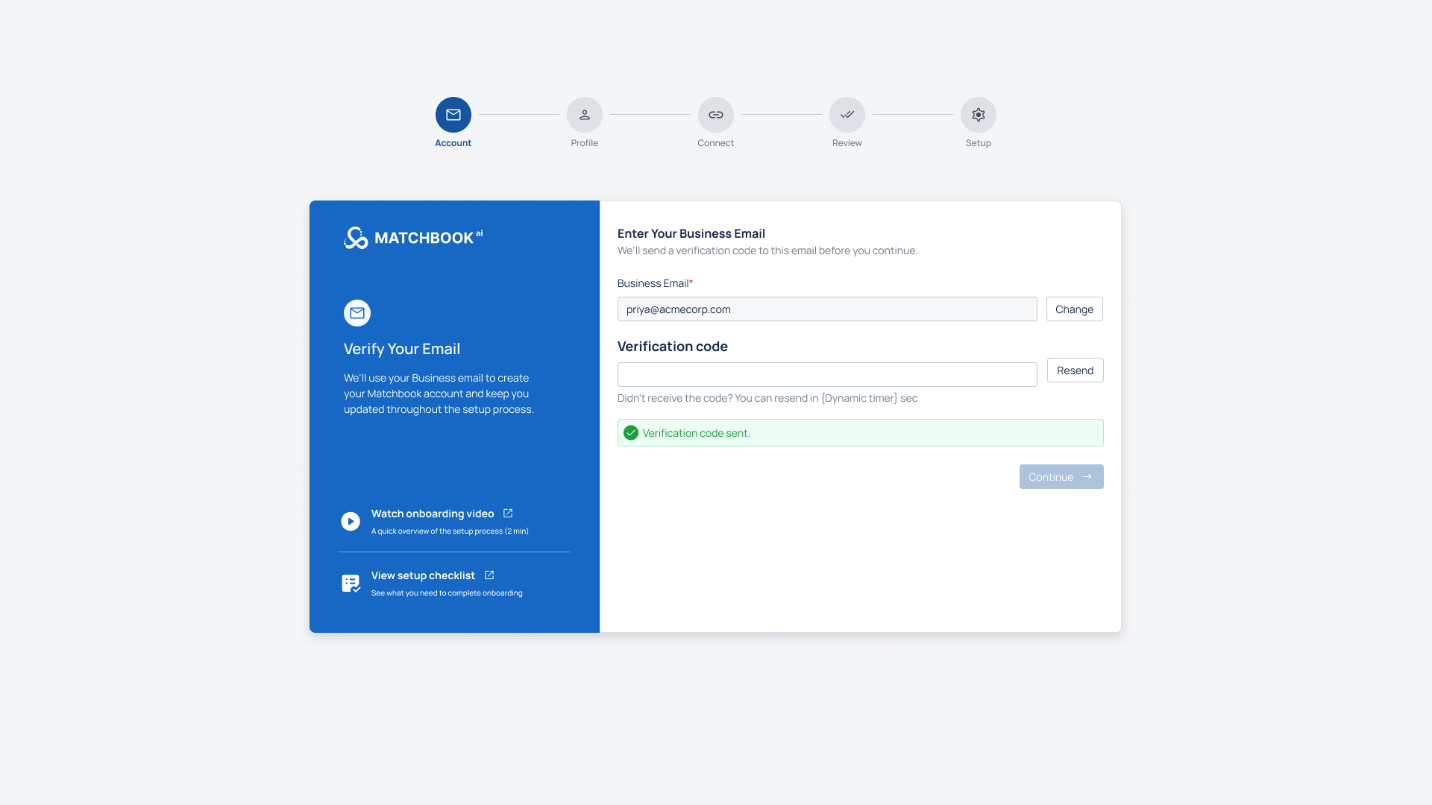
Onboarding-Account
Message |
Meaning |
|---|---|
“Please enter a valid email address.” |
The email format is not valid. |
“Use a business email address. Personal email providers (Gmail, Yahoo, Outlook, etc.) are not allowed.” |
A personal email domain was entered. Use your company email. |
“This business email is already linked to an active Matchbook portal. Sign in to that portal or contact support.” |
A portal already exists for this email. |
“Unable to validate email. Please try again.” |
A system error occurred during validation. |
“Incorrect verification code.” |
The code you entered is wrong. |
“Unable to verify code. Please try again.” |
A system error occurred while checking the code. |
“Unable to resend code. Please try again.” |
The code could not be resent. |
Step 2: Profile
Enter your personal and company details and choose your portal sub-domain. Continue is disabled until all required fields are completed.
Field |
Description |
|---|---|
First Name |
Required. “First name is required.” is shown if left blank. |
Last Name |
Required. “Last name is required.” is shown if left blank. |
Phone Number |
Required. “Please enter a valid phone number.” is shown if the format is not valid. |
Company Legal Name |
Required. “Company legal name is required.” is shown if left blank. |
Company Registered Address |
Required. “Company registered address is required.” is shown if left blank. |
DUNS Number |
Optional. If entered, it must be nine digits. “Please enter a valid 9-digit DUNS number.” is shown otherwise. |
Sub-domain |
Required. Becomes part of your portal address: |
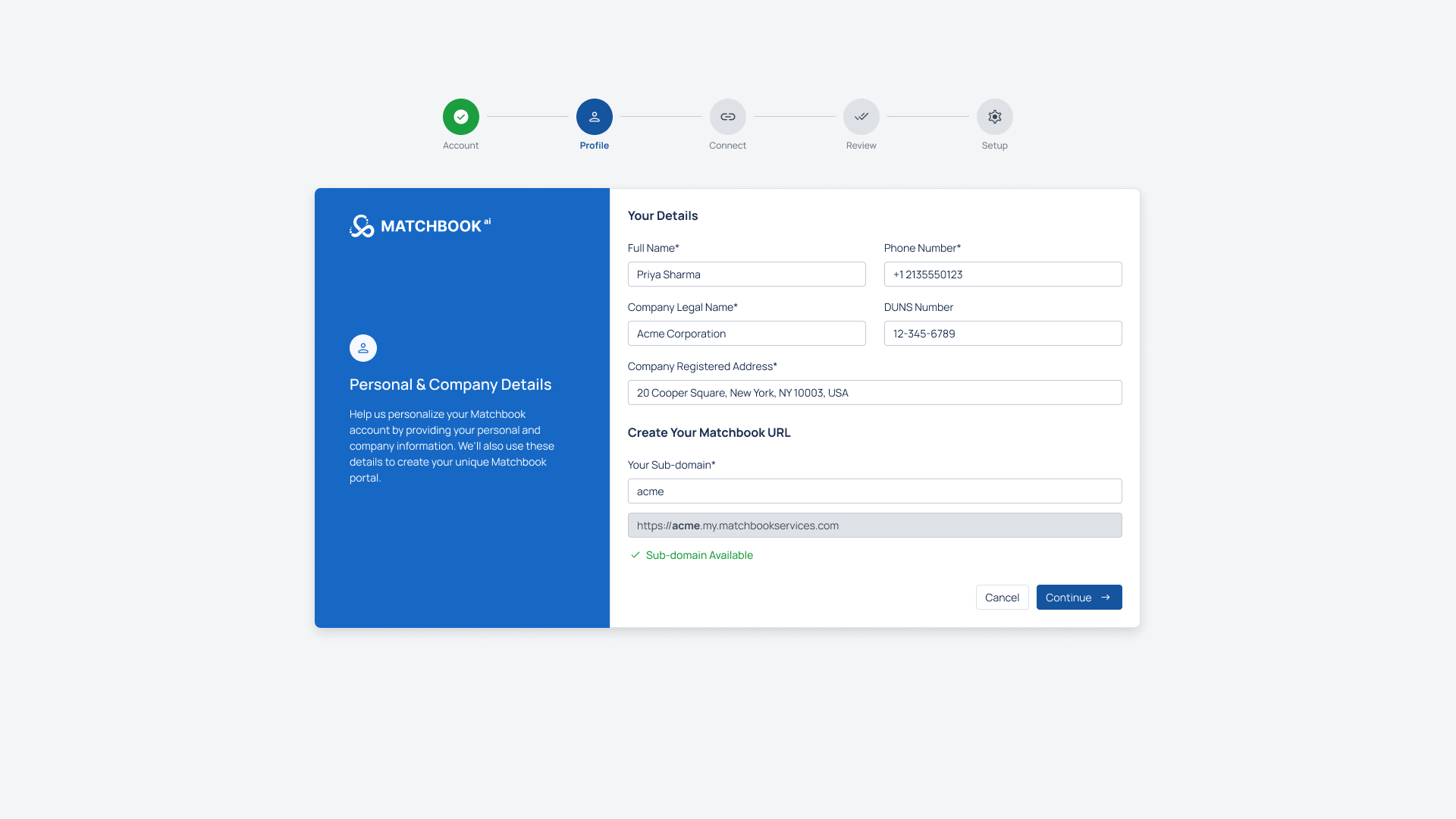
Onboarding-Profile
Choose a Sub-domain
Enter your preferred name in the Sub-domain field. Matchbook checks availability when you enter it.
If it is available, “Sub-domain is Available” is displayed along with a preview of your portal URL.
If it is not, an error is displayed. Choose a different name.
Click Continue. It is enabled only after the sub-domain is confirmed available.
Message |
Meaning |
|---|---|
“Sub-domain is required.” |
No sub-domain was entered. |
“Sub-domain ‘<name>’ is already in use. Choose a different sub-domain.” |
The name is taken. |
“Not Available. Please try a different sub-domain.” |
The name cannot be used. |
Step 3: Connect
Connect Matchbook to your D&B account so that matching and enrichment can run against your D&B license.
Enter D&B Credentials
Field |
Description |
|---|---|
Credential Name |
Required. Defaults to D&B Api Key. |
API Type |
Required. Dropdown, defaults to DirectPlus. |
D&B API Key |
Required. Your D&B API key. |
D&B API Secret/Password |
Required. Masked by default. Use the show/hide toggle to display it. |
Validate D&B Credentials
Complete all required fields. Validate is disabled until they are filled.
Click Validate. Matchbook checks the credentials with D&B.
On success, “D&B credentials verified successfully.” is displayed and Continue is enabled.
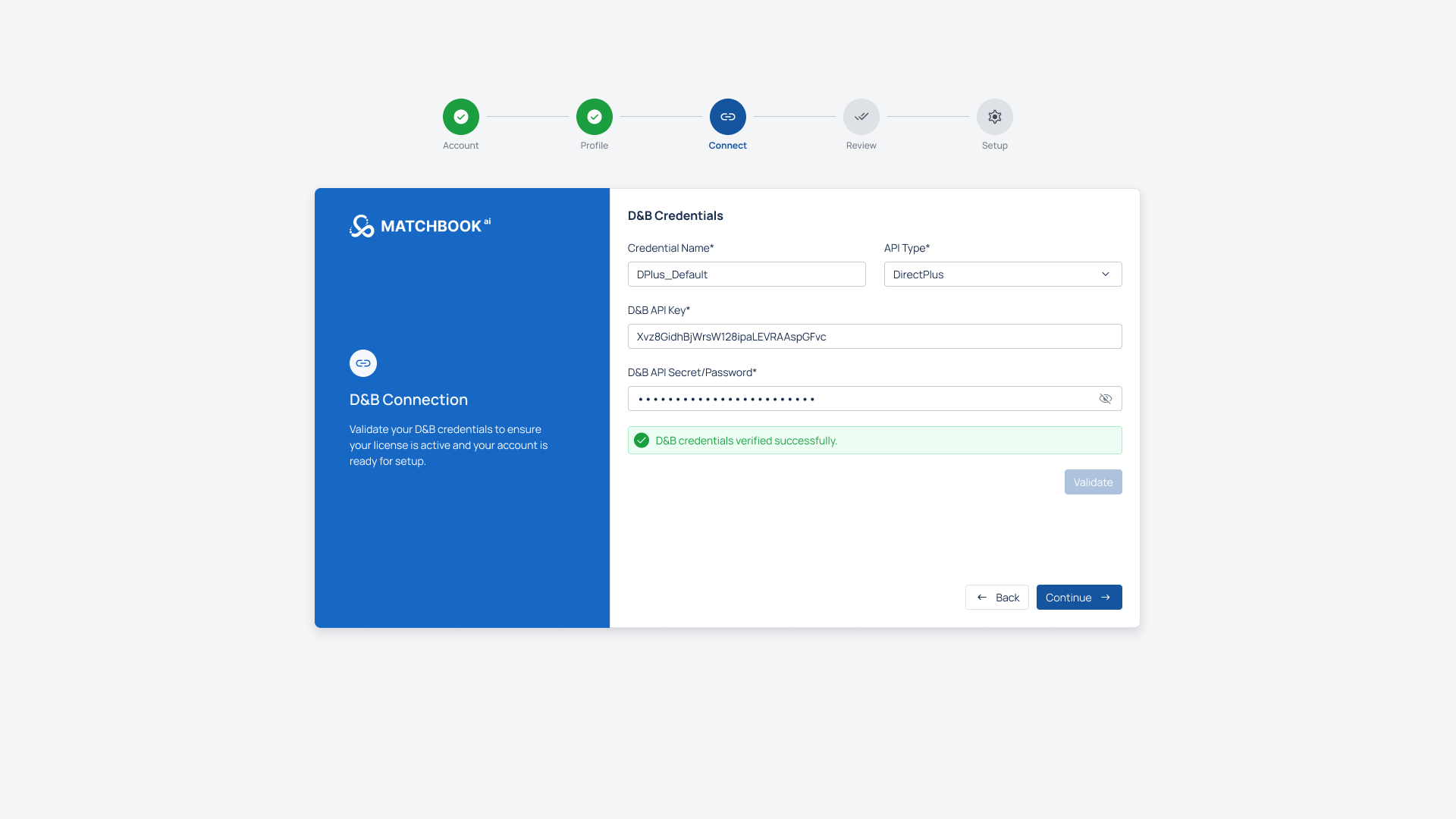
Onboarding-Connect
Result |
What happens |
|---|---|
Validation Failed - “We couldn’t validate your D&B credentials. Please check your API Key and Secret, or use a different set of credentials.” |
The key or secret is incorrect. Continue stays disabled. Correct the values and validate again. |
“These D&B credentials are already linked to another onboarding account. Use your own D&B key or contact support.” |
The license is already in use. Continue stays disabled. |
Step 4: Review
Review your entries before the portal is created.
Section |
Information shown |
|---|---|
Account summary |
Name and email, company name, DUNS number, D&B license status, sub-domain, team size and license plan. |
Portal Details |
Portal URL, Portal Administrator and Records Under Management. |
Check the details. To change anything, click Back and edit the relevant step.
Click Continue to submit. Matchbook starts creating your portal.
Message |
Meaning |
|---|---|
“Unable to submit onboarding. Please try again.” |
The submission failed. |
“Onboarding job was created but no job id was returned.” |
The request was partly processed. Contact support if this persists. |
Step 5: Setup
Matchbook creates your portal automatically. Progress is displayed in real time.
Track Progress
The following stages are shown in order:
Creating account
Verifying D&B DUNS number
Provisioning environment
Configuring account URLs
Applying essential configuration
Starting match & enrichment services
Creating login credentials
A completed stage shows a checkmark and the time it took. The current stage shows a loading indicator.
Note
Setup takes about 5 to 7 minutes. You can leave the page; you will be notified by email when your portal is ready.
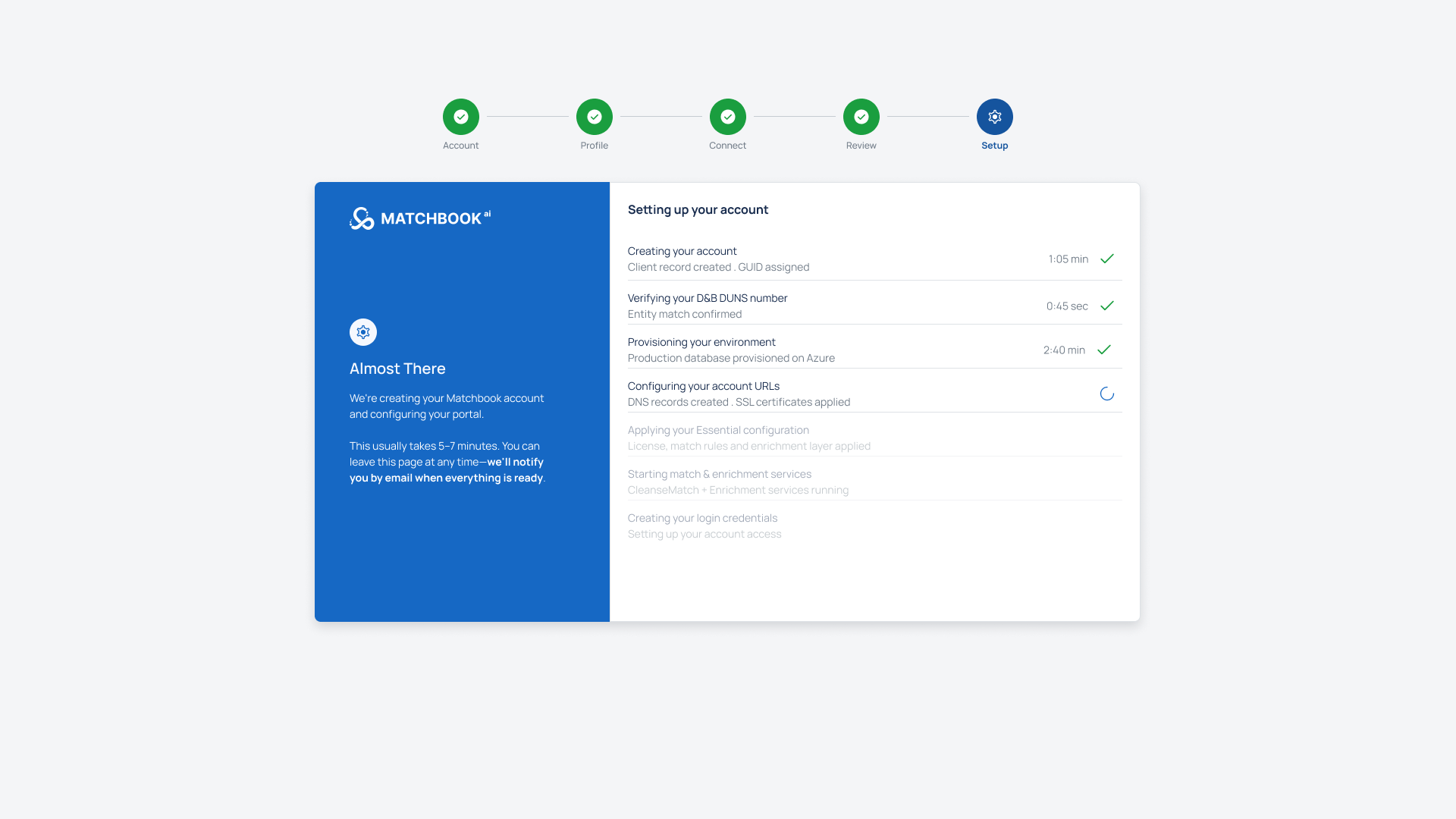
Onboarding-Setup progress
If Setup Fails
The failed stage is marked Failed in red with an info icon.
Later stages stay greyed out and are not started.
A banner explains that an unexpected error occurred and provides a contact support link.
A success screen is never shown for a failed setup.
You may be able to resume setup. The number of resume attempts is limited.
Message |
Meaning |
|---|---|
“Unable to confirm the provisioning status. Please try again.” |
The status check failed. |
“Unable to resume provisioning. Please try again.” |
The resume request failed. |
“You’ve reached the limit for resuming setup.” |
No more resume attempts are allowed. Contact support. |
Setup Completed
When all stages finish, the screen displays Setup completed and Congratulations! with a checklist: Account created, Portal provisioned and Access instructions sent.
Element |
Description |
|---|---|
Portal URL |
Your portal address, with a Copy button. |
Temporary Password |
Masked by default. Use the show/hide toggle to display it, and Copy to copy it. |
Open My Portal |
Opens your portal. |
Resend Email |
Sends the access instructions again. |
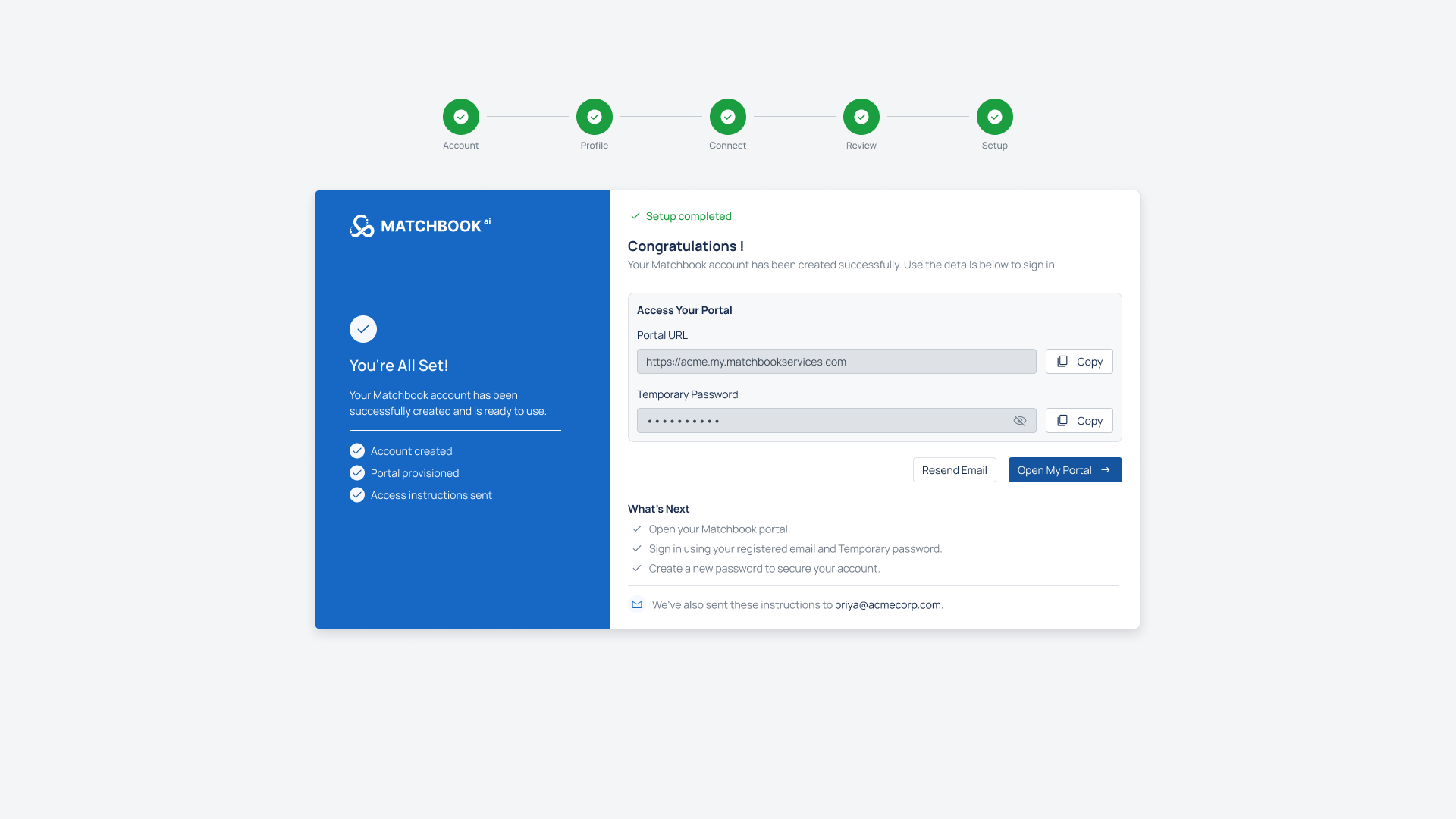
Onboarding-Setup completed
Welcome Email
After setup, a welcome email is sent to your registered address. It contains Matchbook branding, your unique Portal URL, your registered email, a temporary password and an Open My Portal button.
Note
You must change the temporary password the first time you sign in.
If you did not sign up for Matchbook, the email includes a support contact you can use.
Refreshing the Page and Starting Over
If you refresh the page, onboarding keeps your session and entered information, and returns you to the same step.
If you open onboarding in another tab, a new session starts.
To restart onboarding, click Start over. This ends the current session, clears the information entered, and returns you to the Account step.
Step |
Start over |
|---|---|
|
Not shown |
|
Shown |
|
Hidden |
Note
If the restart fails, “Unable to restart onboarding. Please try again.” is displayed.
If You Leave Before Finishing
If you exit onboarding before submitting, and a valid business email has already been captured, the details entered so far may be shared with the Matchbook team so they can follow up. This happens in the background and does not affect you leaving the page.