AI Stewardship
AI Stewardship adds an AI-assisted review to the standard matching process. When the standard process returns a low-confidence match or no match for a record, Matchbook sends the record to the AI Data Stewardship service to look for a candidate match. Records the AI is confident about can be accepted automatically, and for the rest, you can see the AI’s reasoning alongside the record.
How It Works
A record is imported and goes through Cleanse Match.
If the result is Low Confidence or No Match, the record is automatically sent to the AI Stewardship service. This applies only if AI Data Stewardship is licensed and enabled for your portal.
The service applies your Processing Options and returns one of three outcomes: a candidate match, a low-confidence match, or no match.
The record is routed to Preview Matched Data, Low Confidence or No Match accordingly.
Matches at or above your confidence threshold are accepted automatically and shown as Auto-Acceptance.
Note
Routing runs in the background. You do not need to start it.
Licensing
AI Data Stewardship is a licensed add-on, enabled per client by Matchbook Support in the Support Portal under Clients > License. When it is disabled, the AI Stewardship Configuration tab is hidden in your portal.
Note
Disabling the license does not delete your saved configuration. The values return when the license is re-enabled.
Access depends on the client license. It is not controlled per individual user.
Configure AI Stewardship
Go to Settings > D&B > Identity Resolution > AI Stewardship Configuration. This tab is shown only when the license is enabled and is intended for Global Administrators.
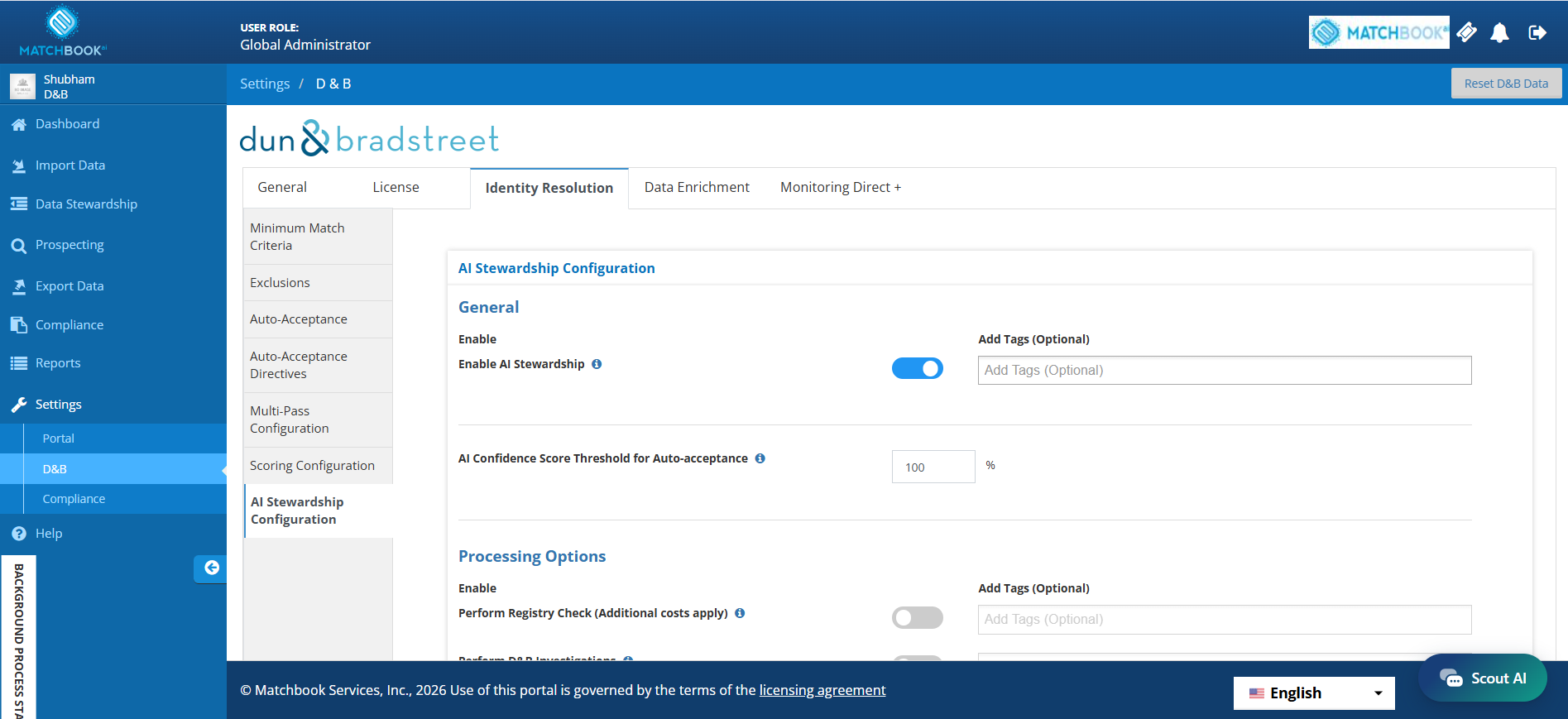
Settings-D&B-Identity Resolution-AI Stewardship Configuration
Enable AI Stewardship
Use the Enable AI Stewardship toggle in the General section. It is OFF by default. While OFF, all Processing Options, tag fields and the threshold field are visible but greyed out. Turn it ON to make them editable. You can optionally assign global tags when enabling.
AI Confidence Score Threshold
AI Confidence Score Threshold for Auto-acceptance is a percentage. Matches at or above it are accepted automatically. The default is 70%.
Processing Options
Each option has its own Enable toggle and an optional Add Tags field.
Option |
Description |
|---|---|
Perform Registry Check |
Checks company registry information. Additional costs apply. |
Perform D&B Investigations |
Allows the AI to raise D&B investigations. Uses the email in Investigations Contact. |
Allow Person-to-Business match |
Allows a record for an individual to be matched to a business. |
Allow Holding Company to Facility match |
Allows a holding company record to be matched to a facility. |
Allow Inactive Company Match |
Allows records to match companies that are inactive. |
Auto Purge Genuine Not Found Records |
Automatically purges records for which no genuine match exists. |
Investigations Contact
Enter the email address that should receive investigation communications in Email Address for Investigations. A valid email format is required.
Tag-specific Threshold Overrides
Use overrides to apply a different threshold to records with specific tags.
Under Tag-specific Threshold Overrides, enter the Threshold (%).
Select the tags.
Click Add. The override appears in the Override List (Threshold, Tags, Delete) and the entry fields are cleared.
To remove an override, click Delete on its row.
Note
Records whose tags do not match an override use the global threshold.
Save Your Changes
Click Update to save. Changes are not saved until you do.
Message |
Meaning |
|---|---|
“Please enter a valid percentage between 0 and 100.” |
The threshold or an override threshold is not a number from 0 to 100. |
“An override for this tag combination already exists.” |
An override with the same tags is already in the list. |
AI Details in Low Confidence and No Match
Both queues have an AI column with an info icon on every row. Open it to see how the AI reached its result.
Go to Data Stewardship > Low Confidence or Data Stewardship > No Match.
Click the info icon in the AI column of a record. The AI Stewardship window opens, with the Src Id and Company/Registration Number as a subtitle.
Review the details, then click X to close it.
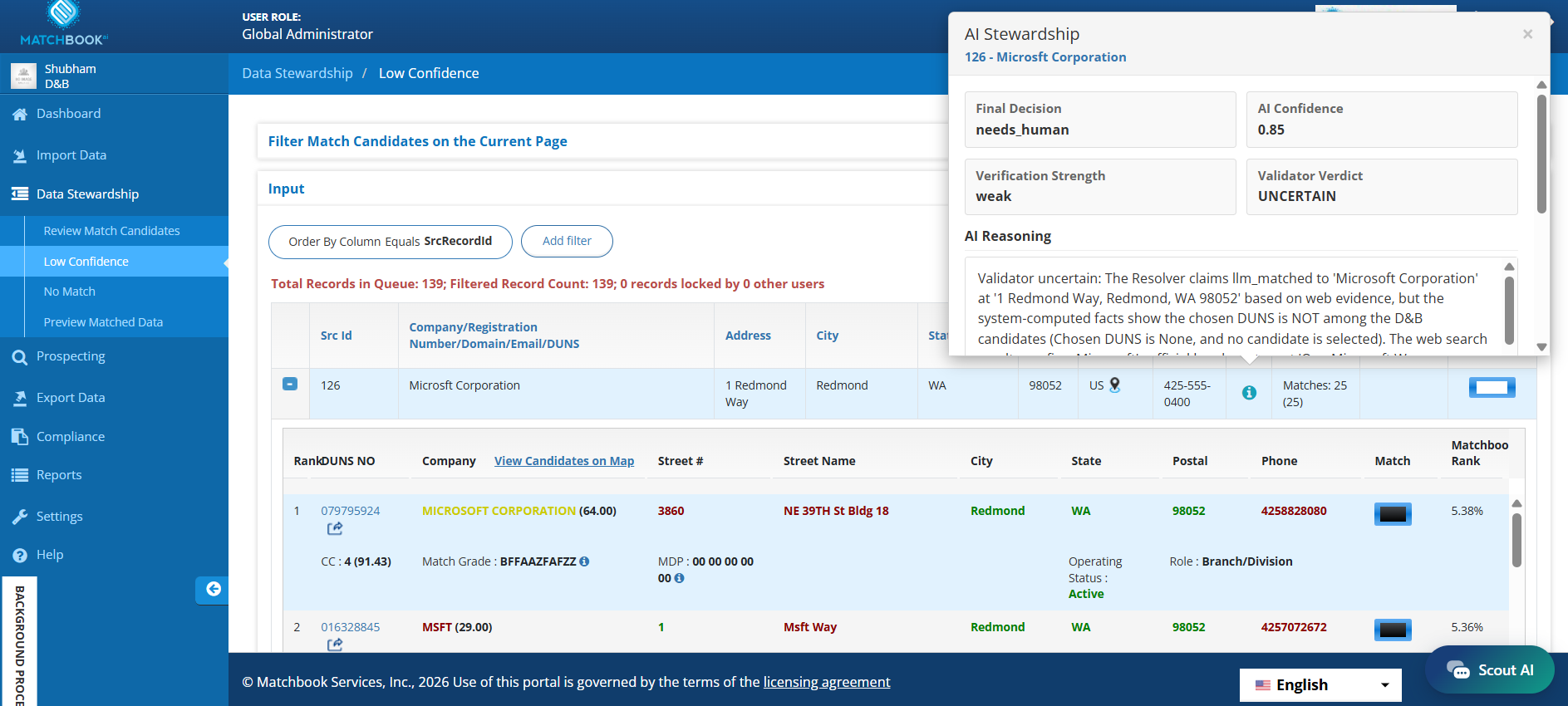
AI Stewardship details window
Field |
Description |
|---|---|
Final Decision |
The AI’s decision, for example llm_matched. |
AI Confidence |
Numeric score, for example 0.85. |
Verification Strength |
How strongly the result was verified, for example strong. |
Validator Verdict |
The validator’s outcome, for example CONFIRMED. |
AI Reasoning |
Scrollable explanation from the AI. |
Validator Reasoning |
Scrollable explanation from the validator. |
Note
The window is read-only. Closing it does not change the record, or in No Match its Reviewed or Select All state.
If no AI evaluation exists for the record, “No AI Stewardship information is available for this record.” is displayed.
Auto-Acceptance in Preview Matched Data
In Data Stewardship > Preview Matched Data, the Accepted By column shows how each match was accepted:
Auto-Acceptance: confirmed by AI Stewardship.
The reviewing user’s name: manually accepted by that user.
To filter, use Accepted By Equals and choose All, Auto-Acceptance or a specific user. Every record keeps its DUNS Number, Source Record ID, company details and the Enrichment Data and Download actions regardless of how it was accepted.